
Knowing how to restart iPhone can help you quickly fix small glitches, frozen screens, slow apps, or temporary connection issues. A restart gives your device a fresh start without deleting your photos, apps, messages, or settings.
In this guide, you will learn the normal restart method, when to use a force restart, and what to do if your iPhone still will not turn back on properly.
1. How to Restart iPhone?
A normal restart is the safest first step when your iPhone still responds to touch and buttons.
Step 1: Hold the Side and Volume Buttons Together
Initiate the power menu by pressing the Side button alongside a volume control. Keep holding both buttons until the power-off screen appears.
Step 2: Drag the Power Off Slider
When you see the slider, drag it from left to right. Your iPhone will begin shutting down.
You should wait about 30 seconds for the device to turn off completely.
Step 3: Wait a Few Seconds
Do not press the buttons again immediately. Give the system a short moment to close background processes and fully power down.
Step 4: Turn the iPhone Back On
Maintain pressure on the Side control and release it once the phone starts loading. Once the lock screen returns, your restart is complete.
2. How to Force Restart iPhone?
Sometimes a normal restart is not possible because the screen is frozen, the touch response stops, or the device will not show the power-off slider.
When Should You Force Restart?
Use a force restart only when your iPhone is stuck, frozen, or not responding. It is not meant to replace regular restarts, but it can help when the phone cannot be turned off normally.
Button Sequence for Most Recent iPhones
For iPhone 8 or later, including iPhone 11, iPhone 13, iPhone 16, and newer models:
- Press and quickly release Volume Up.
- Press and quickly release Volume Down.
- Press and hold the Side button.
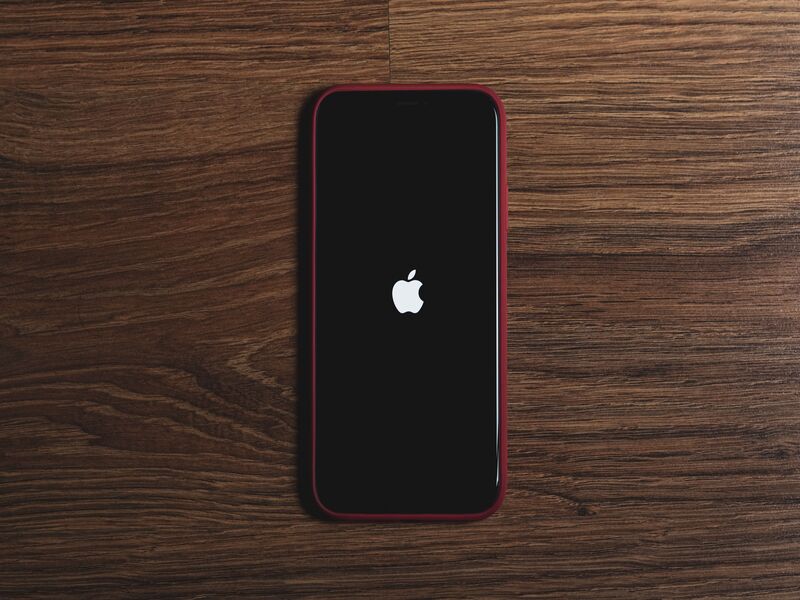
- Once the Apple logo becomes visible, stop pressing the Side button and allow the startup process to continue.
>>> Read More: How to Reset Network Settings on iPhone? The Quick Fix for Wi-Fi and Cellular Problems
3. What to Do if Your iPhone Won’t Restart?
If your iPhone still does not restart, the issue may come from battery drain, iOS problems, or a deeper software error.
Check the Battery Level
Your iPhone may not restart because the battery is fully drained. Plug it into a charger and leave it for at least 15 to 30 minutes before trying again.
Try a Force Restart Again
If the screen stays black but the device may still have power, repeat the force restart sequence carefully.
Press each button in the correct order and hold the Side button long enough for the Apple logo to appear.
Update iOS if the Device Turns Back On
If your iPhone restarts but keeps freezing, go to Settings > General > Software Update. Apple notes that iOS updates can include bug fixes and security improvements.
Restore iOS if Necessary
If nothing works, you may need to update or restore the device using a computer. This should be the last option, especially because a factory restore can erase your iPhone if you do not have a backup.
4. Restart vs Force Restart: What’s the Difference?
Many users confuse restart and force restart, but they are not exactly the same.
A normal restart is a controlled shutdown, while a force restart interrupts the frozen state and forces the system to reboot.
When to Use a Normal Restart?
Use a normal restart when the screen works and your iPhone responds normally.
For everyday performance hiccups, a standard restart is usually the most practical solution.
When to Use a Force Restart?
Use a force restart when the screen is stuck, touch does not work, or the phone will not respond to the power-off steps.
It is helpful, but it should not be used constantly if your iPhone works normally.
Risks and Benefits
Restarting does not delete your data. A force restart also does not erase your personal files, but it may interrupt an app or unfinished task.
The benefit is that it can bring an unresponsive iPhone back without needing a full restore.
5. FAQs
How to restart iPhone 11, 13, 16?
The steps are nearly the same for these models. For iPhone 11, press and hold the Side button and Volume button, then drag the slider. The same method works for how to restart iPhone 13 and how to restart iPhone 16.
Will restarting my iPhone delete any data?
No. Restarting your iPhone will not delete photos, apps, contacts, messages, or settings. It gives iOS a clean reset without affecting your personal content or settings.
How often should I restart my iPhone?
You do not need to restart your iPhone every day. Restart it when it feels slow, apps stop working properly, the screen becomes unresponsive, or wireless connections act strangely.
Why does my iPhone keep freezing after I restart it?
If your iPhone keeps freezing after a restart, check for iOS updates, remove recently installed problem apps, free up storage, and restart again.
6. Conclusion
Learning how to restart iPhone is a simple but useful skill for fixing everyday problems like frozen screens, app delays, and temporary system glitches.
Start with a normal restart first, then use a force restart only when your iPhone stops responding. If the issue keeps coming back, update iOS or get expert support before restoring the device.