
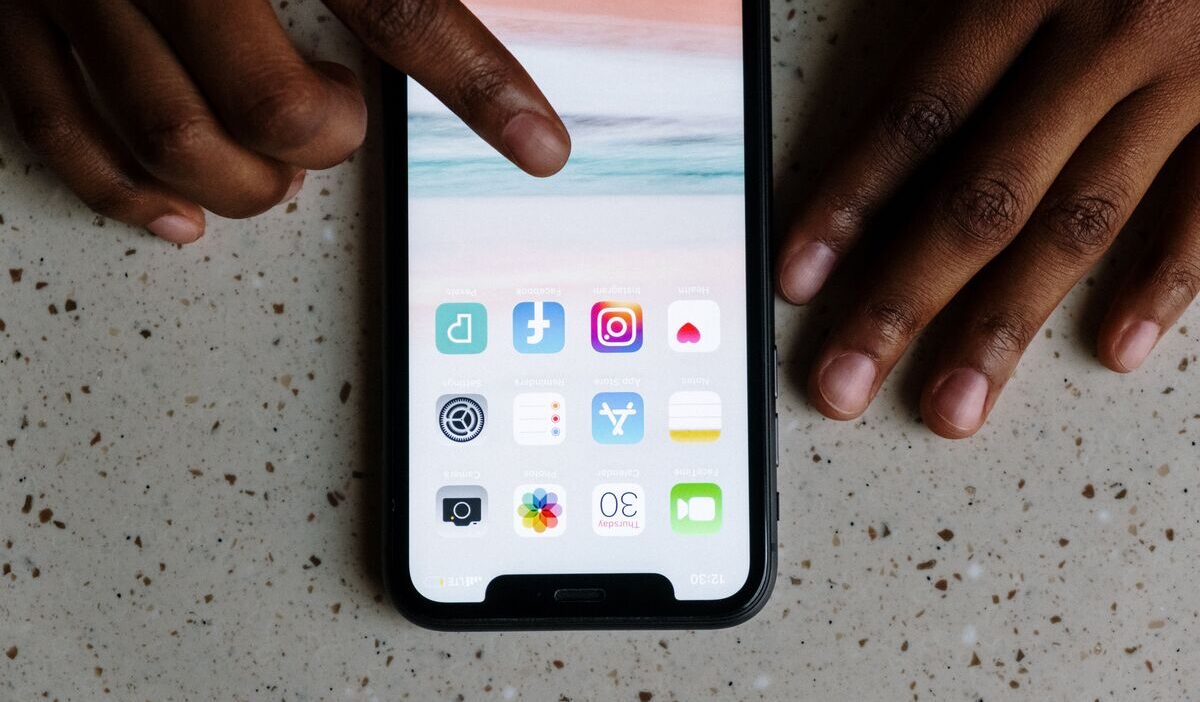
If an app suddenly disappears, it does not always mean it has been deleted. Sometimes, it is only removed from the Home Screen, hidden inside the App Library, limited by Screen Time, or hidden from your App Store purchase list. This guide explains how to unhide apps on iPhone using simple steps, so you can bring missing apps back without confusion, panic, or unnecessary downloads.
1. Why Apps Disappeared on iPhone?
Before fixing the issue, it helps to know why an app is missing in the first place. On iPhone, apps can disappear for several different reasons, and each reason needs a slightly different solution.
Removed From the Home Screen
An app can be removed from the Home Screen while still remaining installed on your iPhone. In this case, the app is not gone. It is simply no longer visible on your main app pages.
Hidden in the App Library
The App Library stores installed apps by category. If you cannot see an app on the Home Screen, it may still be waiting in the App Library.
Restricted by Screen Time
Screen Time can limit certain apps, built-in features, downloads, or age-rated content.
Apple notes that restricted built-in apps may be temporarily hidden rather than deleted.
Hidden App Store Purchases
Some previously downloaded apps may be hidden from your purchase list. Apple explains that hidden purchases do not appear in your App Store purchase list until you unhide them.
2. How to Unhide Apps on iPhone?
If the app is still installed, the fastest way to bring it back is through Search or the App Library.
Step 1: Search for the App Using Spotlight Search
To find the app, open the iPhone search bar from the Home Screen and type only a few letters of its name. If the app appears in the results, it is still installed on your iPhone.
Step 2: Locate the App in the App Library
Swipe left until you reach the App Library. You can browse the folders or use the search bar at the top to find the missing app.
Step 3: Press and Hold the App Icon
After locating the application, keep your finger on its icon for a moment until additional options appear. A quick action menu should appear.
Step 4: Tap Add to Home Screen
Choose Add to Home Screen if the option is available. The app will return to your Home Screen, and you can move it wherever you want.
>>> Read More: How to Schedule a Text on iPhone? Smart Ways to Send Messages Easily
3. How to Unhide Apps Restricted by Screen Time Settings?
If Search and App Library do not solve the issue, the app may be blocked by Screen Time.
Go to Screen Time inside Settings, then open the section where content limits and privacy controls are managed.
Review the restriction categories related to app permissions, digital content access, online features, and age-based limits to ensure nothing is preventing the app from appearing.
If a needed app or feature is turned off, allow it again. After changing the setting, return to the Home Screen and search for the app one more time.

4. How to Restore Hidden Purchased Apps?
If you previously hid an app from your purchase list, you may need to unhide it before downloading it again.
Step 1: Open the App Store
Launch the App Store and tap your profile picture in the top-right corner.
Step 2: Open Your Account Settings
Tap your name or Apple ID area. You may be asked to sign in.
Step 3: View Hidden Purchases
Scroll until you find Hidden Purchases. From there, look for the app you want to restore.
Step 4: Re-download the App
Tap the download icon to install the app again. Make sure you are using the same Apple ID that was used to get the app originally.
5. What to Do if You Still Can’t Find an App?
Sometimes, the app is not hidden at all. It may have been deleted, removed from the App Store, or affected by a temporary iOS issue.
Check if the App Was Deleted
Open the App Store and search for the app name. A cloud or download symbol usually indicates that the application has been removed from the device and must be installed again before it can be used.
Verify App Store Availability
If the app does not appear in the App Store, it may no longer be available in your region or may have been removed by the developer.
Restart Your iPhone
A simple restart can refresh the Home Screen, App Library, and search results.
Update iOS if Necessary
Go to Settings > General > Software Update. If an update is available, install it, then check for the missing app again.
6. FAQs
How to Unhide Apps on iPhone 15 and iPhone 16?
The steps are almost the same. For how to unhide apps on iPhone 16 and 15, start with Spotlight Search, check the App Library, then review Screen Time and hidden App Store purchases if the app still does not appear.
Can I Hide an App Again After Restoring It?
Yes. You can remove an app from the Home Screen again without deleting it. Press and hold the app icon, choose Remove App, then select Remove from Home Screen if available.
Will Unhiding an App Restore Its Data?
When an app is simply out of sight rather than deleted, its existing information usually remains on the device. If the app was deleted, data may return only if it was saved in iCloud, inside the app account, or backed up before removal.
Why Does an App Appear in Search but Not on My Home Screen?
This usually means the app is installed but not placed on the Home Screen. Open it from Search, or find it in the App Library, press and hold the icon, then add it back to the Home Screen.
7. Conclusion
Missing apps can feel stressful, but most of the time, they are still on your iPhone. So, how to unhide apps on iPhone? Start with Search and the App Library, then check Screen Time, hidden purchases, and App Store availability.
With these steps, it becomes simple, quick, and easy to follow.