

Forgetting to send an important message is easy when your day gets busy. That is why many users search for “how to schedule a text on iPhone” before birthdays, work reminders, appointments, or follow-up messages. This guide explains the best ways to schedule messages, edit them, cancel them, and avoid common sending issues.
1. Can You Schedule a Text on iPhone?
Yes, iPhone users can schedule messages, but the method depends on your iOS version and the type of message you want to send.
Apple added a built-in Send Later option in Messages for supported iPhones running recent iOS versions. According to Apple’s iPhone User Guide, scheduled messages can be set up in the Messages app and sent at a chosen time within the supported scheduling window.
However, not every situation works the same way. Send Later is mainly designed for iMessage conversations. If you need automation, repeated reminders, or a message-style workflow, the Shortcuts app can also help.
2. How to Schedule a Text Message on iPhone?
How to schedule send a text on iPhone? Before you start, make sure your iPhone is updated and Messages is working properly. If you do not see the option below, check whether your device supports the latest iOS features.
How to Schedule a Text on iPhone Using “Send Later”?
This is the easiest method for users without installing another app.
Step 1: Open the Messages app
Go to Messages and open an existing conversation. You can also start a new chat if you have not messaged that person before.
Step 2: Create a new message
Type your message as usual. Keep it clear and complete because this is the text that will be delivered later.
Step 3: Use the scheduling feature
Tap the plus button near the message field, then choose Send Later. On some iPhones, you may need to tap More before seeing this option.
Step 4: Choose a date and time
Select the delivery time carefully. Apple notes that scheduled messages can be planned up to 14 days ahead, so this works well for near-term reminders.
Step 5: Confirm the scheduled message
Tap send to place the message in the scheduled state. It will stay in the conversation until the delivery time arrives.
How to Schedule Recurring Texts via Shortcuts App?
For recurring messages, the Shortcuts app is usually more flexible. Apple’s Shortcuts User Guide explains that personal automations can run based on triggers such as time of day, location, or other actions.
To create one, open Shortcuts, tap Automation, choose a time-based trigger, then add a messaging action.
>>> Read More: How Can I Get a Free iPhone? Full Eligibility Guide 2026
3. How to Schedule a Text on iPhone to Android
In general, Apple’s Send Later feature works best with iMessage conversations. When messaging someone on Android, the text could be delivered through SMS, MMS, or RCS, depending on your mobile provider, messaging configuration, and the version of iOS installed on your device.
Before relying on it, check the message bubble color and test with a simple message first. If the message is very important, consider using a reminder as a backup.
4. How to Edit or Cancel a Scheduled Message?
Scheduled messages are not locked forever. You can still adjust them before they are delivered.
Change the Delivery Time
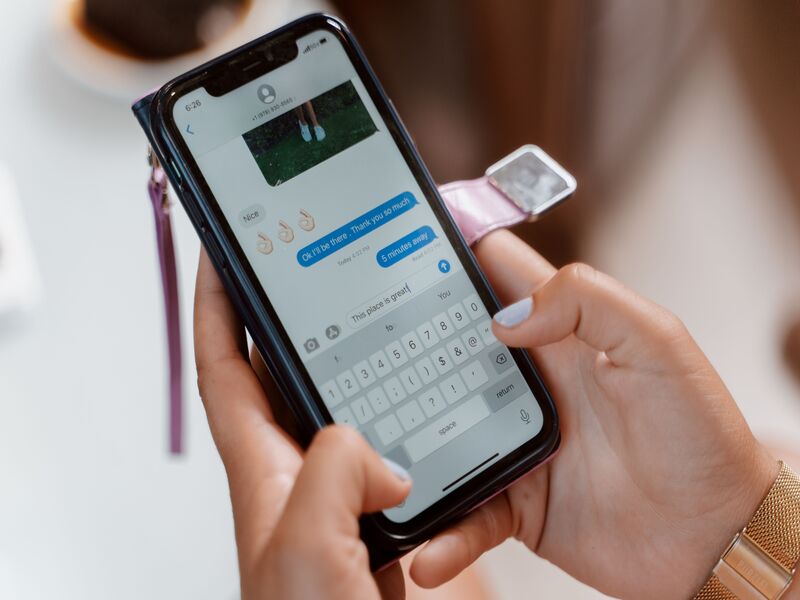
Open the conversation with the scheduled message. Tap Edit beside the scheduled time, then choose a new date or time. This is helpful if a meeting changes or you realize the timing is not right.
Edit the Message Before It Sends
Touch and hold the scheduled message bubble, then choose Edit. Update the wording, check the recipient, and save the change before the delivery time.
Delete a Scheduled Text
If you no longer want the message to go out, touch and hold the scheduled message, then delete it. Once deleted before the scheduled time, it will not be delivered.
5. Common Reasons Scheduled Messages Don’t Send
A message may still fail because of device or network issues.
No Internet Connection
iMessage needs a working internet connection. If your iPhone is offline for too long, delivery may be delayed or fail.
Device Powered Off
If your device is off, low on battery, or not connected properly, scheduled actions may not behave as expected. Keep your phone charged when the message matters.
Software Issues
Outdated iOS versions can cause missing features or glitches. To see whether a newer iOS release is available, open the Settings app, select General, and then tap Software Update.
Messaging Settings Problems
If iMessage, SMS, or carrier messaging settings are not working, scheduled texts may not send correctly.
6. FAQs
How to Schedule a Text on iPhone 15?
Update to a recent iOS version first. Then open Messages, type your message, tap the plus button, choose Send Later, select a date and time, and confirm the scheduled message.
Can I schedule recurring text messages on iPhone?
Yes, but recurring texts are better handled through the Shortcuts app. You can create a personal automation based on time or another trigger, then add a message action. Before relying on the automation for important messages, run a quick trial to confirm that it performs exactly as intended.
Do scheduled texts work with group chats?
Scheduled messages may work in supported iMessage conversations, including some group chats. However, mixed groups with Android users may behave differently. For important group messages, send a test first or use a reminder as backup.
Will the recipient know a message was scheduled?
No, the recipient usually only sees the message when it arrives. They will not automatically see that it was written earlier or scheduled in advance.
Conclusion
Learning “how to schedule a text on iPhone” can save time and help you avoid missed messages. For one-time iMessage scheduling, Send Later is the simplest option.
For repeated messages, Shortcuts gives you more flexibility. Just remember to check your iOS version, connection, and recipient type before relying on scheduled delivery.