
Knowing how to delete apps on iPhone can help you clear storage, tidy your Home Screen, and remove apps you no longer use. Whether an app is visible, hidden in the App Library, or taking up space in iPhone Storage, Apple gives you several easy ways to remove it.
This guide walks you through each method, plus what to do when an app refuses to delete.
1. How to Delete Apps on iPhone Permanently?
Before removing anything, remember that deleting an app removes the app itself and may also remove its local data from your device. If the app stores data in iCloud or requires an account login, some information may still be recoverable after reinstalling.
Method 1: The Long-Press Jiggle Mode
The classic way to delete an app is from the Home Screen. Press and hold the app icon until the icons begin to move.
Select the small removal button beside the app icon, choose the option to erase the app from your device, and approve the action when prompted.
Method 2: Using the Quick Action Menu
You can also press and hold an app icon without waiting for jiggle mode. When the quick menu appears, tap Remove App, then select Delete App.
Removing from the Home Screen only hides the app, while deleting it removes it from the device.
Method 3: Deleting Directly via iPhone Storage Settings
If your main goal is to free up space, go to Settings > General > iPhone Storage.
Allow the storage overview to finish displaying installed applications, then open the entry corresponding to the software you no longer need. Choose Delete App and confirm.
>>> Read more: How to See Blocked Numbers on iPhone: Easy Steps to Find Hidden Contacts Fast
2. How to Delete Hidden Apps on iPhone?
Sometimes an app is still installed even though you cannot see it on the Home Screen. This usually happens when the app has been moved to the App Library or removed from the Home Screen by mistake.
Find Apps in the App Library
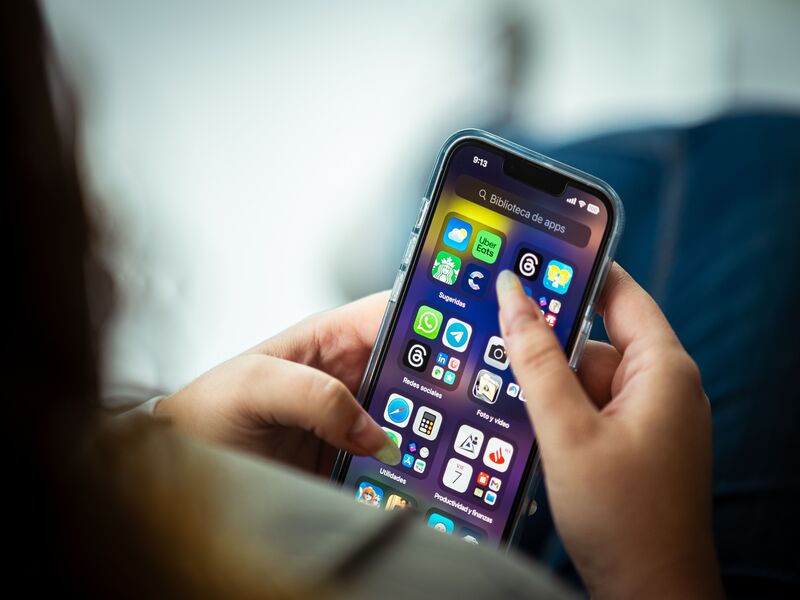
Swipe left past your last Home Screen page until you reach the App Library. Tap the search bar at the top, type the app name, then press and hold the app icon. If the option appears, tap Delete App and confirm.
This is the best route for users wondering how to delete hidden apps on iPhone without resetting the Home Screen layout.
Delete Apps That No Longer Appear on the Home Screen
If an app is not on the Home Screen, it may still appear in iPhone Storage. Go to Settings > General > iPhone Storage, search through the list, tap the app, then choose Delete App.
This also solves the common issue of how to delete apps on iPhone that are hidden, especially when the app is buried in folders or only visible through Search.
3. Can You Delete Multiple Apps at Once?
iOS does not currently offer a single button to select and delete several apps at the same time.
The Fastest Way to Remove Several Apps
The quickest workaround is to use jiggle mode. Press and hold one app, tap Edit Home Screen, then delete apps one by one by tapping the minus icon.
You still need to confirm each deletion, but this is faster than opening settings for every app.
Clean Up Storage More Efficiently
For storage cleanup, iPhone Storage is usually better than the Home Screen because it shows app size and related data.
Start with large apps you rarely use, then move to games, video editors, shopping apps, or old tools you no longer need.
You can also turn on Offload Unused Apps if you want iPhone to remove unused apps while keeping their documents and data.
4. What to Do if an App Won’t Delete?
If you cannot delete an app, the issue is usually caused by restrictions, app type, management settings, or a temporary system glitch.
Check Screen Time Restrictions
Open your iPhone settings and navigate through the Screen Time controls until you reach the section that manages App Store and purchase permissions.
Make sure Deleting Apps is set to Allow. If it is blocked, the Delete App option may not appear.
Check Built-In Apple Apps
Some Apple apps can be deleted, while others are required by the system.
When no removal command is available, the application is often one of the iOS components that Apple limits users from uninstalling completely.
Look for Device Management Profiles
If your iPhone is managed by a school, company, or organization, some apps may be controlled by a device management profile.
Go to Settings > General > VPN & Device Management to check whether your device has restrictions.
Try Simple Fixes
Restart your iPhone, update iOS, then try deleting the app again. If the app is stuck downloading, pause the download first or reconnect to Wi-Fi before removing it.
5. FAQs
Will deleting an app cancel my subscription?
No. Deleting an app does not automatically cancel a paid subscription. To stop future charges, go to Settings > your name > Subscriptions, choose the subscription, then tap Cancel Subscription.
Can I reinstall a deleted app later?
Yes. Open the App Store, search for the app, then download it again. If the app is still available and linked to your Apple Account purchase history, you can reinstall it without buying it again.
Does deleting an app free up storage immediately?
In most cases, yes. Deleting an app removes the app and its local data from your iPhone. However, some synced files, cloud data, or account-based content may still exist outside your device.
6. Conclusion
Once you know how to delete apps on iPhone, cleaning your device becomes much easier. Start with visible apps, check the App Library for hidden ones, then use iPhone Storage to remove space-heavy apps.
For more iPhone tips, you can also read our guide on how to reset network settings on iPhone.