How to change iPhone name depends on which type of name you want to update.
This guide shows the steps to change your iPhone Device Name, Apple ID display name, and contact name without affecting unrelated settings.
1. How to Change iPhone Name
Your iPhone uses different names for different purposes. Follow the steps below and update the specific name you want to change.
Change iPhone device name (Bluetooth, AirDrop, and Personal Hotspot)
How to change Bluetooth name on iPhone? Your iPhone Device Name can be updated directly from the Settings app. These steps show how to change the name of your iPhone:
- Open Settings on your iPhone.
- Tap General.
- Select About.
- Tap Name.
- Enter your preferred device name.
- Tap Done to save the change.
Change Apple ID display name
Your Apple ID display name is separate from your iPhone Device Name. If you want to know how to change name of iPhone connected to your Apple Account, use these steps:
- Open Settings.
- Tap your name at the top of the screen.
- Select Personal Information.
- Tap Name.
- Edit your first name or last name.
- Tap Done.
Change your contact name (My Card)
Your personal contact information has its own name setting on iPhone. You can update your contact name through the Contacts app:
- Open the Contacts app.
- Tap My Card at the top.
- Select Edit.
- Update your name details.
- Tap Done.
>>> Read more: How to Update Apps on iPhone Manually and Automatically
2. What Happens When You Change Your iPhone Name?
Knowing how to change iPhone name also means understanding which information updates after you edit each name setting on your device.
What changes after you rename your iPhone?
The result changes depending on whether you change your Device Name, Apple ID display name, or contact name.
iPhone Device Name
Your updated Device Name appears in features that identify your iPhone, such as Bluetooth, AirDrop, Personal Hotspot, and computer connections.
| Feature | What changes |
|---|---|
| Bluetooth | Other devices see the updated iPhone name when they identify your device through Bluetooth. |
| AirDrop | Nearby users see the new device name when your iPhone appears in AirDrop. |
| Personal Hotspot | The Hotspot name updates because it uses your iPhone’s device name. |
| Finder and computer connections | Connected computers display the updated device name. |
Apple ID display name
The new name appears in your Apple Account information and replaces the previous display name associated with your account.
Contact name (My Card)
The updated name appears in your personal contact card and related contact information.
What won’t change after you rename your iPhone?
Changing your iPhone Device Name, Apple ID display name, or contact name only updates the name shown in its specific location.
The following information stays the same after you change a name on your iPhone:
- Apple Account email address: Your login email remains unchanged.
- Phone number: Your mobile number is not affected by any name update.
- Photos and videos: Your saved media stays on your device as before.
- Apps and saved data: Installed apps and stored information remain unchanged.
- iCloud account information: Your iCloud settings and account details stay the same.
To update these details, you need to change them from their specific settings instead of the iPhone name options.
3. Troubleshooting while changing iPhone name
Problems after changing a name on your iPhone can usually be solved by checking the specific setting you updated.
The new iPhone Device Name does not appear
If your new device name does not show up in AirDrop, Bluetooth, Finder, iTunes, or other connected devices, give your iPhone a few minutes to sync the change.
If it still displays the old name, restart your iPhone and reconnect the device or service. You can also toggle Bluetooth or Wi Fi off and back on to refresh the connection.
The Apple ID display name does not update
Make sure you changed your name in your Apple Account settings rather than in the iPhone Device Name section.
Your Apple ID name and your device name are separate settings, so updating one does not affect the other. It may also take a short time for the new Apple ID name to sync across Apple’s services.
The contact name (My Card) still shows the previous information
Open the Contacts app, tap My Card, select Edit, update your personal information, and tap Done to save the changes.
If the old information still appears, close and reopen the Contacts app or restart your iPhone to refresh the contact.
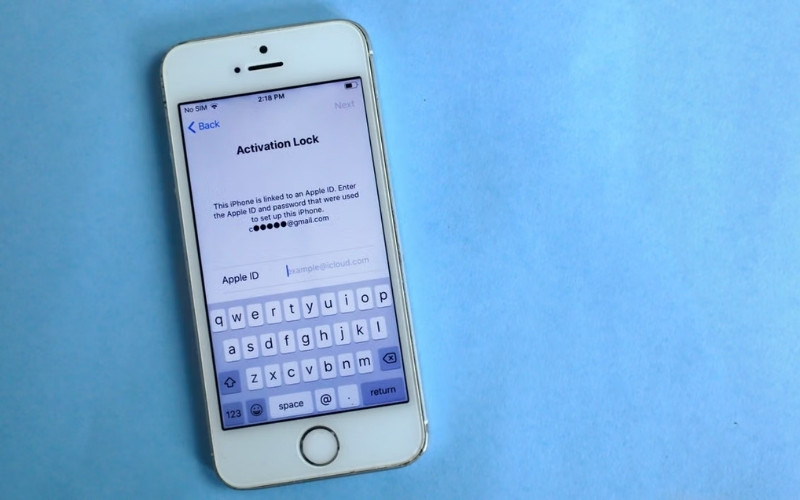
You cannot edit a name setting on your iPhone
If the name fields are unavailable or cannot be changed, check whether Screen Time restrictions or a device management (MDM) profile is limiting access.
This is common on work or school managed iPhones, where administrators can restrict certain settings. If you’re using a managed device, contact your organization’s IT administrator for assistance.
>>> Read more: How to Delete Wallpaper on iPhone (iOS 16 and Later) Step-by-Step
4. FAQs About How to Change iPhone Name
These answers clarify common points including the difference between device, account, and contact name updates.
Does changing your iPhone name affect your Apple ID?
No. Changing a name on your iPhone does not affect your Apple Account email, subscriptions, or iCloud data.
Do Bluetooth and AirDrop automatically use the new iPhone name?
Yes. Bluetooth and AirDrop use the iPhone Device Name to identify your device. After you rename your iPhone, connected devices may need to reconnect before displaying the updated name.
Do you need to restart your iPhone after changing its name?
No. A restart is not required after changing your iPhone name. The update is saved after you confirm the change in the related setting.
Can you rename your iPhone as many times as you want?
Yes. You can update your iPhone Device Name, Apple ID display name, or contact name whenever needed by opening the related settings and changing the information again.
5. Conclusion
How to change iPhone name depends on the information you want to update. Device Name controls how your iPhone appears to nearby devices, while Apple ID display name and contact name only update your account or personal information.
Understanding these differences helps you change the right setting without affecting your photos, apps, saved data, or iCloud information.
For more practical iPhone guides, OptNYC helps you manage everyday device settings with clear instructions.