Changing your ringtone is one of the easiest ways to personalize your device. If you are looking for how to change ringtone on iPhone, the process only takes a few taps in Settings.
This guide starts with the default ringtone and then covers additional options in the sections below, so you can choose the method that fits your needs.
1. How to Change the Default Ringtone on iPhone
Your iPhone includes a selection of built-in ringtones that you can switch in just a few taps.
If you simply want to know how to change your ringtone on iPhone for all incoming calls, you can do it directly from the Sounds & Haptics settings.
Follow these steps:
- Open Settings.
- Tap Sounds & Haptics.
- Select Ringtone.
- Tap any ringtone to preview it.
- Tap the ringtone you want to use. A checkmark confirms your selection.
The change takes effect immediately, so your new ringtone plays the next time someone calls.
If you prefer older Apple sounds, scroll to the bottom of the ringtone list and tap Classic to choose from previous iPhone ringtones.
You can also tap Tone Store at the top of the page to browse and purchase additional ringtones. Any tones you buy become available in your ringtone list after the purchase is complete.
| Option | What it does |
|---|---|
| Built-in ringtones | Change your default ringtone instantly |
| Classic | Access older Apple ringtones |
| Tone Store | Buy additional ringtones from Apple |
>>> Read more: How to Silence Notifications on iPhone Without Missing Important Alerts
2. How to Change Ringtone on iPhone for Free
Your iPhone includes several free ways to personalize sounds without purchasing additional tones.
Besides changing the default ringtone, you can set a unique ringtone for a contact or customize the sound used for your alarms.
How to Set a Custom Ringtone for a Specific Contact
Assigning a unique ringtone makes it easy to recognize calls from important people.
This setting explains how to change my ringtone on iPhone for specific contacts without changing the default ringtone.
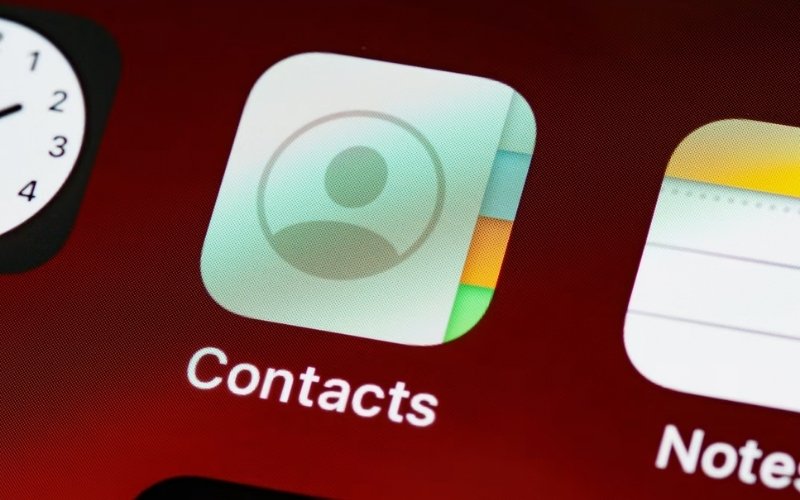
- Open the Contacts app.
- Select the contact you want to edit.
- Tap Edit.
- Tap Ringtone.
- Choose a ringtone from the list.
- Tap Done to save your changes.
How to Change the Alarm Sound on Your iPhone
The Clock app lets you choose a different sound for each alarm, so you can personalize wake-up alarms or reminders without changing your phone’s ringtone.
Follow these steps:
- Open the Clock app.
- Tap the Alarms tab.
- Select an existing alarm, or tap the + button to create a new one.
- Tap Sound.
- Choose one of the built-in alarm sounds, or tap Pick a Song to select an eligible song from your music library.
- Tap Back, then tap Save.
Each alarm can have its own sound. Changing an alarm sound does not affect your incoming call ringtone or the sounds used by other alarms.
3. Troubleshoot Common iPhone Ringtone Issues
Check the situations below before changing your settings again.
| Issue | How to solve it |
| The new ringtone doesn’t save | Reopen Settings > Sounds & Haptics > Ringtone and make sure the selected ringtone has a checkmark. |
| A ringtone doesn’t play for one contact | Open the contact, tap Edit > Ringtone, choose the ringtone again, then tap Done. |
| The purchased ringtone isn’t available | Check that you’re signed in with the same Apple Account used to purchase the ringtone, then open the ringtone list again. |
| Alarm still uses the old sound | Open the alarm in the Clock app, select Sound, choose a new tone, and tap Save. |
>>> Read more: How to Screen Record on iPhone: Brilliant Ways to Capture Every Important Moment
4. FAQs About How to Change Ringtone on iPhone
These quick answers cover a few related questions that may come up while customizing settings for different needs.
How do I change my ringtone on my iPhone to turn it into a song?
You can’t use a streaming song from Apple Music as a ringtone because it isn’t supported for ringtone export.
If you want a song as your ringtone, create a custom ringtone in GarageBand from a compatible audio file, then select it in Settings > Sounds & Haptics > Ringtone.
How to change alarm ringtone on iPhone?
Open the Clock app, tap Alarms, then select an alarm and tap Sound. Choose a built-in alarm tone or an eligible song from your music library, then tap Save. Changing an alarm sound does not affect your call ringtone.
Does changing a ringtone affect all contacts?
No. A new default ringtone applies only to contacts that use the default setting. Any contact with a custom ringtone keeps that personalized sound until you change or remove it.
5. Conclusion
After you learn how to change ringtone on iPhone, you can customize different sounds for different situations instead of using one ringtone for everything.
This makes it easier to recognize calls and alarms without changing the settings each time.
Explore more easy-to-follow iPhone tutorials with OptNYC.