When you change your email password, your iPhone may need updated account credentials to keep Mail working as expected. This guide covers how to update email password on iPhone so you can access your email with your new password.
1. How to Update Account Passwords With Email Providers First?
To learn how to update email password on iPhone, start with the provider that manages your address, since the email app and account provider may differ.
The correct provider may not match the email service you recognize at first glance.
For example, some AT&T and Comcast addresses use Yahoo, while Outlook.com, Hotmail, and Live addresses use Outlook.com on iPhone.
- Gmail or Google Workspace: Open the Gmail app, tap your profile picture, select Manage your Google Account, then go to Personal info > Password. Follow the prompts to save your new password.
- Outlook.com, Hotmail, or Live: Go to your Microsoft account and sign in with your current password > Select Security, then choose Change password > Enter your new password and select Save.
- For Yahoo Mail: How to update password for email on iPhone starts in Yahoo Account Security > Under Ways of signing in, select Password > Enter your new password and select Continue.
- For iCloud Mail: How to update your email password on iPhone requires changing your Apple Account password in Settings > [your name] > Sign-In & Security > Change Password. This changes your Apple Account password, which also protects iCloud Mail.
Work, school, or custom-domain email: Use your organization’s or email host’s password-management page. Contact the administrator if you cannot change the password yourself.
>>> Read more: How to Factory Reset iPhone: Complete Data Erasure & Recovery Guide
2. How to Update Email Password on iPhone
After changing your email password with the provider, check whether your iPhone prompts you to sign in again to restore email access and keep your inbox in sync.
- Open the Mail app and check for a password or sign-in alert.
- If prompted, enter your new password or follow the provider’s authentication steps.
- Return to your inbox and check whether new messages load.
- If Mail still cannot connect, go to Settings > Apps > Mail > Mail Accounts and select the affected account to review its available settings. Not every account has an editable password field.
When Gmail or another dedicated app requests verification, how to update my email password on iPhone means completing the provider’s sign-in prompt in that app. Unless these steps restore access, re-add the account.
3. How to Re-Add Your Email Account if the New Password Is Not Accepted?
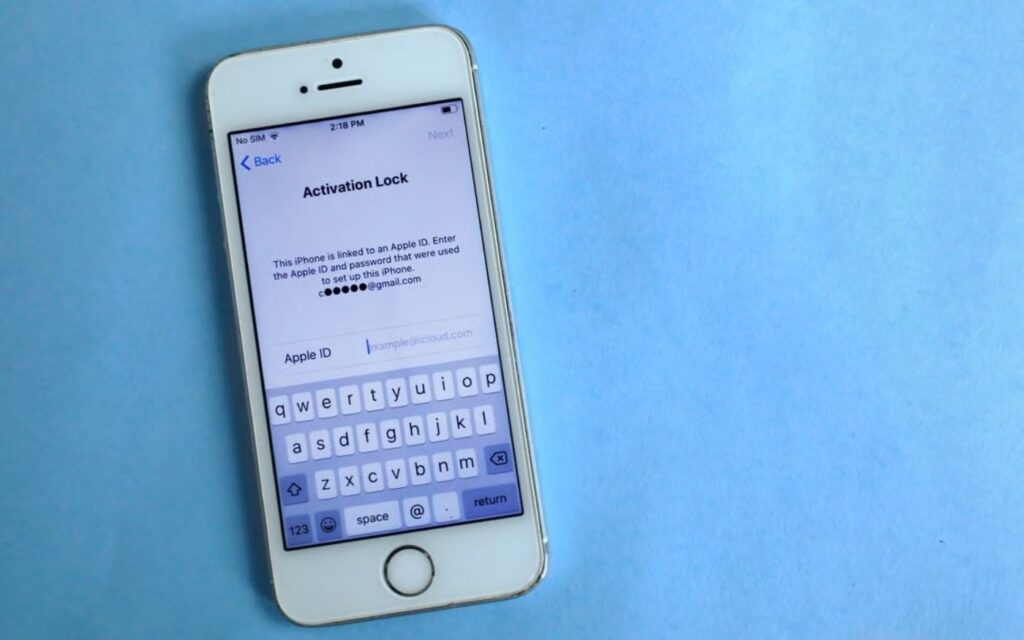
If your email account still cannot connect after you complete the sign-in steps, remove it from Apple Mail and set it up again.
Before you begin, sign in to your provider’s website and make sure your messages are available there or saved elsewhere, as some downloaded messages may no longer be available on your iPhone after you remove the account.
- Open Settings on your iPhone.
- Tap Apps > Mail > Mail Accounts.
- Select the affected email account and tap Delete Account. Confirm when prompted.
- Return to Mail Accounts and tap Add Account.
- Choose your email provider, enter your email address and password, then follow the on-screen instructions to complete setup.
- Open Mail and check whether you can send and receive messages.
When your provider is not listed, to solve how to update password on iphone email, you can select Add Other Account > Mail Account and enter the required details, including the incoming and outgoing mail server settings supplied by your provider.
>>> Read more: How to Know If Your iPhone Is Hacked: Top Signs and Security Checks
4. FAQs
These FAQs cover common questions about how to update email password on iPhone, including access on other devices, saved emails, and synced contacts.
Do I need to update my email password on other devices too?
Yes, sign in with your new password on other devices if prompted. Some email apps may update automatically, while others require you to authenticate again.
What happens to saved email on my iPhone when I change my password?
Changing your password does not normally delete emails already downloaded to your iPhone. However, you may temporarily lose access to your inbox until the account reconnects.
Will changing my email password affect my contacts on iPhone?
No, changing your email password does not delete your contacts. However, contacts synced through that account may stop updating until you sign in again.
Does changing my email password affect emails I already received?
No, changing your password does not delete previously received emails stored in your email account. You can access them again after signing in with your new credentials.
5. Conclusion
So, how to update email password on iPhone? It starts with changing your password through your email provider and signing in again on your device. If Mail still cannot connect, re-add your account with the correct settings.
Explore more iPhone tips and support at OptNYC.