To stop unwanted texts, your iPhone lets you block specific numbers, filter messages from unknown senders, or manage blocked contacts in Settings. This guide explains how to block text messages on iPhone with practical steps for different situations.
1. How to Block Text Messages on iPhone?
You can block a sender directly in Messages, add a number through Settings, or filter messages from unknown senders. Choose the method that best fits your needs, as explained below.
Method 1: Block Sender Details Directly From the Messages App
Use this method when you have an existing conversation with the number you want to block.
- Open the Messages app on your iPhone.
- Open the conversation with the sender you want to block.
- Tap the sender’s name, phone number, or profile icon at the top.
- Tap Info if it appears, then scroll down to Block Contact.
- Tap Block Contact to confirm.
After you block the sender, their messages will not be delivered to you. They will not receive a notification that you blocked them.
Method 2: Add Unwanted Phone Numbers via Settings App
If you know the number you want to block but do not want to open an existing conversation, start by adding the number through Settings on iOS 26.
- Open Settings.
- Tap Privacy & Security.
- Select Blocked Contacts.
- Tap Add Blocked Contact.
- Enter or select the contact you want to block.
- Tap Block Contact to confirm.
When you block a phone number or contact, they can still leave a voicemail, but you will not receive a notification.
Method 3: Filter Unknown Senders Into a Separate Message List
Texts from unfamiliar numbers can be separated from your main conversation list with the unknown-sender filter, providing an alternative to how to block text messages from unknown numbers on iPhone.
- Open Messages.
- Tap the Filters button in the conversation list.
- Tap Manage Filtering.
- Turn on Screen Unknown Senders.
- Return to Messages and open Unknown Senders whenever you want to review those texts.
You can also enable Text Message Filter to sort eligible SMS, MMS, and RCS messages into Transactions and Promotions folders.
To do this, return to Manage Filtering, tap Text Message Filter, and enable the feature and any filtering extensions you use.
Keep in mind that filtering does not block a sender, so it is not a substitute for how to block spam text messages on iPhone when a specific sender needs to be blocked.
It also does not apply to senders you have replied to three or more times, which can be relevant when considering how to block unwanted text messages on iPhone.
>>> Read more: How to See Blocked Numbers on iPhone: Easy Steps to Find Hidden Contacts Fast
2. How to block text messages on iPhone without opening it?
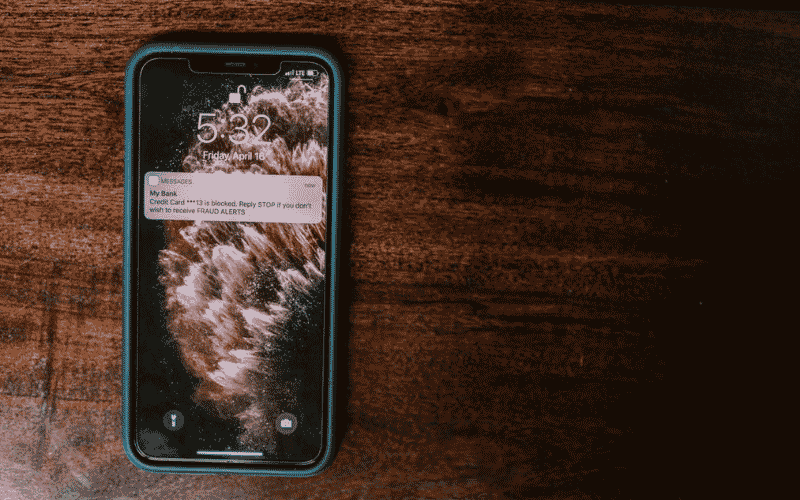
iPhone does not provide a direct block option on the message notification itself.
Instead, you can enable Screen Unknown Senders in Messages to separate texts from unfamiliar numbers from your main conversation list.
If you need to stop messages from a specific number, you must block that sender through the available contact or sender details.
3. What Happens After You Block Text Messages on iPhone?
When you block a number or contact on your iPhone, here is what changes:
- Messages are not delivered: Texts from the blocked number will not reach you.
- The sender is not notified: They will not receive an alert that you blocked their calls or messages.
- Calls and FaceTime are affected: Blocking a contact also blocks communication through supported Apple apps.
- Voicemail may still be possible: The blocked caller can leave a voicemail, but you will not receive a notification about it.
4. How to Manage or Unblock Blocked Contacts?
You can review your blocked numbers and unblock contacts through Settings. The steps depend on your iOS version. For iOS 26:
- Open Settings.
- Tap Privacy & Security > Blocked Contacts.
- Tap Edit, or select the relevant unknown contact and tap Edit if that option appears.
- Tap the remove button next to the number or contact you want to unblock.
- Tap Unblock to confirm.
And this is for iOS 18 or earlier:
- Open Settings.
- Tap Phone > Blocked Contacts. Alternatively, go to Messages > Blocked Contacts.
- Find the number or contact you want to unblock.
- Use the available edit or removal option to remove it from the blocked list.
Once you unblock a number through one of Apple’s supported communication apps, the change also applies to the other supported Apple apps, including Messages, Phone, FaceTime, and Mail.
>>> Read more: How to Delete Contacts on iPhone: Quick & Easy Methods
5. FAQs
Here are quick answers to common questions about how to block text messages on iPhone, along with blocking and managing text messages.
How to stop receiving text messages without blocking on iPhone?
Turn on Screen Unknown Senders to separate messages from unfamiliar numbers from your main message list. For a specific conversation, use Hide Alerts to stop notifications without blocking the sender.
Can I block a number on iPhone without saving it as a contact?
Yes. On supported iOS versions, you can add a phone number directly to Blocked Contacts without saving it to your contacts first.
Can I block text messages from a group conversation on iPhone?
No. You cannot block an entire group conversation by blocking one member. If available, you can leave the group or use Hide Alerts to stop notifications from the conversation.
6. Conclusion
To learn how to block text messages on iPhone, choose a direct block when one number needs to stop contacting you, or use message filters when you prefer more control over unknown senders.
Check your iOS version before following the steps, since menu names can differ. More useful iPhone tips are available at OptNYC.