
Scanning with an iPhone is easier than many people realize because Apple already includes built-in tools for documents and QR codes. You do not always need a separate scanner app, extra device, or complicated setup. In this guide, you will learn “how to scan on iPhone” using Notes and Camera, then save, edit, and share your scans in just a few taps.
1. How to Scan on iPhone?
Your iPhone can handle two common scanning tasks: turning paper documents into digital files and reading QR codes instantly.
Tool 1: How to Scan Documents on iPhone Using the Notes App
If you want to know how to scan a document on iPhone, the Notes app is one of the quickest built-in options.
Apple also explains that Notes can scan documents directly with the iPhone camera, making it useful for receipts, forms, school papers, signed pages, and simple records.
Step 1: Open the Notes app
Launch the Notes application from your Home Screen or App Library to begin the scanning process.
Step 2: Create or open a note
Start a new note or open an existing one where you want the scanned file to appear.
Step 3: Tap the Camera icon
Inside the note, tap the Camera or attachment icon. This opens several options for adding visual content.
Step 4: Select Scan Documents
Choose “Scan Documents.” Your camera will open and begin looking for the edges of the page.
Step 5: Capture and save the document
Place the paper on a flat surface, keep your phone steady, and let the camera capture it automatically.
You can also press the shutter button manually. After checking the scan, tap Save.
Tool 2: How to Scan QR Code on iPhone Using the Built-In Camera
How to scan a QR code on iPhone? For QR codes, the Camera app is usually the fastest method.
Step 1: Open the Camera app
Open Camera from the Home Screen, Lock Screen, or Control Center.
Step 2: Point the camera at the QR code
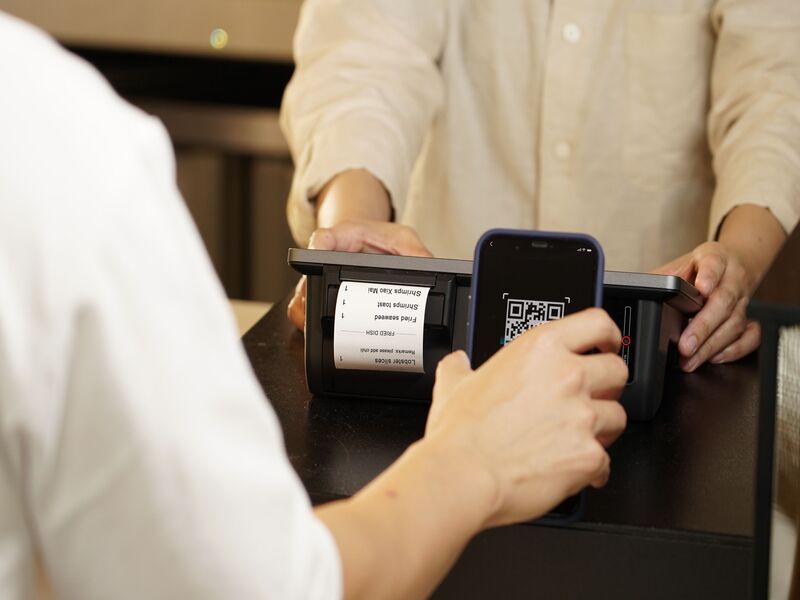
Position your device so the QR code remains fully visible within the camera viewfinder and wait for recognition to occur automatically. You do not need to take a photo.
Step 3: Tap the notification that appears
When the code is recognized, a link or notification will appear. Tap it to open the website, menu, ticket, app page, or payment screen.
If Camera does not recognize the code, try adding Code Scanner to Control Center, improving the lighting, moving closer, or cleaning the camera lens.
>>> Read More: How to Screen Record on iPhone?
2. How to Edit, Save, and Share Scanned Documents?
Fortunately, Apple includes several built-in tools that make managing scanned documents quick and convenient.
Crop and Adjust Scans
You can drag the corners of the scan to fix the document’s edges. This helps remove background space and makes the page look cleaner. You can also retake a page if it looks blurry or crooked.
Convert Scans to PDF
Scanned documents in Notes are commonly saved as PDF-style files when shared.
Share Documents Easily
Once saved, tap the Share icon to send your scan through Messages, Mail, or Airdrop. You can also save it to Files, upload it to cloud storage, or attach it to online forms.
Where Are Scanned Documents Stored?
If you scan through Notes, the document stays inside that note. If you scan through Files, it is saved in the folder you selected, such as iCloud Drive or On My iPhone.
3. Why Your iPhone May Not Be Scanning Properly?
Scanning problems are usually caused by small settings or environmental issues, not by a broken phone.
Camera Permissions Are Disabled
If a scanning feature cannot access your camera, check Settings and make sure camera permissions are allowed for the app you are using.
Poor Lighting Conditions
A dark room can make the page edges harder to detect. Move near a window or use brighter indoor lighting.
QR Code Is Damaged or Blurry
A folded, scratched, tiny, or low-quality QR code may not scan properly. Try zooming in, opening the code on another screen, or asking for a clearer version.
iOS Software Issues
If scanning suddenly stops working, restart your iPhone and check for available iOS updates. Small software bugs can often be fixed this way.
4. Tips for Better Scanning Results on iPhone
A few simple habits can significantly improve scan quality. Better lighting, a steady hand, and a clean camera lens can help produce clearer and more professional-looking results.
Use a Flat, Well-Lit Surface
Place the paper on a table and avoid shadows. A plain background can also help your iPhone detect the page edges more accurately.
Keep the Camera Steady
Hold your phone still for a moment before saving the scan. Movement can make text look soft or unclear.
Clean the Camera Lens
Fingerprints and dust can make both document scans, and QR code scans fail. Wipe the lens gently before scanning important files.
Check the Scan Before Saving
Always review the scan before sending it. Make sure the full page is visible, the text is readable, and no important corner has been cut off.
5. FAQs
Can I scan documents on iPhone without an app?
Yes. You can scan documents using built-in Apple tools such as Notes or Files. That means you do not need to download a separate scanner app for basic document scanning, saving, and sharing.
Can I scan a document directly into the Files app without Notes?
Yes. Open the Files app, choose a folder, tap the More button, and select Scan Documents. This is useful when you want the scanned PDF saved directly into iCloud Drive or a specific folder.
Why won’t my iPhone scan a QR code?
Your iPhone may fail to scan a QR code because of poor lighting, a blurry code, a dirty camera lens, or disabled scanning settings. Try moving closer, improving the light, cleaning the lens, or using Code Scanner from Control Center.
Conclusion
Learning how to scan on iPhone saves time because the tools are already built into your device. Use Notes or Files for documents, Camera for QR codes, and always check the scan before sharing. With the right lighting and a steady hand, your iPhone can work like a simple pocket scanner anytime.