
Need to contact someone again but their calls or texts are not coming through? Learning how to unblock a number on iPhone only takes a few minutes once you know where Apple stores blocked contacts.
This guide walks you through the Phone app, Messages app, and Settings method, then explains what changes after unblocking and what to do if the number still does not appear.
1. How to Unblock a Number on iPhone?
Before you start, remember that blocked contacts can affect calls, FaceTime, and Messages depending on where the number was blocked.
Method 1: Unblock Directly via the Phone or Messages App
This method works best when the blocked number is still visible in your recent calls, contact list, or message thread.
Step 1: Open the Phone app
Go to the Phone app on your iPhone. If the person recently called you, tap Recents. If they are saved in your address book, open Contacts instead.
Step 2: Go to Recents or Contacts
Find the phone number or contact name you want to check. Tap the Info icon next to the number, or open the saved contact card.
Step 3: Find the blocked contact
Scroll down to the bottom of the contact details. If the number is currently blocked, you may see an option related to unblocking the caller.
Step 4: Remove the block if available
Tap the unblock option if it appears. After that, the contact should be able to call or message you again, unless another app or setting is still filtering the number.
Method 2: Unblock via iPhone Settings
If you want to learn how to unblock a phone number on iPhone, use the blocked contacts list inside Settings.
Step 1: Open Settings
Unlock your iPhone and open the Settings app.
Step 2: Tap Apps > Phone or Phone
On newer iOS versions, you may need to tap Apps first, then choose Phone. On some versions, Phone appears directly in Settings.
Step 3: Select Blocked Contacts
Scroll down and tap Blocked Contacts. This is where iPhone stores numbers you have blocked through calling, FaceTime, or messaging features.
Step 4: Find the number you want to unblock
Review the list carefully. If you have many blocked contacts, look for the saved name, phone number, or email address linked to the person.
Step 5: Tap Unblock
Swipe left on the number, then tap Unblock.
2. How to Find Your Blocked Numbers List?
Once you know where the list is, managing blocked numbers becomes much easier. To review all blocked contacts, go to Settings > Apps > Phone > Blocked Contacts or Settings > Phone > Blocked Contacts, depending on your iOS layout.
This section is helpful if you blocked someone months ago and cannot remember where the number is stored. If you also use FaceTime or Messages often, you can check their settings too.
For better call management, keep only truly unwanted numbers blocked. If a business, school, doctor’s office, or delivery driver cannot reach you, check this list before assuming there is a network problem.
3. What Happens After You Unblock Someone on iPhone?
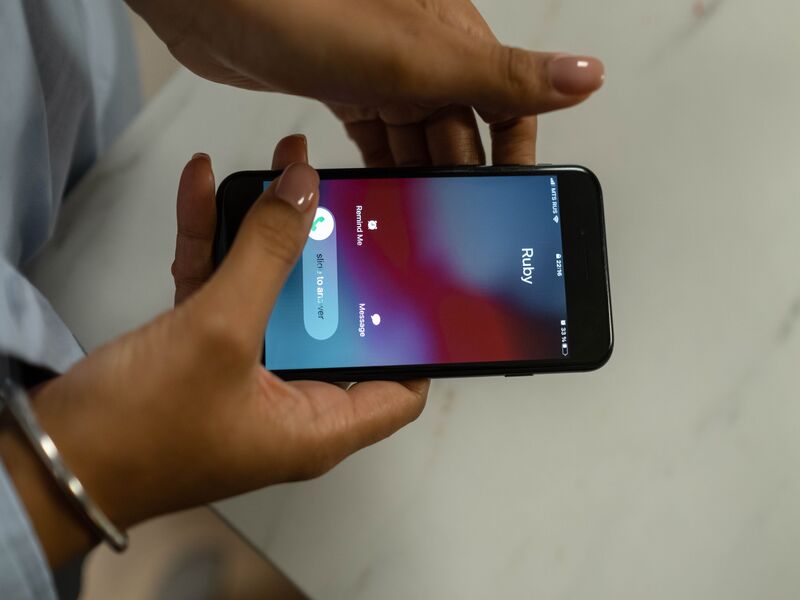
After you unblock a number, that person can call, text, or FaceTime you again.
Their future messages should appear normally, and incoming calls should ring through unless Focus mode, Silence Unknown Callers, carrier filters, or third-party spam apps are still active.
>>> Read More: Free iPhone 17: How to Qualify, Apply, and Get the Best Available Offers
4. What to Do if You Can’t Unblock a Number?
Sometimes the process is not as simple as swiping left.
If the contact does not appear in your blocked list, check whether the number was blocked through another app, your carrier, or a spam-filtering service.
The Contact Is Not Showing in the Blocked List
Make sure you are checking the right place. Look under Phone, Messages, FaceTime, and Mail settings if needed.
The person may also be filtered as an unknown sender instead of fully blocked.
A Third-Party App Is Still Blocking Calls
Some call-screening apps can stop numbers before they reach your normal iPhone settings.
Open the app you use for caller ID, spam blocking, or security and review its blocked list.
iOS Glitches Are Causing Problems
Restart your iPhone and check again. If the issue continues, go to Settings > General > Software Update and install any available update.
5. FAQs
How to unblock a number on iPhone 14, 15, or 16?
The steps are almost the same. For iPhone 14, open Settings, tap Phone, choose Blocked Contacts, swipe left, and tap Unblock. For how to unblock a number on iPhone 15 or how to unblock a number on iPhone 16, you may need to open Settings > Apps > Phone first.
Can someone tell if I unblock their number?
No direct notification is sent when you unblock someone. They may only realize it if their new calls ring through, or their messages start delivering normally again.
Will I receive messages sent while the number was blocked?
No. Messages sent during the blocked period usually do not appear after you unblock the contact. Ask the person to send the information again if it was important.
Can I block the number again later?
Yes. You can block the same number again anytime from the Phone app, Messages app, FaceTime, or the Blocked Contacts list in Settings.
Conclusion
Now you know how to unblock a number on iPhone, where to find your blocked list, and what to check if the number still cannot reach you. Review your blocked contacts from time to time so important calls and messages are not accidentally filtered out.