Learning how to make iPhone black and white can help you cut distractions, reduce eye strain, or give your photos a clean, minimalist look.
Apple includes a built-in grayscale filter that turns your entire screen black and white without deleting any color data from your apps, photos, or videos.
It’s important to know the difference between system grayscale and photo editing. This guide covers both so you can pick the option that fits what you need.
1. Why Switch Your iPhone to Black and White?
Many people research how to make your iPhone black and white because bright app icons and colorful notifications can attract unnecessary attention.
A grayscale display may make social media, games, and shopping apps feel less visually stimulating. Overall, a black-and-white screen can provide several practical benefits:
- A grayscale display can make distracting apps feel less appealing.
- A neutral screen can support a more focused digital routine.
- A simplified color scheme can reduce visual clutter.
- A grayscale preview can help creators evaluate contrast and composition.
- A monochrome display can provide a more comfortable viewing experience for some users.
However, grayscale does not block apps, silence notifications, or enforce time limits. You should combine the feature with Focus or Screen Time if you want stronger controls.
Now, let’s learn how to make iPhone black and white to create a distraction-free screen. Apple places these grayscale controls right inside your main iOS settings.
2. How to Make iPhone Black and White for the Entire Display
Switching your display to grayscale is one of the easiest ways to cut down on screen time and reduce eye strain.
Follow these simple steps to learn how to make iPhone black and white using the built-in Accessibility settings.
Use Accessibility Settings
Apple puts the grayscale option in the Accessibility menu, where you can turn on the setting needed. The setting affects the Home Screen, apps, menus, photos, videos, and most other visible content.
Follow these steps to learn how to make iPhone screen black and white:
- Open the Settings app on your iPhone.
- Tap Accessibility.
- Select Display & Text Size.
- Scroll down and tap Color Filters.
- Turn on the Color Filters switch.
- Select Grayscale from the available options.
- Return to the Home Screen and review the new appearance.
If you want to restore the original colors, you can return to the same menu and turn off Color Filters.
Create a Shortcut for Grayscale
You may not want to keep the screen black and white throughout the day.
Fortunately, an Accessibility Shortcut lets you switch the filter on or off without navigating through several menus. Use these steps to create the shortcut:
- Open Settings.
- Tap Accessibility.
- Scroll to the bottom and tap Accessibility Shortcut.
- Select Color Filters.
- Triple-click the side button on an iPhone with Face ID.
- Triple-click the Home button on an older supported model.
If you assign only Color Filters to the shortcut, the triple-click action switches grayscale on or off immediately. If you assign several accessibility features, your iPhone displays a menu that lets you select Color Filters.
Use Back Tap as Another Shortcut
Some supported iPhones also let you assign an Accessibility Shortcut to Back Tap, letting you activate the selected shortcut with a double or triple tap on the back of the device. Follow these steps:
- Open Settings and select Accessibility.
- Tap Touch and select Back Tap.
- Choose Double Tap or Triple Tap.
- Select Accessibility Shortcut.
- Tap the back of the iPhone to test the action.
A thick protective case may reduce Back Tap reliability. The side-button or Home-button shortcut usually provides a more consistent response.
Now that you have learned how to make iPhone black and white, let’s explore how to customize your screen even further.
>>> Read more: How to Reduce System Data on iPhone and Free Up Storage Space
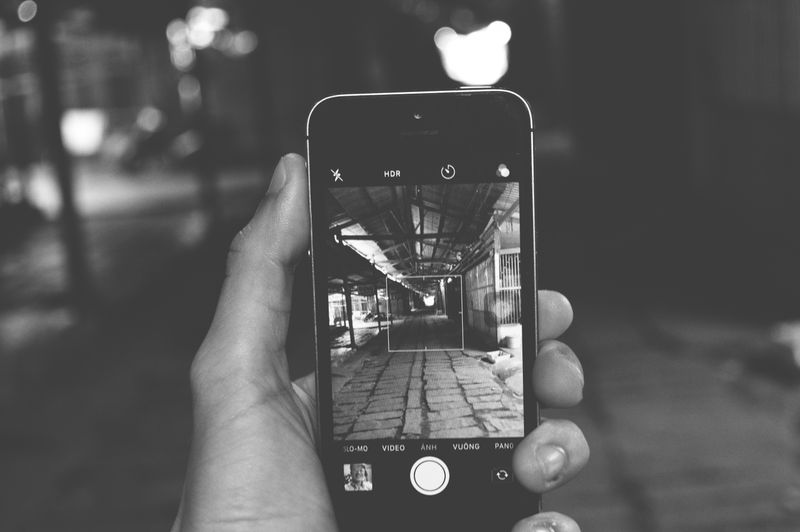
3. How to Make Only One Photo Black and White
The Photos app provides the correct method when you want to change one image instead of the entire display.
Follow these steps for how to make a photo black and white on iPhone:
- Open the Photos app.
- Select the photo that you want to edit.
- Tap the Edit button.
- Tap the Filters icon, which shows three overlapping circles.
- Swipe through the filters and select Mono, Silvertone, or Noir.
- Adjust the filter intensity if your iOS version provides an intensity control.
- Tap Done to save the edit.
Each filter creates a different result. Mono provides a balanced grayscale effect, Silvertone adds a softer classic appearance, and Noir produces stronger contrast and deeper shadows.
You can also use the adjustment controls to refine exposure, highlights, shadows, contrast, and black point.
The Photos app preserves the original image data after a standard edit. Therefore, you can open the edited photo, tap Edit, and select Revert if you want to restore the original version.
4. Black and White Display vs. Dark Mode vs. Smart Invert
Grayscale, Dark Mode, and Smart Invert each create different effects when learning how to make your phone black and white iPhone. You should choose the feature that matches your viewing goal.
| Feature | What it changes | Best use |
|---|---|---|
| Grayscale | The feature removes visible colors across the display. | The feature supports focus, accessibility, or a monochrome appearance. |
| Dark Mode | The feature gives supported interfaces a dark background. | The feature improves low-light comfort and reduces bright interface areas. |
| Smart Invert | The feature reverses many interface colors but usually preserves images and media. | The feature helps when an app lacks a suitable dark appearance. |
| Classic Invert | The feature reverses nearly every visible color. | The feature provides stronger color inversion for accessibility needs. |
5. Why Your Screen Still Isn’t Black and White
If the above instructions don’t work, a setting or color filter is likely turned off or configured incorrectly. Refer to these troubleshooting tips below:
- Wrong Color Filter
Go to Settings > Accessibility > Display & Text Size > Color Filters and make sure Grayscale is selected (not other color-blindness filters).
- Shortcut not working
Triple-click the side/Home button slowly or incorrectly. Check Settings > Accessibility > Accessibility Shortcut and ensure Color Filters is enabled.
- Other display settings interfering
Turn off Night Shift, Smart Invert, and True Tone temporarily, as they can affect how colors appear.
- Software issue
Restart your iPhone and check for updates in Settings > General > Software Update.
6. FAQs
If you still have questions about how to make iPhone black and white, these FAQs cover everything else you need to know.
Does grayscale affect screenshots and screen recordings?
Grayscale changes only what you see on screen. Screenshots and recordings usually retain full color when viewed on other devices. If you need true black-and-white files, apply a filter in editing.
Can I keep Camera and Photos in color while the rest of my iPhone stays black and white?
No. Grayscale applies system-wide, including Camera and Photos. Use the Accessibility Shortcut to quickly turn it off when you need accurate color.
Will grayscale save iPhone battery life?
Not significantly. Grayscale doesn’t meaningfully reduce power use. Lowering brightness or enabling Auto-Brightness has a much bigger impact.
Does turning on grayscale change my original photos?
No. It only affects display. Your photos stay unchanged, and edits in the Photos app can always be reverted.
Is black and white mode available on every iPhone model?
Most iPhones running modern iOS support Color Filters. Older devices may have limited options, but updating iOS (if supported) usually enables the feature.
7. Conclusion
So, how to make iPhone black and white? Apple gives you separate tools for a monochrome display and a monochrome photo. Color Filters change the entire visible interface, while the Photos app edits one selected image without permanently destroying the original version.
You can also assign Color Filters to the Accessibility Shortcut when you need quick access to color. With these simple options, you can master it while keeping complete control over your screen and photos.