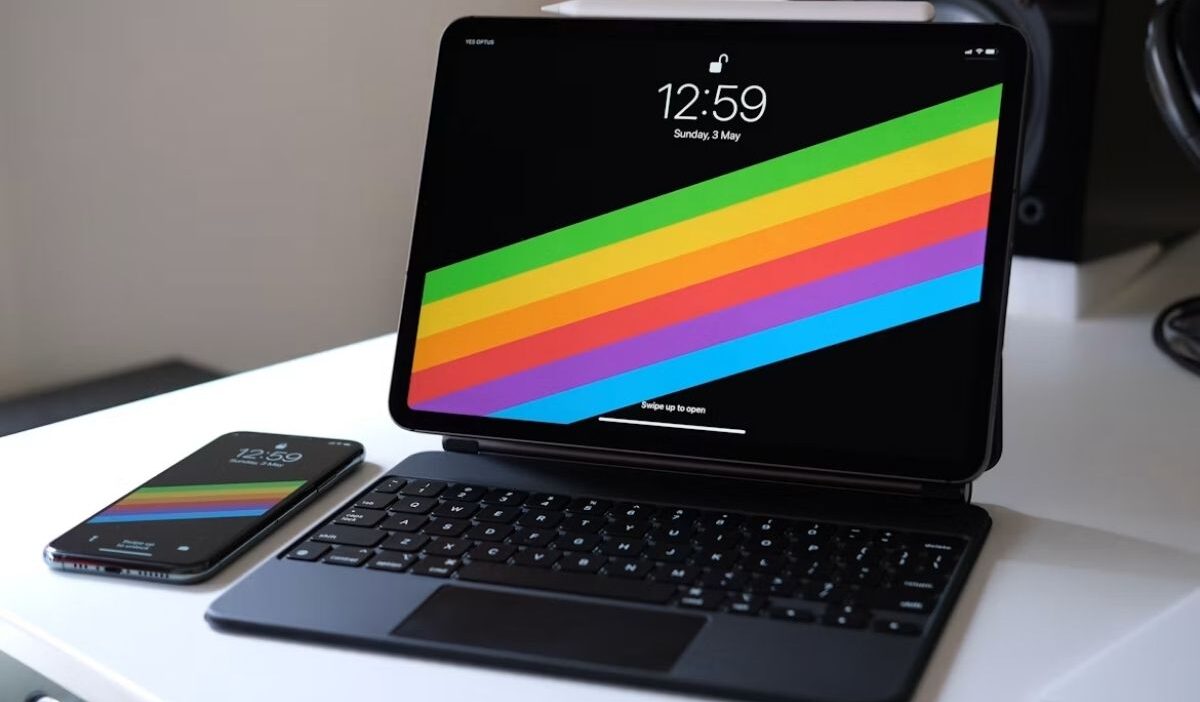
How to sync iPhone and iPad helps you keep photos, contacts, files, and other supported information updated across both Apple devices.
This guide explains how to set up iCloud sync, check the connection, and fix common issues for a smoother experience.
1. Requirements Before You Sync iPhone and iPad
Before you set up sync between your iPhone and iPad, check a few settings to make sure both devices are ready.
These requirements help iCloud update the selected information across devices. Prepare the following:
- Use the same Apple Account: Sign in with the same Apple Account on both devices so iCloud can connect your information across your iPhone and iPad.
- Connect to Wi-Fi: A stable internet connection allows iCloud to update your selected data.
- Check iCloud storage: Review available storage if you plan to sync photos, files, or other large amounts of information.
- Update iOS and iPadOS: Keep both devices updated so they can use the latest iCloud features.
To check your Apple Account, open Settings on each device and tap your name at the top. The account details should match before you continue with how to sync iPhone to iPad.
Apple explains that iCloud setup requires the same Apple Account on each device, then allows you to choose which apps and features use iCloud.

2. How to Sync iPhone and iPad with iCloud
iCloud is the main Apple service for keeping supported information available across multiple devices.
To sync supported data between your iPhone and iPad, turn on iCloud for the apps and features you want to use on both devices.
Follow these steps to learn how to sync iPad and iPhone with iCloud:
- Open the Settings app on your iPhone.
- Tap your name at the top of the screen.
- Select iCloud.
- Tap See All under apps using iCloud.
- Turn on the apps and features you want to sync.
- Repeat the same steps on your iPad.
You can select different types of information depending on your needs:
| Data | How it syncs between iPhone and iPad |
|---|---|
| Photos | iCloud Photos keeps photos and videos available on supported devices. |
| Contacts | New contacts and updates appear across devices with iCloud Contacts enabled when you follow how to sync contacts from iPhone to iPad. |
| Notes | Changes to notes appear on other devices that use the same iCloud account. |
| Calendars | Events and schedule updates stay available across devices. |
| Files | iCloud Drive lets you access supported files from both devices. |
| Messages | Supported messages can appear across devices when the required settings are enabled. |
>>> Read more: How to Unlock iPhone Without Passcode: Safe Methods to Regain Access
3. How to Check If Your iPhone and iPad Are Synced
After you know how to sync iPhone and iPad, make a small change to the data you selected for sync. Then check the same data on your other device to confirm that the update appears.
For example, add a new note on your iPhone, then open Notes on your iPad. If the note appears there, Notes is syncing correctly between the two devices.
You can also test other synced data after setting up how to sync iPhone with iPad:
- Add a contact and check Contacts on the other device.
- Take a photo and check Photos on the other device.
- Add a file to iCloud Drive and check it in Files.
- Edit a calendar event and check the change on the other device.
4. How to Fix iPhone and iPad Not Syncing
If your iPhone and iPad do not show the same information, use the symptom to identify the setting that needs attention.
- Only one app is affected: Go to Settings > [your name] > iCloud and make sure that app is enabled for iCloud.
- Different data appears on each device: Check the Apple Account under Settings > [your name] on both devices. The same account is needed for shared iCloud data.
- New data cannot be uploaded: Check your available iCloud storage. Photos, videos, and files need available space to sync through iCloud.
- Updates remain pending: Check the internet connection on the device that has not received the latest change, then open the affected app again.
- Sync stops after the settings are correct: Restart the iPhone and iPad, then make a new change to the affected data and check the other device.
- A third-party app is the only exception: Check the app’s own account and sync options because its data may not use iCloud.
>>> Read more: How to Change iPhone Name (Step-by-Step Guide)
5. FAQs About Syncing iPhone and iPad
These answers cover common questions about how to sync iPhone and iPad, including data, apps, accounts, and update times.
Can I sync iPhone and iPad without iCloud?
Yes, but automatic syncing depends on the type of data and the service you use. Features such as AirDrop can share files, but they do not continuously sync data between devices.
Does syncing iPhone and iPad transfer all data?
No. iCloud syncs the apps and data you select, while device transfer moves data during a specific setup process. Syncing does not copy every setting or file automatically.
How do I automatically sync apps between iPhone and iPad?
On both devices, go to Settings > Apps > App Store and turn on App Downloads. Apps purchased or downloaded on another device can then download automatically when the same Apple Account is used.
How long does it take to sync iPhone and iPad?
The time depends on the amount of data and your internet connection. Small updates can appear quickly, while large photo libraries and files may take longer.
Can I use different Apple Accounts on iPhone and iPad?
Yes, but iCloud data remains separate between different Apple Accounts. Use the same Apple Account on both devices when you want supported iCloud data to sync between them.
6. Conclusion
How to sync iPhone and iPad starts with the same Apple Account, a Wi-Fi connection, and the right iCloud settings on both devices. Check a recent data update to confirm that the selected services work as expected, then review the relevant setting if a change does not appear.
For more practical device advice, OptNYC offers simple guides for everyday technology tasks.