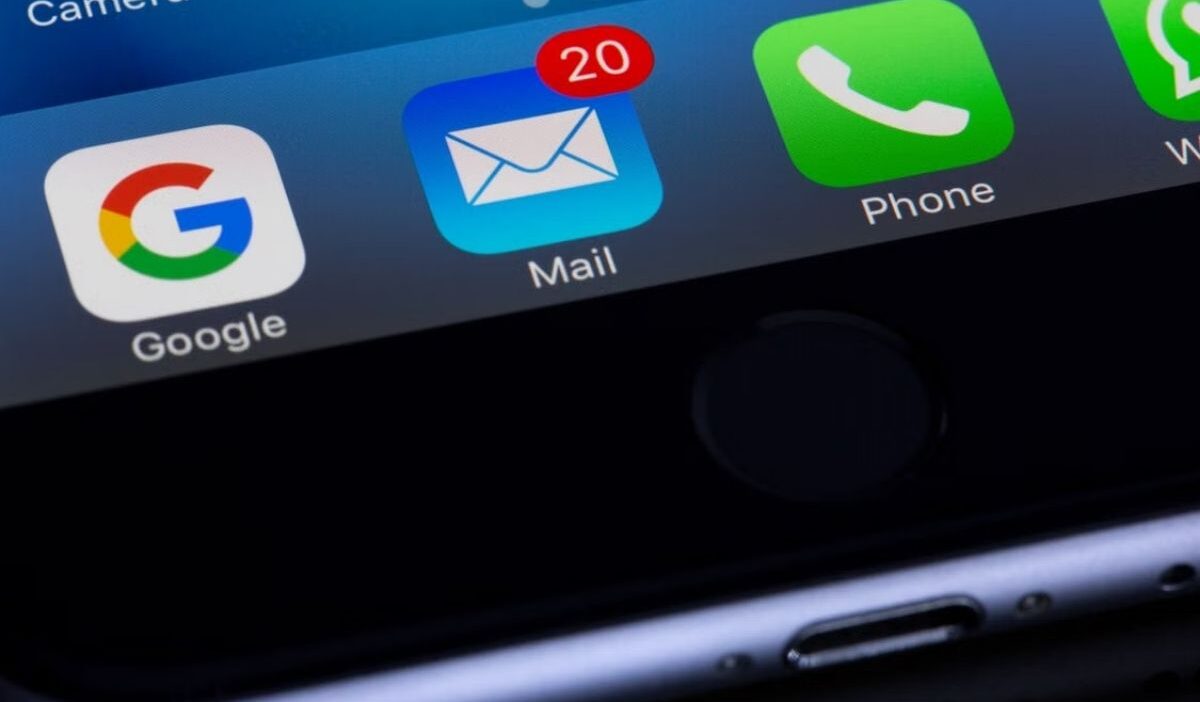
Adding an email account to your iPhone lets you manage messages directly from the Mail app without opening a separate email service.
This guide on how to add email to iPhone explains the setup steps, sync options, and account settings you need to connect your email successfully.
1. What You Need Before Adding an Email Account to iPhone
Before learning how to add email to iPhone, prepare the information you need to complete the setup on your device.
Having these details ready helps you choose the right setup option and finish the connection process. To prepare, you need:
- Your email address and password: Prepare your login details for the account you want to connect.
- Your email provider information: Know which service manages your email account so you can select the correct option during setup.
- Internet connection: Your iPhone needs an active connection to verify your account details.
- Access to your email account: Make sure you can complete any sign-in steps required by your email provider.
- Additional account instructions (if needed): Some custom email addresses may require setup information from the email provider.
>>> Read more: How to Share WiFi Password on iPhone: Quick & Easy Guide
2. How to Add Email to iPhone
How to add email account to iPhone? You can add an email account through automatic setup for common providers or manual setup for accounts that require additional information.
Set Up an Email Account Automatically on iPhone
For common email providers, your iPhone can handle most of the account setup after you provide your email address and sign in.
Follow these steps if you use an email provider such as iCloud, Google, Microsoft Exchange, or Yahoo.
- Open Settings, then go to Apps > Mail > Mail Accounts.
- Tap Add Account and enter the email address you want to connect.
- Select your email provider when iPhone asks you to choose one.
- Enter your password and complete any sign-in prompts shown on the screen.
- If Mail asks you to verify the account, tap Next and wait for the verification to finish.
- Tap Save when the option appears to complete the account setup.
Set Up an Email Account Manually on iPhone
Manual setup is an alternative way for how to add an email to iPhone. You just need to enter your account details directly instead of using a listed email provider.
Have your email address, password, and account information ready before you begin.
- Open Settings and tap Apps.
- Select Mail, then tap Mail Accounts.
- Tap Add Account.
- Enter the email address you want to connect, then tap Next.
- Select Add Other Account, then choose Mail Account.
- Enter your name, email address, password, and a description for the account.
- Tap Next and let Mail check the account settings.
- If Mail finds the required settings, tap Done to complete the setup.
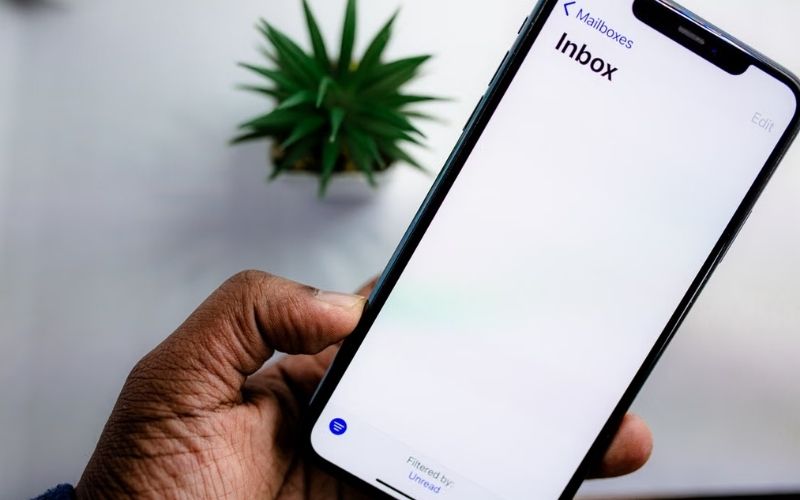
How to Add Another Email to iPhone
If you already have an email account connected, you can repeat the Add Account process, so you will be active for how to add another email to iPhone’’s Mail app.
To add another email to iPhone, follow these steps:
- Go to Settings > Apps > Mail > Mail Accounts.
- Tap Add Account.
- Choose the provider for your second email address.
- Sign in and complete the setup.
Each account can keep its own settings, so you can manage personal and work emails separately within the Mail app.
3. Essential Settings After Adding Your Email Account
After completing how to add email to iPhone steps, review the Mail settings on your iPhone to control account connections with other apps and new message delivery.
These options allow you to organize your email experience after the initial setup.
You can adjust the following settings:
- Choose synced information: Review which data your email account shares with your iPhone, such as Mail, Contacts, Calendars, or Notes. The available options depend on your account type and provider.
- Review account preferences: Check the settings for each connected account, including available sync options and account information.
- Adjust new message delivery: For accounts that do not use Push, you can change how often your iPhone checks for new emails through the Fetch New Data settings
4. Troubleshooting When Adding Email to iPhone
If you cannot complete adding email to iPhone, check the account details and connection settings below.
- Verify your login details: Check that your email address and password are correct.
- Complete provider verification: Follow any additional sign-in steps required by your email service.
- Check Mail settings: For manual setup, confirm that the server information matches your email provider’s instructions.
- Find missing account settings: If Mail cannot detect your settings automatically, use Apple’s Mail Settings Lookup Tool or contact your email provider for the required information.
>>> Read more: How to Reduce System Data on iPhone and Free Up Storage Space
5. FAQs About Adding Email to iPhone
These answers cover common questions about managing email accounts, including how to add an email account to iPhone setup.
Can I add more than one email account to my iPhone?
Yes. You can add multiple email accounts to your iPhone by going to Settings > Apps > Mail > Mail Accounts > Add Account and signing in with each email address.
How do I remove an email account from my iPhone?
Go to Settings > Apps > Mail > Mail Accounts, select the account you want to remove, then choose the option to delete the account from your iPhone.
Does adding an email account to my iPhone affect my existing emails?
No. Adding an email account only connects it to the Mail app. Your existing emails remain with your email provider and sync based on your account settings.
6. Conclusion
How to add email to iPhone includes connecting your account, setting up Mail sync, and adjusting the right account options on your device. Follow the automatic or manual setup steps based on your email provider, then review your Mail settings for a better experience.
With these steps, OptNYC helps you follow the iPhone email setup process and keep your accounts organized across your device.