Sharing WiFi should be quick, not a password-reading marathon. Luckily, Apple makes it easy to connect a nearby friend or family member without typing every letter, number, or symbol. If you know how to share WiFi password on iPhone, the process takes just a few taps.
This guide shows how to share a WiFi password from iPhone to another Apple device, what to do if it fails, and how to find a saved password when you need to share it manually.
1. What You Need Before Sharing a WiFi Password on iPhone
Check that both devices meet Apple’s requirements. The automatic sharing feature depends on WiFi, Bluetooth, compatible software, and saved contact information.
Make sure you complete these steps first:
- Update both devices to the latest available iOS, iPadOS, or macOS version.
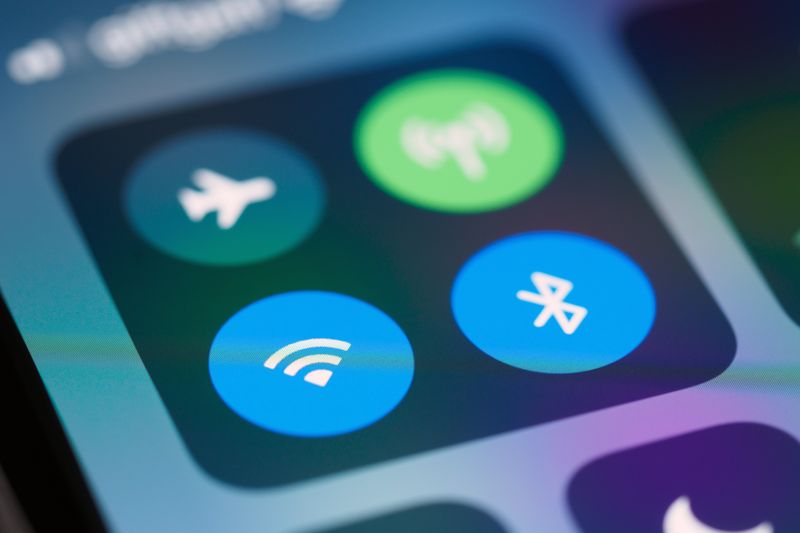
- Turn on WiFi and Bluetooth on both devices.
- Make sure each person is signed in to their own Apple Account.
- Save each person’s Apple Account email address or phone number in the other person’s Contacts.
- Turn off Personal Hotspot on both devices.
- Keep the devices close to each other.
The iPhone sharing the password must also be unlocked and connected to the WiFi network.
2. How to Share WiFi Password on iPhone
The person requesting access starts the process from their own device.
How to share a WiFi password on iPhone? Follow these steps:
- Ask the other person to open WiFi settings on their iPhone, iPad, or Mac.
- Ask them to tap or select the name of your WiFi network.
- Make sure your iPhone is unlocked and connected to that same network.
- Wait for the password-sharing prompt to appear on your iPhone.
- Tap Share Password.
- Tap Done after the other device connects.
3. How to Share WiFi Password From iPhone to Other Devices
The automatic sharing feature works with nearby compatible Apple devices. However, you may need another method when you want to share a password with an Android phone or another device.
Share the password with another iPhone, iPad, or Mac
If you are wondering how to share the WiFi password on iPhone, use the automatic sharing method whenever possible. The iPhone sharing the password must stay unlocked and connected to the network.
The other person must open WiFi settings and select the same network. Your iPhone should then display a request to share the password.
Share the password with an Android phone
The automatic Apple password-sharing prompt does not work with Android devices in the same way. Instead, you can find the saved WiFi password on your iPhone and share it manually.
You can also show the network’s QR code when the option is available. The Android user can scan the code with a compatible device and join the network without typing the password.
If you are sharing WiFi access with an Android user, the WiFi Alliance’s guide to WiFi security offers useful background on how modern wireless networks protect connected devices.
Share a saved password manually
If you need to know how to share password for WiFi on iPhone, you can first reveal the password and then copy it.
On current iPhone software:
- Open the Passwords app.
- Tap WiFi.
- Select the WiFi network.
- Tap the Password field.
- Authenticate with Face ID, Touch ID, or your iPhone passcode.
- Tap Copy Password if you want to use the password elsewhere.
The WiFi section also shows networks that you have previously saved. Therefore, you can find an old network password even when your iPhone is not currently connected to that network.
>>> Read more: How to Reset Network Settings on iPhone? The Quick Fix for Wi-Fi and Cellular Problems
4. Common Problems When Sharing WiFi Passwords on iPhone
The WiFi sharing feature usually works quickly, but several small settings can prevent the prompt from appearing.
Check WiFi and Bluetooth
Both devices need WiFi and Bluetooth turned on. Therefore, open Control Center or Settings and check both connections before trying again.
Keep the devices closer
The two devices need to be close enough for the sharing process to work properly. Move the devices closer together and try the process again.
Check the Contacts app
The Apple Account email address or phone number connected to each person’s account must appear in the other person’s Contacts. A missing or incorrect contact detail can stop the sharing prompt from appearing.
Turn off Personal Hotspot
Personal Hotspot can interfere with WiFi password sharing. Turn off Personal Hotspot on both devices before trying again.
Unlock the iPhone sharing the password
The iPhone that stores the WiFi password must be unlocked when the sharing request appears. Keep the device unlocked and wait a few seconds.
Restart both devices
If the sharing prompt still does not appear, restart both devices and try again. Apple also recommends manual password entry if the feature continues to fail.
For additional guidance on finding and sharing saved WiFi credentials, you can follow Apple’s official instructions for finding and sharing a WiFi password on iPhone.
5. FAQs
Why can’t I share my WiFi password from my iPhone?
Your iPhone may not share the password if WiFi or Bluetooth is off, the devices are too far apart, or the required contact details are missing. Personal Hotspot can also interfere.
Can I share a WiFi password from iPhone to Android?
Yes, but not through Apple’s automatic sharing prompt. Instead, reveal the saved WiFi password on your iPhone and share it manually.
Can I share a WiFi password with someone who is not in my Contacts?
Not with the automatic sharing feature. Both users need each other’s Apple Account email address or phone number saved in Contacts.
How do I see the WiFi password saved on my iPhone?
On recent iOS versions, open the Passwords app, tap WiFi, and select the network. Authenticate with Face ID, Touch ID, or your passcode to view the password.
6. Conclusion
Learning how to share WiFi password on iPhone can save you from typing long passwords whenever a friend or family member needs internet access.
The quickest method lets you share the connection directly with a nearby compatible Apple device. You can also reveal a saved password or use a QR code when the other person uses Android or the automatic feature does not work.