How to delete stickers on iPhone? Instead of scrolling through dozens of options to find a favorite, you can remove the clutter in a few taps.
This guide shows the fastest ways to clean up stickers from your iPhone keyboard, Messages app, and custom sticker collection.
1. Why Remove Stickers from Your iPhone?
Stickers add personality to conversations, but too many saved stickers can make the Messages app feel crowded. Removing unused stickers helps users quickly access their favorite options without scrolling through a large collection.
Several reasons may encourage users to delete stickers from their iPhones:
- Reduce keyboard clutter: Too many stickers can make the sticker menu harder to browse.
- Remove outdated stickers: Users may no longer need old sticker packs from previous conversations.
- Manage personal content: Custom stickers created from photos may include images that users no longer want to keep available.
- Improve organization: A smaller sticker collection makes frequently used stickers easier to find.
Additionally, deleting stickers does not remove the original images from the Photos app. Users can safely manage their sticker collection while keeping their personal photos intact.
2. How to Delete Stickers on iPhone?
Sticker features are available on newer iOS versions, including Live Stickers created from photos. Users can check their iPhone software version and available features through Apple’s iOS updates and security information.
How to Delete Stickers on iPhone Keyboard?
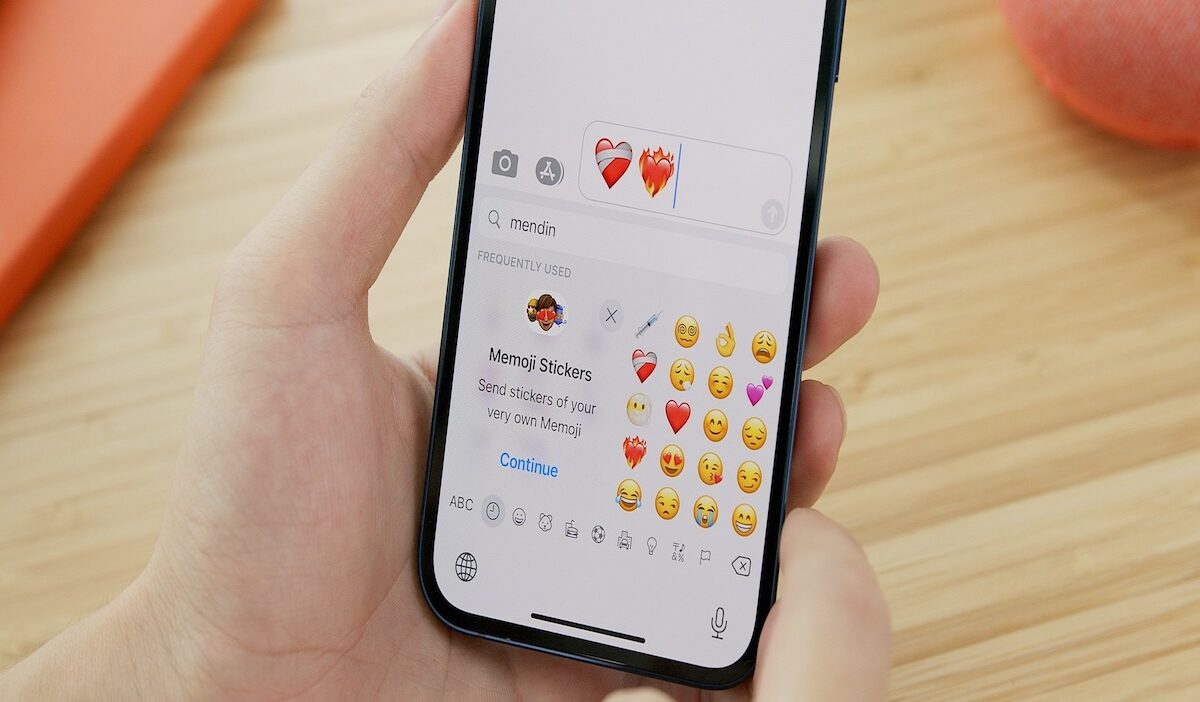
The iPhone keyboard stores sticker options inside the emoji and sticker menu. Users can remove unwanted stickers directly from this area.
Follow these steps:
- Open any app that uses the keyboard, such as Messages.
- Tap the text field to open the keyboard.
- Tap the emoji icon on the keyboard.
- Swipe left to find the sticker section.
- Press and hold the sticker that you want to remove.
- Tap Delete or remove the sticker option.
However, some stickers may remain available if they come from installed apps or sticker packs.
How to Delete Emoji Stickers on iPhone?
Emoji stickers are created from emojis and can appear in the Messages sticker menu. Users can remove these stickers by managing their sticker collection.
To delete emoji stickers on iPhone:
- Open the Messages app.
- Open any conversation.
- Tap the + button near the message field.
- Select Stickers.
- Press and hold the sticker pack or sticker item.
- Choose the option to remove it.
How to Delete Custom Stickers on iPhone?
iPhones can create custom stickers from photos using features like Live Stickers. These stickers appear in the sticker drawer and can be removed separately.
To remove custom stickers:
- Open Messages or another app with the keyboard.
- Tap the emoji icon.
- Open the sticker section.
- Press and hold the custom sticker.
- Tap Delete.
How to Delete Saved Stickers on iPhone?
You can quickly remove custom or saved stickers directly from your Messages app in a few simple steps:
- Open Messages: Open any chat in the Messages app and tap the “+” icon next to the text field.
- Access Stickers: Select Stickers to open your saved sticker menu.
- Enter Edit Mode: Press and hold the sticker you want to remove until the pop-up menu appears.
- Delete the Sticker: Tap Delete (or the red minus icon) to remove it from your collection.
>>> You might be interested: How to Unsend iMessage (iOS 16 or Later): The 2-Minute Rule
3. How to Troubleshoot Sticker Deletion Problems
These issues usually happen because stickers can come from different sources, including saved stickers, installed apps, or synced iPhone settings.
Try these fixes if deleted stickers keep appearing:
- Restart your iPhone: A quick restart can refresh the Messages app and remove temporary display issues.
- Update iOS: Older software versions may handle stickers differently. Check for updates in Settings > General > Software Update.
- Remove sticker apps: If a sticker pack comes from a third-party app, delete the app or remove the sticker pack through Messages.
- Check synced devices: Stickers may return if another Apple device uses the same Apple Account and still has them saved.
>>> Also read: How to Schedule a Text on iPhone? Smart Ways to Send Messages Easily
4. FAQs
Can I permanently delete stickers from my iPhone keyboard?
Yes. You can remove unwanted stickers from the emoji and sticker menu by pressing and holding the sticker, then selecting the delete option. However, some sticker packs may return if they are installed through another app.
Can I delete custom stickers without deleting the original photos?
Yes. When you delete custom stickers on iPhone, the action only removes the sticker version. Your original photos stay safely in the Photos app.
Why do deleted stickers still appear on my iPhone?
Deleted stickers may still appear because they are stored in another location, synced from another device, or connected to a sticker app. Restarting your iPhone or updating iOS can often fix this issue.
How do I stop stickers from showing in Messages?
You can reduce sticker suggestions by adjusting Messages settings and removing unused sticker packs. Keeping only the sticker collections you use most can make the Messages app cleaner.
5. Conclusion
So, how to delete stickers on iPhone? In just a few taps, you can clear unwanted sticker packs, custom creations, and saved stickers without losing your photos or messages.
Keep only the stickers you use, and make your iPhone keyboard faster and easier to navigate.