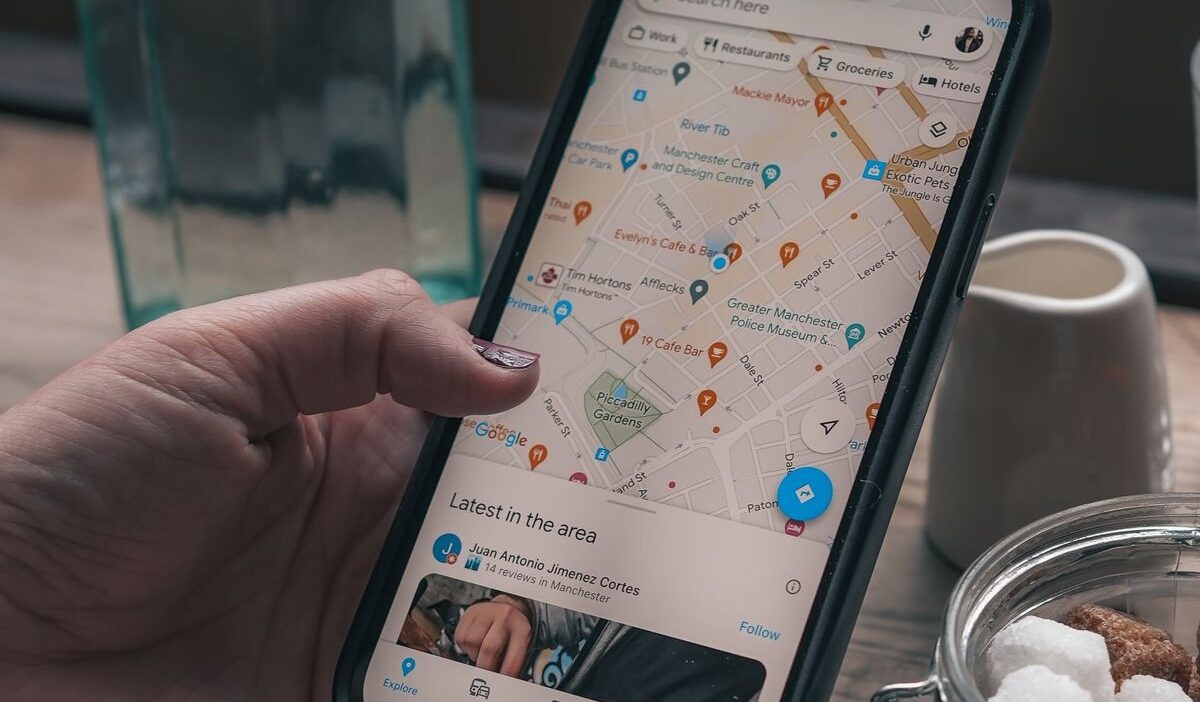
Need to show someone an exact meeting point, trail entrance, parking spot, or business that does not appear clearly on a map? Learning how to drop a pin on iPhone gives you a quick way to mark and share almost any location.
The process takes only a few taps through Apple Maps or Messages, even when the location has no recognizable address.
1. What Does Dropping a Pin on iPhone Mean?
Dropping a pin marks a specific point on a digital map. The point can represent a destination, meeting place, entrance, parking area, trailhead, or any other location you want to remember or share.
Unlike searching for a business or street address, a pin lets you choose a precise point directly on the map.
Therefore, how to drop a pin on an iPhone becomes especially useful when a location does not have a clear address. For example, you might use a pin to:
- Show a friend where to meet at a large park.
- Mark a car parked in an unfamiliar area.
- Share a specific entrance to a building.
- Mark a fishing spot, trail entrance, or beach access point.
- Send a precise location to someone through a text message.
Apple Maps allows you to adjust a dropped pin if the first position is not exact. You can also save important pins for later access through the Places section.
2. How to Drop a Pin on iPhone in Apple Maps
So, how to drop a pin on iPhone? You can mark almost any location, even when the place does not already have a name or map label. Follow these steps:
- Open the Maps app on your iPhone.
- Touch and hold the map at the location you want to mark.
- Wait for the pin marker to appear.
- Tap Move if you need to refine the location.
- Drag the map until the pin sits on the exact spot.
- Tap Pin to mark the location.
Once you drop the pin, you can tap it to get directions. You can also download the surrounding map area where the feature is available.
If you want to mark several locations, save each pin to Places as you drop it because Maps displays only one unsaved pin at a time.
3. How to Share a Pinned Location Through Messages and Apps
After learning how to drop pin on iPhone, you can send the location to almost anyone through your preferred sharing method.
Share a pin from Apple Maps
After you place the pin:
- Tap the pin or its location card.
- Tap the Share button.
- Choose Messages, Mail, or another available app.
- Select a contact or conversation.
- Send the location.
Share a pin from text messages
You can also send a pin directly from the Messages app. This option works well when you want to send a location without opening Maps first. Here’s how to drop pin on iPhone text:
- Open a conversation in Messages
- Tap the + button
- Tap Location
- Tap the map pin button and move the map until the pin sits on the location you want to share
- Tap Send Pin, then send the message
Drop a pin or share your current location?
These options serve different purposes:
- Drop a pin: Shares one fixed location.
- Share your current location: Shares where you are at that moment.
- Share Live Location: Allows someone to see your location update over a chosen period, when the feature is available.
It’s worth noting that because location data can reveal sensitive information about where someone goes.
The Federal Trade Commission’s guidance on location privacy recommends reviewing app permissions and sharing your location only when necessary.
>>> Read more: How to Delete Stickers on iPhone: 2026 Quick Removal Guide
4. How to Save and Manage Your Marked Locations
Saving the location helps you find it again later.
Add a location to favorites
After you drop a pin, open its location card and look for the option to add or save the place to your Maps collection. You can also add notes to saved places, which helps you remember why you marked a location.
Saved places can help you organize locations such as:
- Favorite restaurants.
- Future travel destinations.
- Meeting points.
- Work-related locations.
- Hiking or outdoor areas.
Apple Maps places saved locations and pins inside your Places area, which gives you a central location for managing marked spots.
Rename or remove saved locations
A custom name can make a saved pin easier to recognize. For example, you can label a location “North Entrance,” “Parking Spot,” or “Picnic Area.” To manage a saved pin:
- Open Maps.
- Tap Places.
- Open the Pinned section.
- Select the pin.
- Edit its label or other available details.
To remove a pin, swipe left on the saved location and tap Delete. You can also open the pin’s information and choose Unpin, depending on the current Maps interface.
5. FAQs
Can I send a location pin through iPhone text messages?
Yes. Open a conversation in Messages, tap +, choose Location, position the pin, and tap Send Pin.
How do I share my current location instead of dropping a pin?
Use the location-sharing option in Messages to share where you are now. A dropped pin marks a fixed location, which may differ from your current position.
Can I drop a pin without an internet connection on iPhone?
Yes, if the map area is available offline. Download the area in Apple Maps before you lose your connection.
How do I delete a dropped pin on my iPhone?
Open Maps, go to Places, and open Pinned. Swipe left on the saved pin, then tap Delete. You can also choose Unpin from the pin’s details.
6. Conclusion
Once you know how to drop a pin on iPhone, sharing an exact location becomes much easier. You can save important places, rename them, and remove them when you no longer need them.
Whether you are meeting someone in a busy park or marking a location without a clear street address, how to drop a pin on iPhone gives you a fast and practical way to point someone to the right spot.