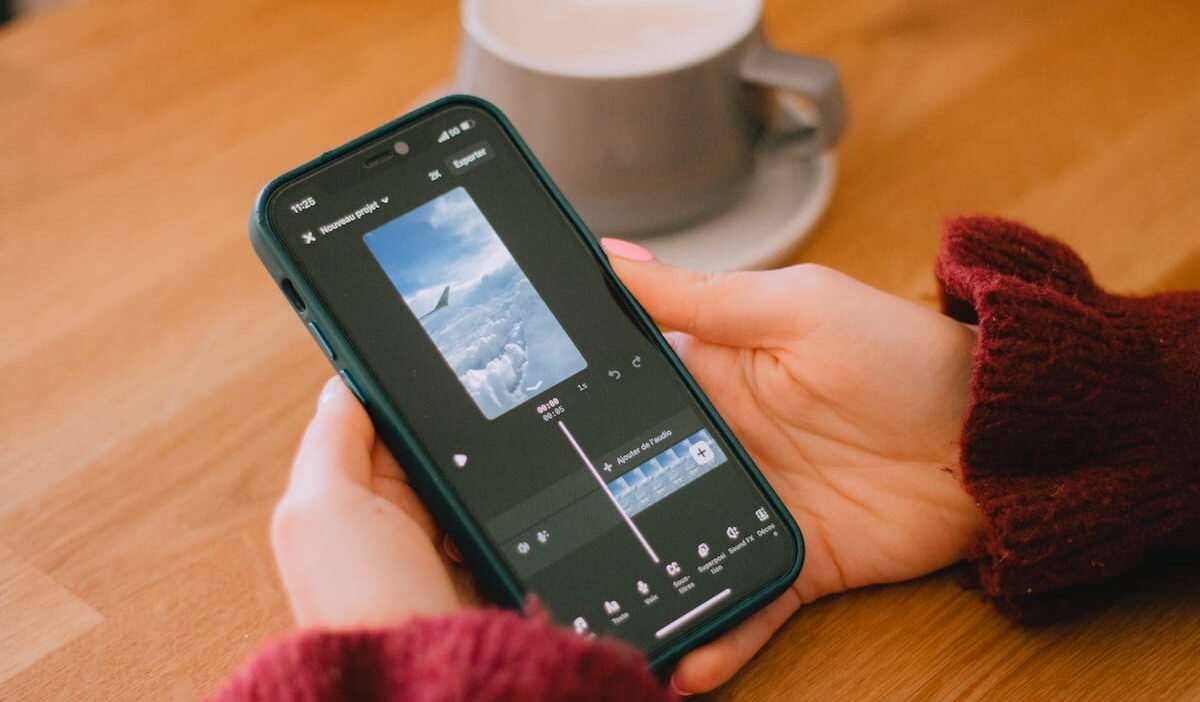
A long video can lose attention quickly, especially when it contains pauses, or repeated actions. Knowing how to speed up a video on iPhone lets you turn that footage into a shorter, more dynamic clip without needing complicated editing software.
1. How Video Speed Editing Works on iPhone
When you change a video’s speed, your iPhone changes how quickly the recorded frames play.
For example, a video played at 2x speed takes half as long to watch. A 60-second video becomes about 30 seconds long, although the exact result can vary depending on the editing tool and the footage.
However, the editing method depends on the type of video you have.
- High-frame-rate video: The Photos app can offer playback speed controls for certain videos recorded above 30 frames per second on iOS 18 and later.
- Regular video: iMovie can increase the speed of a clip up to 2x.
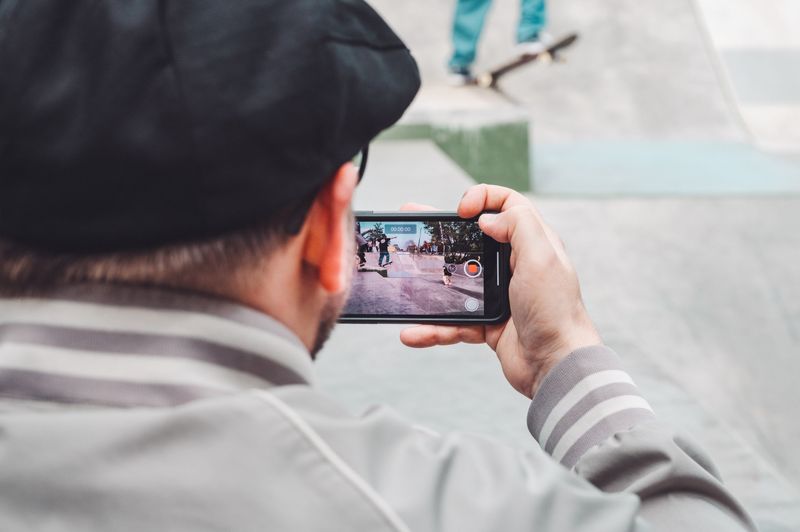
- Time-lapse footage: The Camera app records an accelerated sequence from the beginning.
Frame rate also affects how smooth a speed change looks. Higher frame rates capture more images each second, which gives editing software more frames to work with when changing playback speed.
2. How to Speed up a Video on iPhone
The best method depends on whether your video already supports speed controls in Photos or requires a separate editing timeline.
Speed Up a Video Using the Photos App
How to speed up a video on iPhone Photos? Start by checking whether your video supports the built-in playback speed control.
On iOS 18 and later, the Photos app can adjust the playback speed of videos captured at a frame rate higher than 30 frames per second.
This feature works particularly well for footage recorded at 60fps or higher. Follow these steps:
- Open the Photos app.
- Tap the video that you want to edit.
- Tap Edit.
- Look for the Speed control

- Choose a faster playback speed.
- Preview the result.
- Tap Done to save the edit.
Increase the Speed of Regular Videos With iMovie
iMovie provides a more dependable answer for people asking how to speed a video up on iPhone when the video is a standard clip.
You can use iMovie to speed up a video from your Camera Roll and control the speed within a project. Follow these steps:
- Open iMovie on your iPhone.
- Start a new Movie project.
- Select the video from your Photos library.
- Tap Create Movie.
- Tap the video clip in the timeline.
- Tap the Speed button.
- Drag the speed slider to the right.
- Preview the faster clip.
- Tap Done when you finish editing.
- Tap the Share button and save or share the video.
iMovie can increase a clip to a maximum of 2x its original speed in its standard clip-editing workflow.
>>> Read more: How to Screen Record on iPhone: Brilliant Ways to Capture Every Important Moment
3. Other Ways to Make iPhone Videos Play Faster
Besides Photos and iMovie, there are a few other answers that help you create faster, smoother videos depending on your goal.
Record in Time-Lapse Mode
The iPhone Camera app includes Time-Lapse mode, which captures long events and automatically converts them into short, fast-moving clips. This option works well for:
- Sunsets
- Cloud movement
- Cooking processes
- Drawing or crafting sessions
- Long walks or travel scenes
- Busy streets
Use Video Editing Apps for More Speed Controls
Third-party apps provide more flexibility when you want advanced speed effects, transitions, or better control over multiple clips.
Popular iPhone video speed editing apps include:
- CapCut: Offers speed curves, preset effects, transitions, and easy social media editing.
- VN Video Editor: Provides precise speed adjustments, multi-layer editing, and no-watermark exports.
- InShot: A simple option for speeding up clips, adding music, text, and filters.
4. Tips for Making Smooth Fast-Speed Videos on iPhone
Now that you know how to make a video speed up on iPhone, the following tips can come in handy to bring you even better results when editing the footage.
Choose the right speed
A 2x speed works well for short demonstrations, travel footage, and routine activities. A higher speed can make long footage more compact, but excessive speed can make important details difficult to follow.
Trim unnecessary footage first
Remove empty sections before you increase the speed. A shorter clip usually feels more focused and easier to watch.
Check the audio
Fast playback can make voices sound unnatural. If the original audio becomes distracting, consider muting the clip or adding suitable background music.
Use speed changes with purpose
Keep important dialogue at normal speed when viewers need to understand every word. Then, use faster sections for repetitive actions or long pauses.
Preview the entire video
Always watch the complete edited clip before sharing it. A quick preview can help you spot abrupt changes, missing sections, or speed settings that feel too fast.
5. FAQs
Can I speed up a video on iPhone without an app?
Yes, you can speed up some videos directly in the Photos app. On iOS 18 and later, the feature applies to certain videos recorded at frame rates above 30fps. However, regular videos may require iMovie or another video editor.
How to speed up a video on iPhone camera roll?
Start by opening the video in Photos and check for the Speed control under Edit. If your video does not support the Photos speed feature, import it into iMovie and use the Speed button to increase its playback speed.
Can I change the speed of a normal video in the Photos app?
Not every normal video supports the Photos speed adjustment. The current Photos feature is designed for certain higher-frame-rate videos. For standard footage, iMovie provides a more reliable way to change playback speed.
What free app can I use to speed up videos on iPhone?
You can use free apps like iMovie, CapCut, VN Video Editor, InShot, Canva, or Adobe Express to speed up videos on iPhone. iMovie is best for simple edits, while CapCut and VN Video Editor offer more speed controls and creative effects.
6. Conclusion
Learning how to speed up a video on iPhone gives you a simple way to shorten long footage and create more engaging clips. The Photos app can handle certain high-frame-rate videos, while iMovie offers more dependable control for regular footage.