
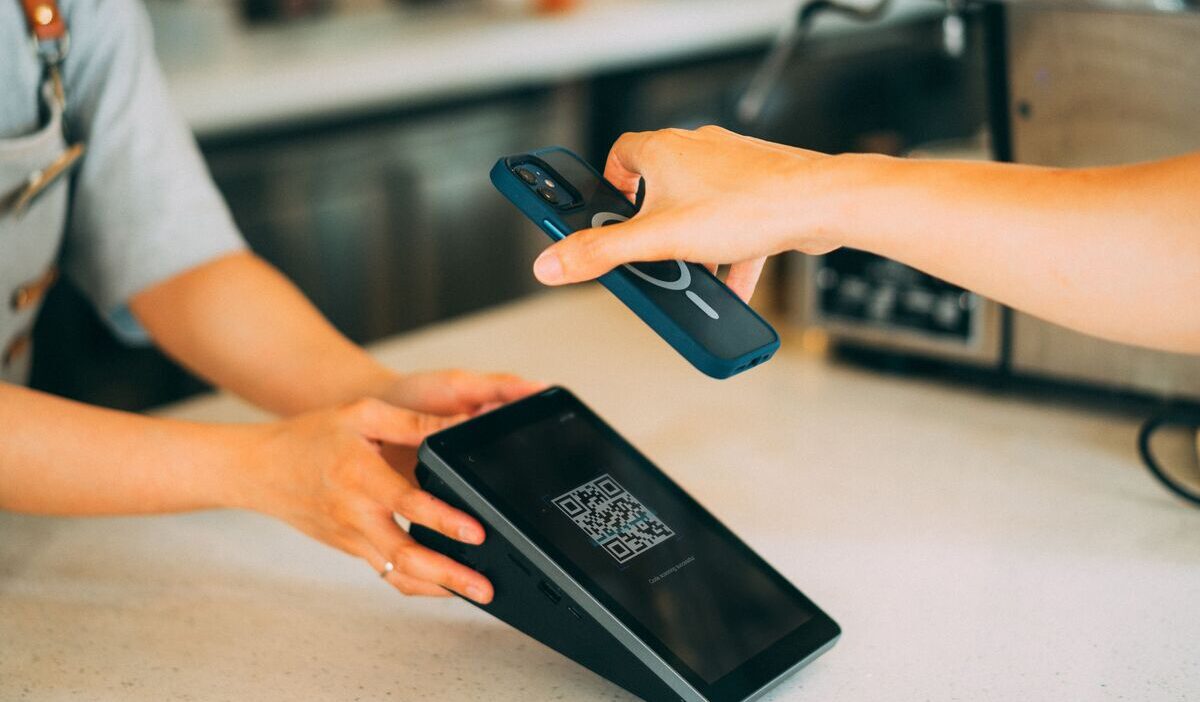
QR codes are everywhere now, from restaurant menus and payment pages to event tickets and Wi-Fi access. If you want to know how to scan QR code on iPhone, you do not always need a separate app.
Your iPhone already has built-in tools that can read codes through the Camera app, Photos app, screenshots, and Live Text. This guide explains each method clearly, plus what to do when a QR code will not scan.
1. How to Scan QR Code on iPhone?
The fastest way to scan a QR code is through the Camera app. You can use this approach to read QR codes.
Step 1: Open the Camera App
Unlock your iPhone and open the Camera app. You do not need to switch to a special QR mode. The normal Photo mode is enough for most QR codes.
Step 2: Point Your Camera at the QR Code
Hold your iPhone so the entire QR code appears clearly inside the camera frame. Try not to zoom in too closely.
A little space around the code helps your phone detect it faster.
Step 3: Wait for the Notification Banner
After your iPhone recognizes the code, a small banner should appear on the screen. It may show a website link, app action, contact card, Wi-Fi network, or payment-related prompt.
Step 4: Tap the Banner to Open the Link or Action
Before opening the result, take a moment to confirm that the destination looks legitimate and expected.
2. How to Scan a QR Code From a Picture on iPhone?
Sometimes the QR code is already saved in your gallery.
Step 1: Open the Photos App
Go to Photos and find the image that contains the QR code. This could be a screenshot, downloaded poster, saved ticket, or image someone sent you.
Step 2: Locate and open the photo where the QR code appears.
Open the image in full view. Make sure the QR code is not too blurry or cropped. If the image is very small, zoom in slightly.
Step 3: Tap the QR Code or Live Text Icon
On many newer iPhones, iOS can detect the code inside the image. You may see a Live Text icon or a tappable link appear near the QR code.
Step 4: Open the Detected Link or Information
Tap the detected result to open the website, copy the link, join a network, or complete the related action.
>>> Read More: How to Scan on iPhone? 2 Built-In Tools Most Users Never Notice
3. How to Scan QR Code on iPhone Screen?
Many users get confused when a QR code appears on the same iPhone they are using.
The Camera app cannot scan a code displayed on its own screen because the camera points outward, not at the display.
Use a Screenshot First
The easiest solution is to take a screenshot of the QR code, then open that screenshot in Photos. From there, tap the QR code or use Live Text to open the detected link.
Try Long-Pressing the Code
In some apps and browsers, you can press and hold the QR image. Your iPhone may show options such as opening the link, copying it, or sharing it.
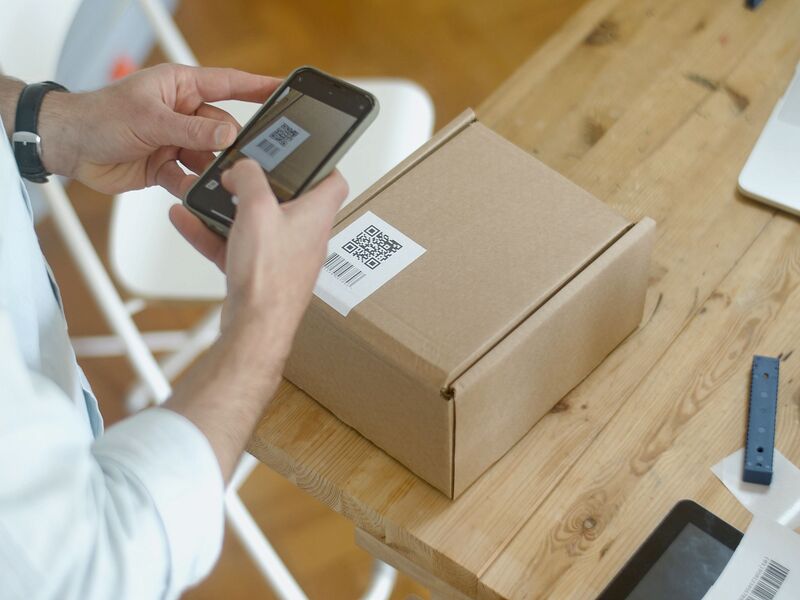
4. How to Scan QR Code on iPhone Without Camera?
There are times when the camera is not available, broken, blocked, or unnecessary. In those cases, you can still read QR codes in other ways.
Use Saved Photos and Screenshots
Photos and screenshots are the best built-in options. Open the image, wait for iOS to detect the code, then tap the link or action.
This works well for digital tickets, online forms, and QR codes sent through chat.
Use a QR Code Scanner App
If your iPhone is older or Live Text is not working well, a trusted QR scanner app may help. Be careful with unknown apps that request too many permissions.
Use Other Built-In iPhone Options
Some QR-related actions can also appear in Safari, Mail, Messages, or Files when the code is inside an image or document.
5. Why Isn’t Your iPhone Scanning QR Codes?
If your iPhone does not recognize a QR code, the problem is usually simple. The camera may not have enough light, the image may be unclear, or the QR code may be damaged.
Camera Permissions Are Disabled
Check whether the app you are using has camera access. Go to Settings, choose the app, and make sure Camera permission is allowed.
Poor Image Quality
A blurred, stretched, or pixelated QR code can be difficult to read. Try opening a clearer version or moving closer without cutting off the edges.
QR Code Is Damaged or Incomplete
If part of the code is covered, folded, scratched, or cropped, your iPhone may not read it. Ask for a fresh version if possible.
Outdated iOS Software
Updating iOS can improve built-in features and fix bugs.
6. FAQs
Can I still read QR codes when the rear camera on my iPhone is not working?
Use a screenshot or saved image instead. Open the QR code in Photos, then tap the detected link or Live Text option. If the code is printed, ask someone to take a picture of it and send it to you.
Do I need a QR code scanner app on iPhone?
Most users do not need one. The Camera app and Photos app can handle common QR codes. A scanner app may only be useful if you use an older iPhone or need extra features.
Is it safe to open QR code links?
Not always. A QR code can lead to a fake website, payment scam, or suspicious download. Check the link preview first, avoid entering private information too quickly, and only trust QR codes from reliable sources.
7. Conclusion
Once you understand how to scan QR code on iPhone, you can handle printed codes, saved images, screenshots, and on-screen QR codes with less confusion. Start with the Camera app, use Photos for screenshots, and always check links before opening them. These simple habits make QR scanning faster, easier, and safer.