If you want to know how to block a number on iPhone, the steps depend on where the call or message appears.
Each app gives you a simple way to block the number right where it appears.
Follow the steps in this guide for the Phone, Contacts, Messages, or FaceTime app that matches your case.
1. How to Block a Number on an iPhone
Here is how to block a phone number on iPhone from the app you already use.
How to Block a Number from the Phone App (Recent Calls)
Use this method when the number already appears in your call log, and you want a fast way to block it without saving the contact first.
It works well for recent callers, unknown numbers that have already reached your iPhone, and anyone who wants a direct block from the Phone app.
- Step 1: Open the Phone app.
- Step 2: Tap Recents.
- Step 3: Find the number, then tap the info icon next to it.
- Step 4: Tap Block this Caller, then confirm your choice.
How to Block a Number from Contacts
When the number is already saved in your address book, Contacts gives the fastest route. Blocking the contact stops calls, text messages, and FaceTime requests linked to that contact card.
- Step 1: Open Contacts.
- Step 2: Select the contact.
- Step 3: Scroll down to Block this Caller.
- Step 4: Confirm the block.
How to Block a Number on iPhone from Texting
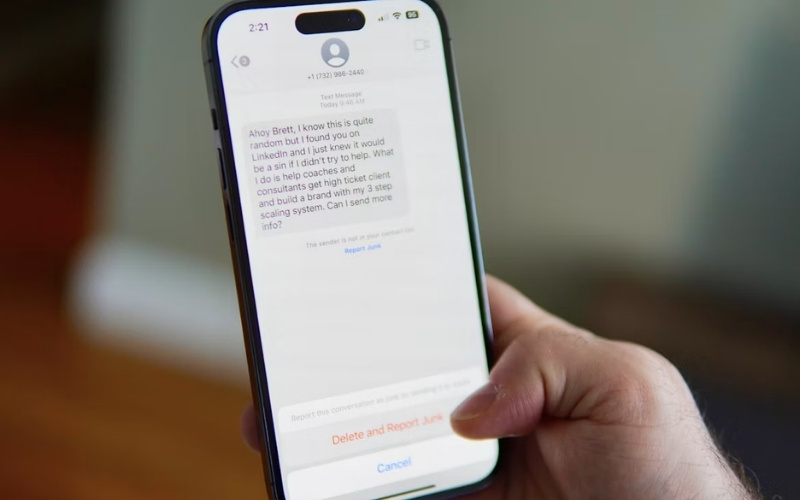
How to block a text number on iPhone? If the number has already reached you by text, Messages gives you a direct way to block it from the same thread. It is a simple choice when you want to stop future texts from a contact or a number that appears in your chat list.
- Step 1: Open Messages.
- Step 2: Open the conversation.
- Step 3: Tap the name or number at the top.
- Step 4: Tap Info.
- Step 5: Tap Block this Caller.
How to Block a Contact from FaceTime
You can block the contact directly from your FaceTime history. This option works for people or numbers that already appear in your FaceTime call list.
- Step 1: Open FaceTime.
- Step 2: Find the contact or number in your call list.
- Step 3: Tap the info icon.
- Step 4: Scroll down, then tap Block this Caller.
2. What Happens After You Block a Number on an iPhone?
Once you know how to block a number on an iPhone, the change applies to that exact contact or number and covers calls, texts, and FaceTime.
- Calls from that number do not ring on your iPhone.
- Texts and iMessages from that number stay out of your main Messages view.
- FaceTime calls from that contact do not reach you as normal calls.
- Voicemail can still arrive, but it does not change your call flow.
- The block happens quietly without a notification.
3. Manage Blocked Numbers on iPhone and Fix Common Blocking Issues
After you learn how to block a number on an iPhone, the Settings app also lets you review the list later.
View or Unblock Blocked Contacts
To review or remove blocked contacts, start in Settings:
- Tap Phone, Messages, or FaceTime, then choose Blocked Contacts.
- Swipe left on a name and tap Unblock.
- The change applies right away in that app.
- Check the Messages list as well.
Troubleshooting: Why You Might Not Be Able to Block a Number
A few settings and call sources can affect it, so check the points below.
- The number may not appear in Recents or Contacts yet.
- A hidden caller ID needs a different setting, such as Silence Unknown Callers.
- If the same person uses a new number, add it to the blocked list.
- Confirm that the contact appears in the Messages blocked list.
>>> Read more: How to Delete Apps on iPhone? Free Up Storage and Declutter Your Home Screen Fast
4. FAQs About How to Block a Number on iPhone
A few quick answers in daily use:
Does 67 Block a Number on iPhone?
No. *67 hides your caller ID for one call. Blocking keeps future calls and texts from that contact out of your inbox.
Can Blocked Callers Leave Voicemail?
Yes. The call can still reach voicemail, and you can listen to the message later if you want.
Can You Tell if Someone Has Blocked Your Contact on an iPhone?
iPhone does not send a notice. Call behavior may change, but there is no direct alert on the screen.
5. Conclusion
So, how to block a number on iPhone? It is only part of the process; the Settings app also helps you review blocked contacts later. That makes it easy to update the list when your contact needs change.
For more practical device guides, OptNYC offers clear tips that help readers make confident choices.