A factory reset can help when you want to clear an iPhone and return it to its original setup state. This guide covers how to factory reset iPhone, what to check before the reset, and what happens after the process is complete.
1. What to Check Before You Factory Reset Your iPhone?
Before a factory reset, check your data, account access, and cellular setup. These checks help make sure the iPhone is ready for a full erase.
Back Up Data You Want to Keep
A factory reset removes the data stored on the iPhone, so make a recent backup of any photos, contacts, app data, or settings you may need later.
You can check Settings > [your name] > iCloud > iCloud Backup and select Back Up Now.
Have Your Apple Account Password Ready
Keep your Apple Account password available before you start the reset. The erase process can require your device passcode and Apple Account password as part of the authentication steps.
Check Your eSIM Choice
If your iPhone uses an eSIM, decide whether you want to keep or delete it during the erase process. The reset screen provides this choice, so check your cellular setup before you confirm the erase.
>>> Read more: How to Sync iPhone and iPad: Complete Step-by-Step Guide
2. How to Factory Reset iPhone When You Know Your Passcode?
When you can unlock the iPhone, the direct Settings route is the standard way to return it to factory settings.
If you still know the passcode, factory reset iPhone without a computer simply means using this Settings option:
- Open Settings.
- Tap General.
- Tap Transfer or Reset iPhone.
- Tap Erase All Content and Settings.
- Tap Continue.
- Review the information that will be removed, then follow the on-screen instructions.
- Choose whether to keep or delete your eSIM if the option appears.
- Enter your iPhone passcode.
- Wait for the backup to finish if the device starts one.
- Enter your Apple Account password when prompted.
- Confirm the erase and wait for the process to finish.
3. How to Factory Reset iPhone When You Forgot Your Passcode?
The available method depends on whether the iPhone can use its Lock Screen reset option or needs a computer.
Reset Your iPhone From the Lock Screen
On supported iOS versions, the Lock Screen can provide a reset option after the iPhone reaches the iPhone Unavailable or Security Lockout screen.
For iOS 17 or later, tap Forgot Passcode?, then select Start iPhone Reset. Enter your Apple Account password, tap Erase iPhone, and follow the setup steps after the device restarts.
This option requires an active Wi Fi or cellular connection and Find My to have been enabled before the lockout. On iOS 15.2 and iOS 16, the option appears as Erase iPhone.
If you are locked out, learning how to factory reset iPhone without password or computer directly from the Lock Screen saves significant time.
However, if you are specifically searching how to factory reset iPhone without Apple ID password, note that the Lock Screen method cannot bypass Activation Lock, entering your Apple credentials remains mandatory for security.
Restore Your iPhone With a Computer
When the Lock Screen option is unavailable, use recovery mode to restore the iPhone with a Mac or Windows PC.
How to factory reset iPhone with buttons? Use the button listed for your iPhone model to enter recovery mode:
| iPhone model | Button |
|---|---|
| iPhone with Face ID | Side button |
| iPhone 8, 8 Plus, and iPhone SE 2nd or 3rd generation | Side button |
| iPhone 7 or 7 Plus | Volume Down |
| iPhone 6s or earlier and iPhone SE 1st generation | Home button |
Hold the required button until the recovery mode screen appears, then use Finder on a Mac or Apple Devices on a Windows PC to select Restore, and follow the on-screen instructions.
>>> Read more: What iPhone Do I Have? Ways to Find Your iPhone Model [Full Guide]
4. What Happens After a Factory Reset?
A factory reset erases the personal content and settings stored on the iPhone. Photos, contacts, apps, and Apple Pay cards are removed from the device, while content that remains in iCloud stays available in your account.
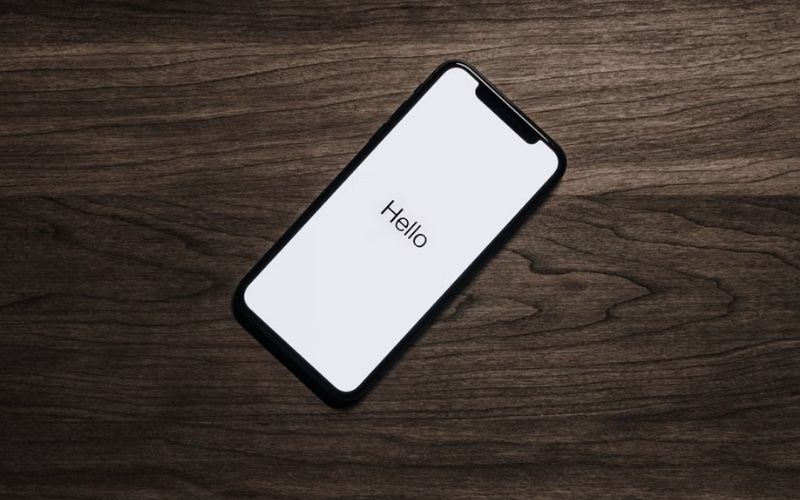
After the erase finishes, the iPhone displays the Hello screen and starts from the initial setup state. You can set it up as a new iPhone or restore your data from an available backup using the iCloud backup restore process.
With Erase All Content and Settings, Find My and Activation Lock are turned off as part of the erase. The iPhone is then ready for a new setup or transfer to another person.
5. FAQs
Here are concise answers to common questions about an iPhone factory reset.
How long does it take to factory reset an iPhone?
A factory reset does not have a fixed time. The process can take longer when the iPhone needs to complete a backup or a computer must download the iOS software before the restore.
Can I stop a factory reset once it has started?
Once the erase process has started on the iPhone, there is no standard option to stop it. Let the reset finish before setting up the device again.
Why is my iPhone still showing Activation Lock after a factory reset?
Activation Lock can remain after a remote erase through Find My because the device stays linked to the Apple Account. A normal Erase All Content and Settings process turns off Activation Lock as part of the erase.
6. Conclusion
With how to factory reset iPhone, check your data and account access first, then choose the reset method that fits your situation. The right steps can clear the device and leave it ready for a fresh setup or data restore.
For more practical iPhone guides and setup help, OptNYC can help you find the right next step.