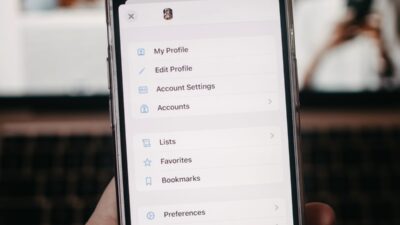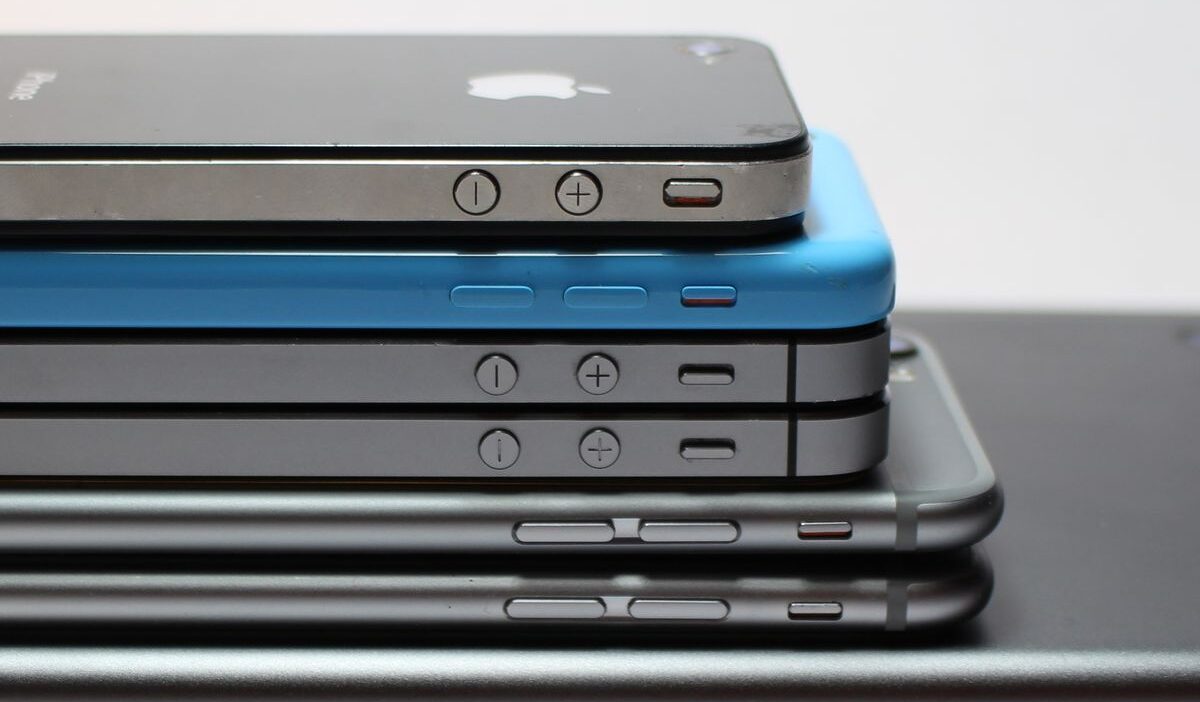
If you often ask, “What iPhone do I have?”, you can find the answer within a few minutes. Apple displays the model name and identifying numbers inside the Settings app, while the device, packaging, and Apple Account provide other useful clues.
An exact model name helps you choose a compatible case, arrange a repair, check software support, or estimate a resale price. This guide explains several reliable identification methods, including options for an iPhone that does not turn on.
1. Why Knowing Your iPhone Model Matters
Apple has released many iPhone models with similar screens, dimensions, colors, and camera layouts.
Consequently, visual appearance alone may not provide an accurate answer when you wonder, “What iPhone do I have?”
Your model can affect many purchasing and support decisions:
- Determines which cases and screen protectors fit the device.
- Helps Apple or a repair provider select compatible replacement parts.
- Device generation determines which iOS updates and features it supports.
- Influences its current trade-in and resale value.
- Helps you compare battery, camera, storage, and connectivity specifications.
- Identifies regional differences in cellular band support.
2. What iPhone do I Have: How to Know?
So, how do I know what iPhone I have? Apple provides several ways to identify its phones.
Find Your iPhone Model in Settings
The About screen usually provides a direct answer when the iPhone works and allows you to access its settings. You can follow these steps:
- Open the Settings app.
- Tap General.
- Select About.
- Find Model Name near the top of the screen.
- Review the listed name, such as iPhone 15 Pro or iPhone SE.
- Check Capacity if you also need the storage size.
Check Your iPhone Model Number and Serial Number
The About screen displays both a model number and a serial number, but each identifier serves a different purpose.
The model number connects your device to a specific iPhone version and regional configuration. The serial number identifies your individual unit for service, warranty, and support purposes.
To find out “what type of iPhone do I have”, you can find the model number through these steps:
- Open Settings > General > About.
- Find the Model Number field.
- Review the part number that appears first.
- Tap that part number once.
- Record the model number that begins with the letter A.
The first value may look like M…/A, which represents a part number rather than the A-number used in Apple’s model list. One tap changes that value to a code such as A2890.
You can compare that code with Apple’s official iPhone model identification list. Apple organizes the list by model name, year, capacity, colors, and identifying design details.
Meanwhile, the serial number can help you review service or warranty information. However, you should avoid posting the complete serial number, IMEI, or EID on public forums because another person could misuse that information.
Identify Your iPhone by Its Physical Design
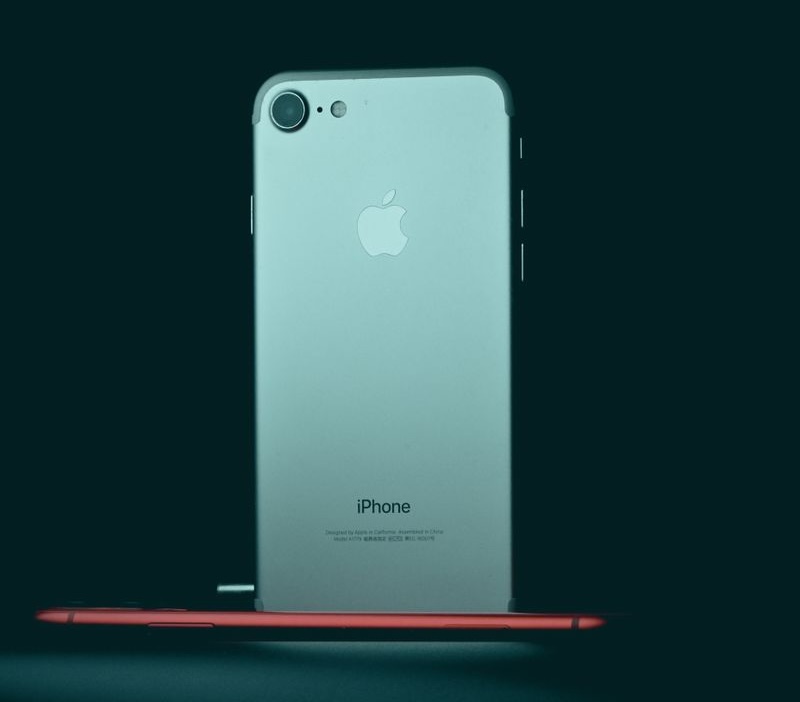
How do I tell what iPhone i have? Physical features can narrow your search when you cannot open Settings.
However, Apple has reused several designs, so you should treat visual identification as supporting evidence. You can examine these features:
- Home button: Older models and iPhone SE versions include a circular Home button.
- Screen cutout: Some models use a wide notch, while newer models may use Dynamic Island.
- Camera arrangement: Different models use one, two, or three rear cameras in distinctive layouts.
- Side controls: Recent generations may include an Action button or Camera Control.
- Connector: Older devices use a Lightning port, while newer generations use USB-C.
- Frame shape: Some models use rounded sides, while other models use flat edges.
- Device size: Mini, Plus, and Pro Max versions have noticeably different dimensions.
>>> Also read: How to Factory Reset iPhone With Buttons: Step-by-Step for Recent Models
3. How to Identify an iPhone That Won’t Turn On
A dead battery, damaged screen, or hardware failure can prevent access to the About screen. Fortunately, you can answer “What iPhone do I have?” through several alternative sources.
Check the Original Packaging
The original box includes a barcode label with identifying information. You can look for the product description, part number, serial number, and IMEI on that label.
You should confirm that the box belongs to the device before trusting the information. A previous owner or retailer may have placed the phone inside a different box.
Use Your Apple Account
If the iPhone remains linked to your Apple Account, another device or web browser may display its details. You can use these steps:
- Visit Apple Account.
- Sign in with the Apple Account connected to the iPhone.
- Open the Devices section.
- Select the relevant iPhone.
- Review the displayed model and identifying information.
Connect the iPhone to a Computer
A trusted computer may recognize an iPhone even when its display does not work. A Mac can show the device through Finder, while a Windows PC can show it through the Apple Devices app or iTunes.
However, a locked or severely damaged iPhone may not connect successfully. The computer may also request confirmation on the phone if the devices have never established trust.
Inspect the SIM Tray or Device Body
Some earlier models display an IMEI on the SIM tray, while several older iPhones display an IMEI on the back. The original iPhone displays both its serial number and IMEI on its rear surface.
However, iPhone 14 models and later do not include an engraved IMEI. Therefore, this method does not work across every generation.
4. FAQs
How can I tell what iPhone I have without turning it on?
Check the original box, purchase receipt, carrier account, Apple Account device list, or a trusted computer. Older models may also show an IMEI on the SIM tray or back. Match any A-number you find with Apple’s official model list for the most accurate identification.
What iPhone do I have by looking at it?
Look at the screen notch, Home button, camera setup, charging port, frame, and size. These can help narrow down the model. However, many iPhones look similar, so confirm with a model number when possible.
Where can I check my iPhone model before buying a used device?
Ask the seller to open Settings > General > About and show the Model Name, Model Number, Capacity, and iOS version. Make sure the physical phone matches the details shown.
5. Conclusion
The answer for “What iPhone do I have?” lies in the settings. The Model Name provides an immediate answer, while the A-number confirms the exact regional version through Apple’s model list.
If the phone does not turn on, the original box, Apple Account, purchase receipt, computer, SIM tray, or exterior design may provide the necessary information. However, you should verify at least two sources before you buy accessories, request repairs, or purchase a used device.