Want to switch back to regular browsing on your iPhone? This guide explains how to turn off incognito mode on iPhone in Safari, so you can return to regular tabs and browse as usual.
1. What to Check Before Closing Private Tabs in Safari?
Before you leave Private Browsing, consider whether you need to keep any private pages open.
- Save important links: Bookmark or copy URLs you may need later.
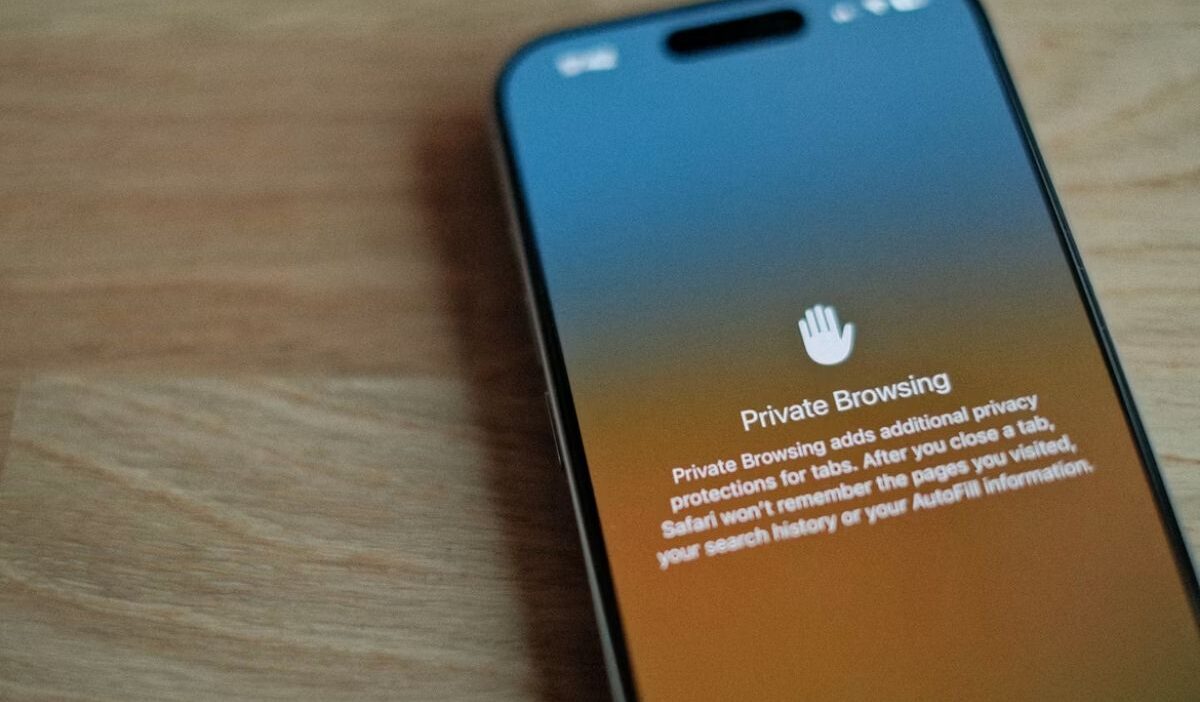
- Check your browsing mode: Safari’s address bar appears black or dark in Private Browsing and white or gray when the mode is off.
You can switch to regular browsing without closing your private tabs. Remember that Private Browsing mainly limits what Safari saves to your browsing history.
It does not make your activity invisible to websites, network providers, or the services you use.
>>> Read more: How to Close All Tabs on iPhone Quickly to Free Up Memory
2. How to Turn Off Incognito Mode on iPhone?
The steps to turn off Incognito mode on iPhone depend on the browser or app you use. Safari calls it Private Browsing, while Google Chrome and the Google app have their own private browsing experiences.
How to turn off incognito mode on safari iPhone? Follow the steps for your app below.
In Safari
Here is how to switch back to normal browsing in Apple’s default browser:
- Open Safari on your iPhone.
- Tap the More button, then select New Tab to return to regular browsing.
- On iOS 17 or earlier, tap the Tabs button and select your regular tab group.
In Google Chrome
If you are using Chrome, you can easily jump between private and normal tabs or close your private session altogether:
- Open Chrome on your iPhone.
- Tap Switch tabs.
- Swipe left or right to switch between Incognito and regular tabs.
To end the Incognito session completely, tap the Incognito icon, select Edit, then choose Close All Tabs.
In the Google app
If you perform searches through the official Google app, its interface and tab management differ slightly from Chrome:
Open the Google app and tap your profile icon in the top right corner. From there, you can turn off Incognito mode or adjust your privacy settings directly.
3. What Happens to Private Tabs When You Turn Off Incognito Mode?
Exiting private browsing doesn’t completely erase your active session right away. Here is what actually happens to your open tabs and data when you switch back to normal mode in Safari:
- Your private tabs stay open: You can return to them by switching back to the Private tab group.
- Private Browsing locks: If your iPhone has a passcode and the relevant setting is enabled, Safari locks private tabs when they are not in use. The lock may not happen immediately.
- Private history remains separate: Pages visited in Private Browsing do not appear in Safari’s regular browsing history.
4. What to Do If You Can’t Turn Off Private Browsing on iPhone?
If you get stuck in private mode or can’t seem to find the standard browser view, try these quick troubleshooting steps to get your normal controls back:
- Can’t find More? Look for the Tabs button instead. Its position depends on your Safari layout.
- Can’t find a regular tab group? Open the tab overview and select a group labeled with a number of tabs, rather than Private.
- Private tabs are locked? Unlock them with Face ID, Touch ID, or your iPhone passcode if prompted.
5. How to Fix Safari Tabs Freezing When Switching Modes?
If Safari stops responding when you switch tab groups, try these general troubleshooting steps:
- Close and reopen Safari: Force the app to close, then open it again.
- Restart your iPhone: Try this if Safari remains unresponsive.
- Check for updates: Install an available iOS update if the problem continues.
>>> Read more: How to Allow Pop Ups on iPhone: Easy Safari & Browser Settings Guide
6. FAQs
Here are quick answers to common questions about how to turn off incognito mode on iPhone and manage Private Browsing in Safari.
Does Private Browsing turn off when I close Safari?
No. Closing Safari doesn’t necessarily turn off Private Browsing. Your private tabs can remain open and lock until you return to Safari and switch to a regular tab group.
Can I use Private Browsing and regular tabs at the same time on iPhone?
Yes. Safari lets you keep private and regular tabs open in separate tab groups and switch between them whenever you need.
Does turning off Incognito Mode delete my browsing history?
No existing regular browsing history is deleted. Safari Private Browsing doesn’t save the pages you visit to your browsing history.
In Chrome, Incognito session data is removed when you close all Incognito tabs, but downloaded files and saved bookmarks remain.
7. Conclusion
The right steps for how to turn off incognito mode on iPhone depend on whether you use Safari, Chrome, or the Google app.
Choose the option that matches your app, and close private tabs if you want to end the session completely. For more practical iPhone tips and guidance, visit OptNYC.