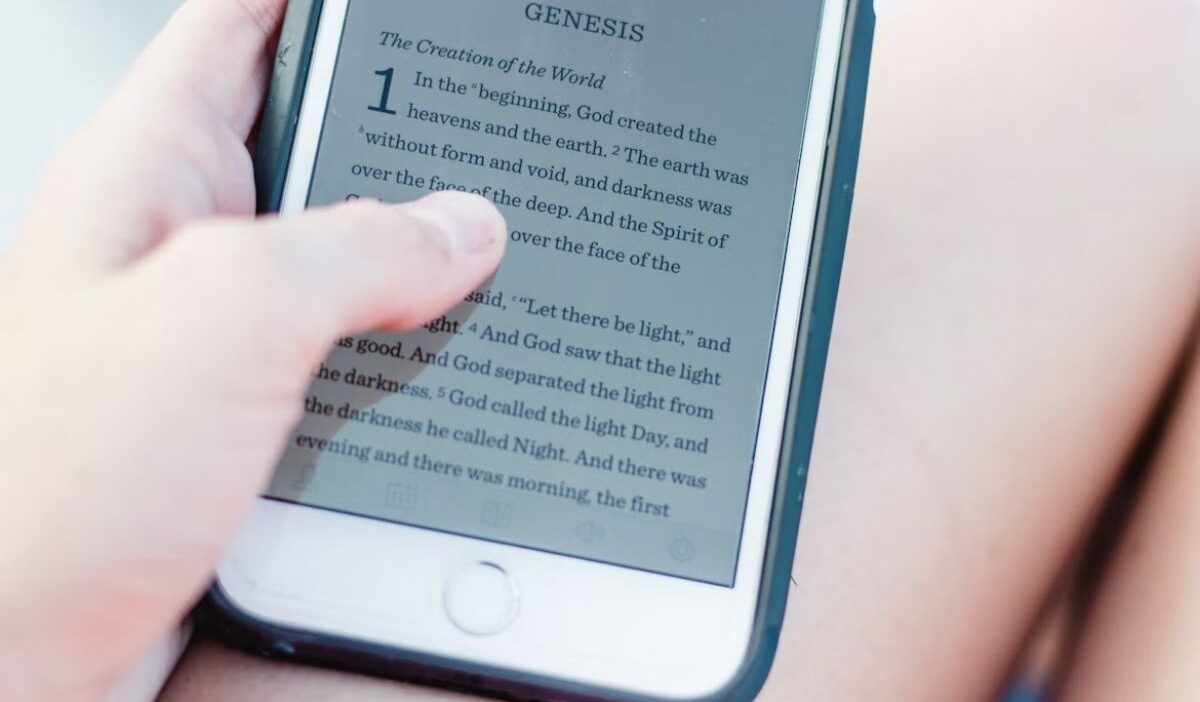
Converting images into PDF files on an iPhone is useful when you need to submit documents, share receipts, or keep digital records organized. This guide explains how to convert picture to PDF on iPhone with clear, practical instructions.
1. How to Convert Picture to PDF on iPhone?
The iPhone offers several ways to turn pictures into PDFs, depending on where the images are stored and whether you need to combine multiple files.
Method 1: Turn Photos Into PDF Inside the Files App
These steps show how to convert a picture to PDF on iPhone when the image is on your iPhone.
- Open the Files app and locate the image.
- Touch and hold the image file to open the context menu.
- Select Quick Actions, then tap Create PDF if the option is available.
- Find the new PDF in the same folder as the original image.
- Touch and hold the PDF to rename, move, or share it.
Method 2: Export Pictures to PDF Using the Print Menu
Once an effective way for how to convert picture to PDF on iPhone without app, you can use the Print menu in Photos. Follow these steps:
- Open the Photos app and tap Select.
- Choose the pictures you want to convert, then tap Share.
- Scroll down and select Print.
- On the print preview, spread two fingers outward over the preview to open it as a PDF.
- Tap Share on the PDF preview.
- Select Save to Files, choose a folder, and tap Save.
Method 3: Combine Photos Into One PDF With Shortcuts App
Create a shortcut to select multiple pictures, combine them into a PDF, and save the result. After setup, you can reuse the shortcut whenever you need to convert another group of images.
- Open Shortcuts and tap + to create a new shortcut.
- Tap Add Action and search for Select Photos.
- Add the action and turn on Select Multiple.
- Add the Make PDF action so it receives the selected photos.
- Add the Save File action to choose where the PDF will be stored.
- Rename the shortcut, then tap Done.
- Run the shortcut, select your pictures, and choose a save location if prompted.
To use Notes, open a note, tap the attachment option to scan a document or add an image, then use the Share menu to check the available PDF options.

2. How to Save and Manage the PDF on iPhone?
After creating a PDF, use Preview to organize the PDF without repeating the conversion process. Open the PDF in Preview, then use the available actions:
- Save and return: Tap the Back button to save your changes and return to the main menu.
- Rename: Tap the Actions menu next to the filename, select Rename, enter the new name, and tap Done on the keyboard.
- Move: Tap the Actions menu next to the filename, select Move, and choose a new location.
- Create a copy: Tap the Actions menu and select Duplicate.
- Copy or share: Tap Share, then select Copy to copy the file to the clipboard or choose an available sharing option.
>>> Read more: How to Make a PDF on iPhone Without Paid Apps From Any Content
3. How to Fix Storage Errors When Creating Large PDF Files?
Large pictures can produce PDFs that require substantial storage space, so it also depends on image dimensions and the number of pictures in each file. If your iPhone cannot save the file, try these steps:
- Check available space: Go to Settings > General > iPhone Storage to see how much storage remains.
- Remove unnecessary files: Delete downloads or files you no longer need, after confirming that you do not need them.
- Optimize photo storage: If you use iCloud Photos, enable Optimize iPhone Storage under Settings > your name > iCloud > Photos. This keeps full-resolution originals in iCloud while storing smaller versions on your iPhone when needed.
- Create smaller PDFs: If you have dozens of pictures, convert them in smaller batches, such as 10 images per PDF, then combine the files if necessary. The resulting size depends on the original images.
- Choose an appropriate image size: For PDFs intended mainly for phone screens, use Preview’s Optimize Images for Screen option to reduce image resolution and file size. For printing or detailed documents, retain higher image quality.
>>> Read more: How to Make a Photo Collage on iPhone: Quick Creation Methods
4. FAQs
Discover quick answers below to help you resolve common issues when converting photos to PDFs on iOS devices.
Can I convert multiple pictures to one PDF on iPhone?
Yes. You can select multiple pictures and use the Print menu or create a Shortcut to combine them into one PDF, with each picture on a separate page.
Can I combine different picture formats into one PDF on iPhone?
Yes. You can combine supported image formats, such as JPG and PNG, into one PDF. The available options depend on the conversion method and whether your iPhone can open the image files.
Does converting a picture to PDF reduce image quality on iPhone?
Not necessarily. Converting an image to PDF does not automatically mean it will lose quality, but image resizing, compression, and export settings can affect the result.
5. Conclusion
To decide how to convert picture to PDF on iPhone, choose Files for a single image, Print for a quick conversion, or Shortcuts to combine several pictures.
Then save the PDF in Files so it is easy to find and share. Visit OptNYC for more practical digital tips and resources.