Creating a PDF on an iPhone can be useful when you need to turn existing content into a shareable document. However, the steps can vary based on what you want to convert. This guide covers how to make a PDF on iPhone and the key steps to handle the file afterward.
1. How to Make a PDF on iPhone?
Choose the workflow that matches the content you already have, then follow the steps for that source.
Make a PDF From Photos or Images
Use Preview when the content already exists as an image on your iPhone. Here is how to make a PDF on iPhone from an image already stored on your device.
- Open Preview and open the image.
- Tap the Actions Menu next to the filename.
- Tap Export.
- Select PDF as the format.
- Tap Done, choose where to save the file, then tap Save.
PDF is an export format for images in Preview, so how to make a picture a PDF on iPhone without converting the image in another app.
Scan a Paper Document Into a PDF
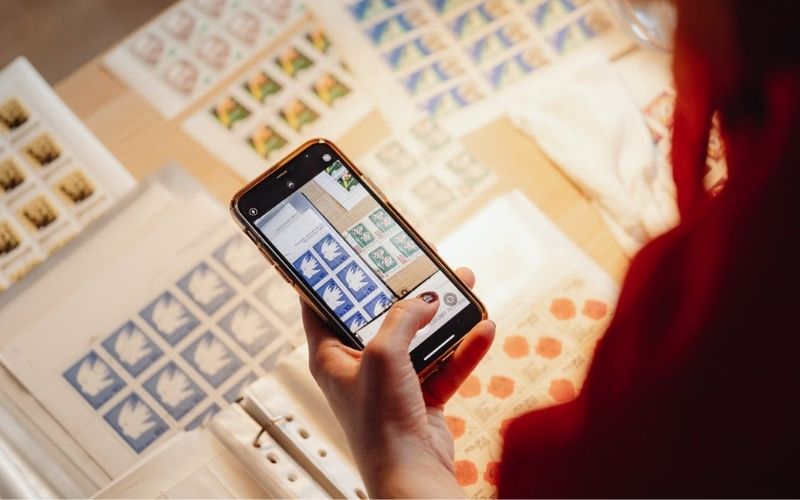
Use Preview when your source is a physical document that you want to capture with the iPhone camera. This workflow shows how to make a PDF on iPhone when the source is a paper document.
- Open Preview.
- Tap Scan Documents.
- Position the page inside the camera frame.
- Let iPhone capture the page automatically, or switch to Manual and tap the Shutter button.
- Repeat the scan for additional pages.
- Tap the thumbnails to crop, rotate, or adjust the scan.
- Tap Done.
The same Preview workflow covers how to make a photo a PDF on iPhone when the photo comes from a paper document scan.
Save a Webpage as a PDF
Safari can save the webpage you have open as a PDF through its Share and Markup tools. These steps show how to make a PDF on iPhone from a webpage without moving the content into another app.
- Open the webpage in Safari.
- Tap the Page Menu, then tap Share. If your Safari layout shows the Share button directly, tap it instead.
- Tap Markup.
- Make any markup changes you want.
- Tap Done.
- Select Save File To.
- Enter a filename, then tap Save.
The PDF is saved as a file from Safari, so the webpage does not need to be copied into another app first.
Export a Note as a PDF
Notes can turn an existing note into a PDF through the Share menu.
- Open Notes.
- Open the note you want to export.
- Tap Share.
- Tap Markup. If you do not see it, tap View More first.
- Make any required markup changes.
- Tap Done to save the PDF.
The exported PDF follows the note’s current view settings for its attachments. When a note contains a multi-page PDF or scanned document, the exported PDF contains only the first page of that attached file.
>>> Read more: How to Scan on iPhone? 2 Built-In Tools Most Users Never Notice
2. How to Locate and Organize the PDF You Created
Once you create a PDF, Preview gives you simple controls to keep the file organized. The same native tools also support how to make a PDF on iPhone and manage the resulting file in Preview.
Open the PDF in Preview, then use the Actions Menu next to its filename to:
- Rename the file with a clearer name.
- Move it to another location.
- Duplicate it when you need a separate copy.
- Copy it to the clipboard for use in another app.
- Export it in another supported format.
These are file controls in Preview, including rename, duplicate, copy, move, and export options.
A clear filename can also make a PDF easier to locate later. For example, a scanned receipt can use a name such as Receipt_September.pdf instead of a generic file name.
3. How to Share or Use the PDF After Creation?
A finished PDF can move directly from Preview to the app or person that needs it. When the source is already saved as a file, these steps also fit how to make a file a PDF on iPhone before you share it.
Open the PDF in Preview, tap Share, and choose an available action. You can send a copy, copy the file to the clipboard, or use a sharing method such as Mail or Messages.
You can also attach a PDF to an email from your iPhone. In Mail, tap the attachment action above the keyboard, choose Attach File, and select the PDF from Files.
For a paper document that you need to send right away, Mail also supports direct document scanning and can send the scanned pages as a PDF attachment.
>>> Read more: How to Make a Photo Collage on iPhone: Quick Creation Methods
4. FAQs
Here are quick answers to common questions about how to make a PDF file on iPhone.
Can I combine multiple photos into one PDF on iPhone?
Yes. Select multiple images in Photos, then use the Share menu to open them in a PDF-compatible workflow and save them as one file.
Can I add more pages to a PDF after creating it on iPhone?
Yes. You can open the PDF in Preview and add pages from another PDF or image file. This lets you expand the document without creating a new PDF from scratch.
Can I create a PDF from an email on iPhone?
Yes. Open the email in Mail, tap Share, then use Markup to save the message as a PDF. The saved file includes the email content in its current view.
5. Conclusion
So, how to make a PDF on iPhone? The right steps depend on the content you need to convert. Native iPhone tools can handle photos, paper documents, webpages, and notes without a paid app.
Choose the method that matches your source, then use OptNYC for more practical iPhone tips and guides.