Want to keep certain pictures on your iPhone without having them appear in your regular photo library?
The Photos app lets you hide them without deleting them from your device. Here’s how to hide photos on iPhone and access them again whenever you need to.
1. How to Hide Photos on iPhone?
The Photos app has a built-in Hide feature that moves selected pictures out of your regular photo library.
You can use it for personal photos, screenshots, or videos that you want to keep on your iPhone without displaying them in your main collection.
Here’s how to hide photos on an iPhone individually:
- Open the Photos app on your iPhone.
- Find the photo or video you want to hide.
- Touch and hold the item until the action menu appears.
- Tap Hide, then confirm your choice.
For those who wonder how to hide multiple photos on iPhone at once, you can open your library or a collection, tap Select, choose the photos and videos, tap the More button, and select Hide.
In case of how to hide shared photos on iPhone, first check where they are stored. Photos in your personal library that sync through iCloud Photos are also hidden on your other devices that use the same Apple Account.
However, hiding a photo in an iCloud Shared Photo Library moves it to the Hidden album for all participants.
Other participants may still be able to view or unhide it, so this feature does not keep shared-library photos private from them.
>>> Read more: How to Hide Apps on iPhone Without Deleting Them? [2026]
2. Where Do Hidden Photos Go on iPhone?
You can find them in the Hidden album by following these steps:
- Open Photos and tap Collections.
- Scroll to Utilities and tap Hidden.
- Tap View Album and authenticate if prompted.
Since iOS 16, the Hidden album has been locked by default and requires Face ID, Touch ID, or your iPhone passcode to open.
For photos in an iCloud Shared Photo Library, the behavior is different. When a participant hides a photo, it moves to the Hidden album for all participants.
Other participants may still be able to view or unhide that photo, so hiding it does not make it private from everyone in the shared library.
To restore a hidden photo to your regular library, open the Hidden album, unlock it if required, touch and hold the photo or video, and tap Unhide.
3. How to Hide the Hidden Album From Photos?
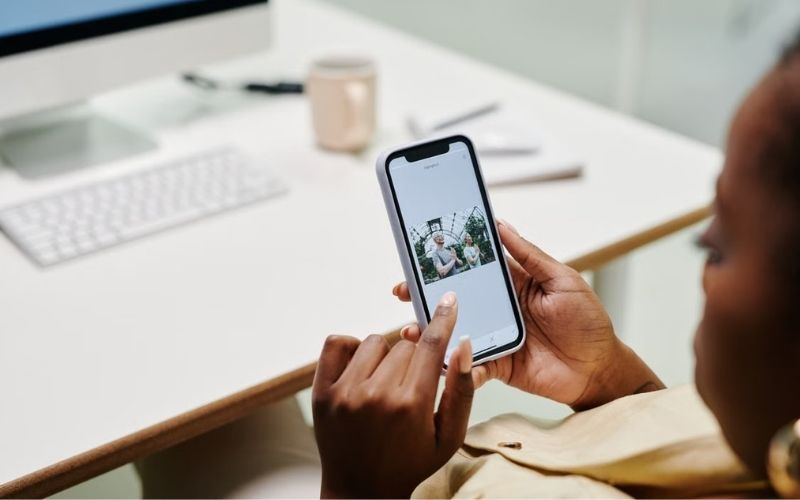
Another part is removing the Hidden album from view without changing its contents. Your pictures remain in the Hidden album, but the album no longer appears in the app while this setting is off.
- Open Settings.
- Tap Apps > Photos.
- Turn off Show Hidden Album.
In contrast to how to hide hidden photos on iPhone, to access the album again, return to the same setting and turn Show Hidden Album back on. The album will then appear under Utilities in Photos.
The Photos app layout can vary by iOS version, so the location of photo controls may differ from the steps in this article.
In newer versions, the app organizes content under Collections, while older versions may show tabs such as Library and Albums.
If you cannot find a control where expected, check your iOS version and use the matching instructions in Apple’s iPhone User Guide. This helps you follow the correct steps for your device.
>>> Read more: How to Delete Wallpaper on iPhone (iOS 16 and Later) Step-by-Step
4. FAQs
Here are quick answers about how to hide photos on iPhone, handle shared photos, and keep hidden images in sync across devices.
How do I hide shared photos on iPhone?
Photos in a Shared Album remain visible to its participants. To keep a copy private, save the photo to your personal library, then use Hide in Photos. This hides your copy but does not remove the original from the Shared Album.
Can I hide multiple photos at once on iPhone?
Yes. Open Photos, tap Select, choose the photos or videos, tap More, then select Hide and confirm.
Will hidden photos appear on other Apple devices?
If you use iCloud Photos, hidden photos also move to the Hidden album on other devices signed in to the same Apple Account with iCloud Photos enabled.
Is the Hidden album automatically locked with Face ID or Touch ID?
Yes. On iOS 16 and later, the Hidden album is locked by default and requires Face ID, Touch ID, or your passcode to view. If you want to make it completely invisible, you can also go to Settings > Photos and toggle off Show Hidden Album so it won’t even appear under Utilities.
5. Conclusion
Learning how to hide photos on iPhone lets you keep personal pictures out of your regular library without deleting them. You can also control whether the Hidden album appears in Photos and restore images whenever needed.
For more practical iPhone tips and eyewear advice, explore OptNYC.