If you need to know how to hide apps on iPhone, you may want to keep an app out of the usual Home Screen view without removing it from your device.
The right steps depend on the iPhone’s available app controls, so this guide shows how to handle the process.
1. How to Hide Apps on iPhone Screen?
These steps cover how to hide apps on iPhone iOS 18 and later for apps that support the Hide App option.
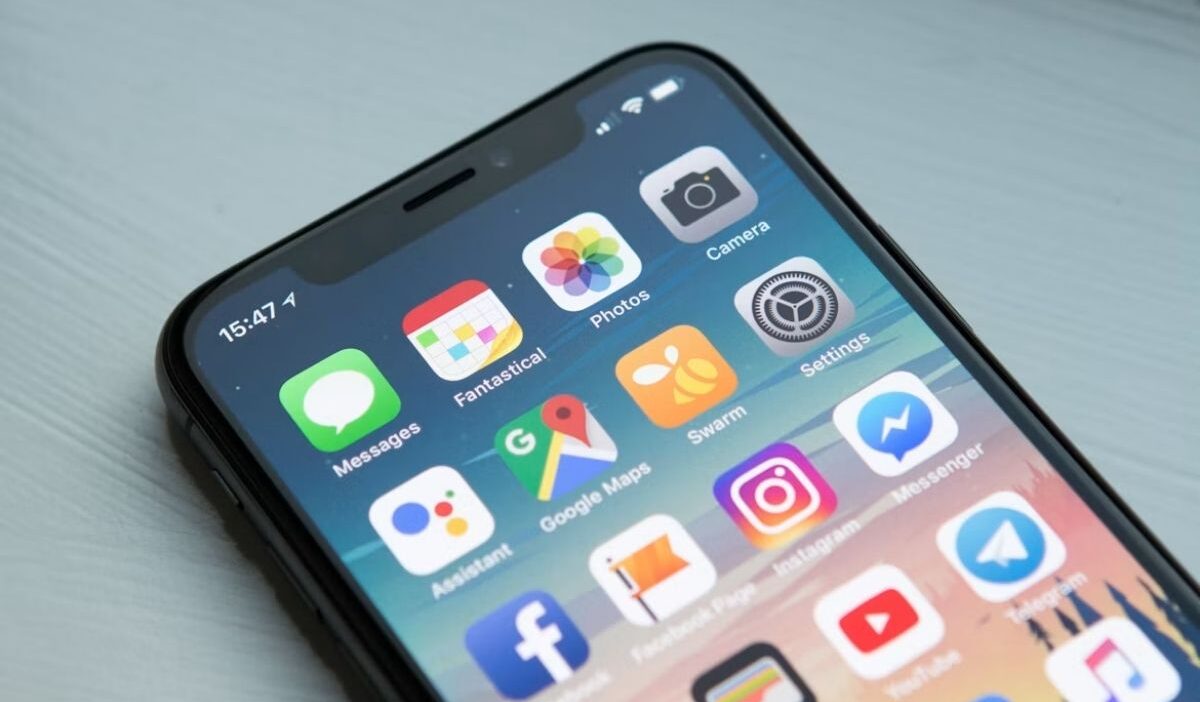
- Find the app: Go to the Home Screen and locate the app you want to hide.
- Open the app menu: Touch and hold the app icon until the quick actions menu appears.
- Select the Hide option: Tap Require Face ID, Require Touch ID, or Require Passcode, depending on your iPhone.
- Choose the Hide option: Tap Hide and Require Face ID, Hide and Require Touch ID, or Hide and Require Passcode.
- Confirm your identity: Use Face ID, Touch ID, or your passcode when prompted.
- Confirm the action: Tap Hide App to complete the process.
2. Where Do Hidden Apps Go on iPhone?
Do you still wonder how to hide apps on iPhone without deleting it? After you hide an app, iPhone moves it to the Hidden folder at the bottom of App Library.
The app no longer appears on the Home Screen, but it remains installed on the device. To find and open the app:
- Open App Library: From the Home Screen, swipe left past your Home Screen pages.
- Find Hidden: Scroll to the bottom of App Library and tap Hidden.
- Authenticate: Use Face ID, Touch ID, or your passcode to open the folder.
- Open the app: Tap the hidden app, then authenticate again when prompted.
>>> Read more: How to Delete Apps on iPhone? Free Up Storage and Declutter Your Home Screen Fast
3. Why Can Certain Apps Not Be Hidden on iPhone?
The Hide App option is not available for every app or every iPhone setup. The available controls for how to hide apps on an iPhone depend on the app type, iOS version, and some account or regional conditions.
- Built-in apps: Apps that come installed with iOS cannot be hidden.
- Downloaded apps: Apps downloaded separately can use the Hide App feature when supported.
- EU defaults: In the European Union, an app set as the default web browser or app marketplace cannot be hidden.
- iOS version: The current Hide App feature requires iOS 18 or later, so iOS 16 does not use this option.
If the Hide and Require Face ID, Hide and Require Touch ID, or Hide and Require Passcode option does not appear, the app may not meet these conditions.
There are also a few limits to keep in mind after an app is hidden. The hidden status applies only to that iPhone and does not sync through iCloud.
For Family Sharing, children under 13 cannot lock or hide apps. Ages 13 to 17 can use the feature, although a parent or guardian in the family group can still see that the app was downloaded and view its Screen Time usage. These age rules can vary by country or region.
>>> Read more: How to Update Apps on iPhone Manually and Automatically [2026]
4. What Is the Difference Between Hiding an App and Removing It from the Home Screen?
Both options keep the app installed on the iPhone, but they differ in how the app is hidden and accessed. The steps below explain the difference between hiding an app and simply removing it from the Home Screen.
| Action | Result | Where the app appears |
|---|---|---|
| Hide App | Removes the app from the Home Screen and places it in the Hidden folder | Hidden folder in App Library |
| Remove from Home Screen | Removes the app icon from the Home Screen without hiding the app | App Library |
5. FAQs
Here are quick answers to common questions about hiding apps on iPhone.
Can I hide any app on my iPhone?
No. The Hide App option is not available for every app, including certain built-in apps and some default apps in the EU.
Can I create a secret folder for apps on iPhone?
Not with a regular Home Screen folder. Supported apps can use iPhone’s built-in Hidden folder in App Library.
Can someone see a hidden app on my iPhone?
The Hidden folder requires authentication to open, but the app can still appear in places such as Settings, Screen Time, and App Store purchase history.
Do hidden apps stay installed on iPhone?
Yes. Hiding an app removes it from the Home Screen and places it in the Hidden folder, but the app stays installed on the iPhone.
6. Conclusion
Knowing how to hide apps on iPhone lets you remove a supported app from the Home Screen without deleting it. The app remains installed in the Hidden folder and requires authentication to open.
For more practical iPhone tips, OptNYC offers clear guidance on everyday device settings.