iPhone vibration affects how the device responds to calls, notifications, and everyday interactions. If you prefer a different phone experience, understanding how to turn off vibration on iPhone is useful.
1. How to Turn Off Vibration on iPhone?
The steps for how to turn vibration off on iPhone vary depending on whether you want to disable all vibration or change only selected alerts.
- Turn off all vibration: Go to Settings > Accessibility > Touch and turn off Vibration.
- Stop vibration for incoming calls and alerts: Go to Settings > Sounds & Haptics > Haptics and select Never Play.
- Change vibration for a specific alert: Go to Settings > Sounds & Haptics, select the relevant sound category, then tap Haptics to choose a vibration pattern.
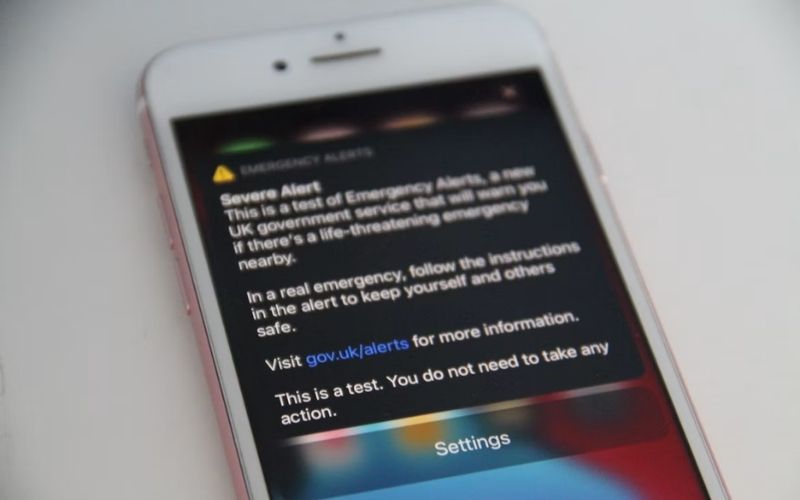
The first option is how to turn off the vibration on iPhone across the device, including vibration for earthquake, tsunami, and other emergency alerts.
The second option applies to incoming calls and alerts, while the third lets you customize an individual alert without changing every other sound setting.
2. Which Specific Vibration Settings Need Adjustment?
iPhone has separate controls for alert vibration and tactile feedback during everyday use. The key is to identify which type you want to change.
| Setting | What it controls | Available adjustment |
|---|---|---|
| Ringtone Haptics | Vibration paired with incoming calls | Choose a preset pattern or create a custom vibration. |
| Text Tone and other alert haptics | Vibration paired with messages, voicemail, email, calendar alerts, reminders, and AirDrop | Select an available pattern or create a custom one for the chosen alert. |
| Keyboard Feedback | Tactile feedback when you type | Turn keyboard haptics on or off independently of keyboard sound. |
| System Haptics | Tactile feedback for supported system controls and interactions | Turn system haptics on or off. |
For ringtone and alert vibration, select the relevant sound category under Settings > Sounds & Haptics, then tap Haptics. Available choices depend on the selected category.
Changing a text message’s vibration pattern does not affect keyboard feedback. When checking how to turn off text vibration on iPhone, adjust the Text Tone haptic option; keyboard haptics have a separate control.
>>> Read more: How to Silence Notifications on iPhone Without Missing Important Alerts
3. Why Does iPhone Keep Vibrating After Disabling Haptics?
If you are troubleshooting how to turn off vibration on iPhone, note whether the vibration occurs during an alert, while typing, or during an app interaction.
The phone vibrates in Silent Mode
Silent Mode does not stop all vibration. To learn how to turn the vibration off on iPhone, set incoming call and alert haptics to Never Play.
The phone vibrates only for certain calls or messages
A specific contact may have a custom ringtone or text tone. Check whether the vibration occurs with other contacts. If it happens only with one person, review that contact’s assigned sounds before changing settings for every alert.
The phone vibrates when you type or touch the screen
This may be tactile feedback rather than an incoming alert. Keyboard haptics respond to typing, while System Haptics provide feedback for supported system interactions.
The phone vibrates even though the relevant controls are disabled.
Repeat the action that causes the vibration and note whether it occurs during an alert, keyboard input, or a particular app interaction. If the behavior is limited to one app, check that app’s notification options or contact its developer.
If vibration continues across different situations, restart the iPhone and test again. You can also install an available iOS update.
If the problem persists after these checks, contact Apple Support for further diagnosis.
>>> Read more: How to Set Up Voicemail on iPhone: Easy Setup for Any Carrier
4. FAQs
These answers cover a few practical concerns about iPhone vibration.
Does turning off vibration on iPhone also turn off haptic feedback?
Yes. Turning off all vibration also disables system haptics, so you won’t feel tactile feedback from supported system interactions.
Will my iPhone still vibrate for emergency alerts after I turn vibration off?
No. Apple’s main Vibration switch also disables vibration for earthquake, tsunami, and other emergency alerts.
Can I turn off vibration without turning off sounds on iPhone?
Yes. Your iPhone can still play ringtones and notification sounds without vibration. This lets you hear incoming calls and messages without feeling the phone vibrate.
Can I turn off vibration for only certain alerts on iPhone?
You can customize ringtone and text tone settings for individual contacts. Whether you can disable vibration separately depends on the available haptic options for the selected tone.
5. Conclusion
To learn how to turn off vibration on iPhone, choose between the all-vibration control, alert haptics, and individual feedback settings. If vibration continues, identify the action that triggers it before changing more options.
Explore more iPhone tips and troubleshooting guides from OptNYC to make your device work the way you prefer.