Creating custom stickers on your iPhone is a simple way to personalize your messages and express yourself. But how to make a sticker on iPhone from a photo, and what options are available to customize and use it? This guide explains the steps and built-in features you need.
1. How to Make a Sticker on iPhone From a Photo?
You can create a custom sticker by isolating the main subject in a photo using the Photos app. If you’re looking for how to make a sticker from a photo on iPhone, follow these steps:
- Open Photos and select the photo you want to use.
- Touch and hold the main subject until it separates from the background, then release your finger.
- Tap Add Sticker to turn the selected subject into a sticker. This is how to make a photo a sticker on iPhone with the built-in Photos feature.
- To customize its appearance, tap Add Effect and choose an available effect, such as Outline or Comic.
- Close the sticker menu when you finish.
2. How to Create a Live Sticker From a Live Photo?
How to make a live sticker on iPhone? A Live Photo can produce an animated sticker that preserves the photo’s motion.
The creation process is similar to that for a regular photo, but you need to use a Live Photo to retain the animation.
- Open Photos and select a Live Photo.
- Touch and hold the subject, then slide it upward until a duplicate image of the subject appears.
- Release your finger and tap Add Sticker.
- If desired, tap Add Effect to customize its appearance.
>>> Read more: How to Rotate Photo on iPhone Quickly Without Losing Quality
3. How to Access, Use, and Send Stickers in Messages and Apps
After you create a sticker, knowing how to make a sticker on iPhone is useful in everyday chats also means knowing where to find it and how to share it.
Send Stickers in Messages
- Open Messages and select a conversation.
- Tap + , then tap Stickers.
- Choose a sticker collection:
- Live Stickers: Select custom stickers you or your friends have created.
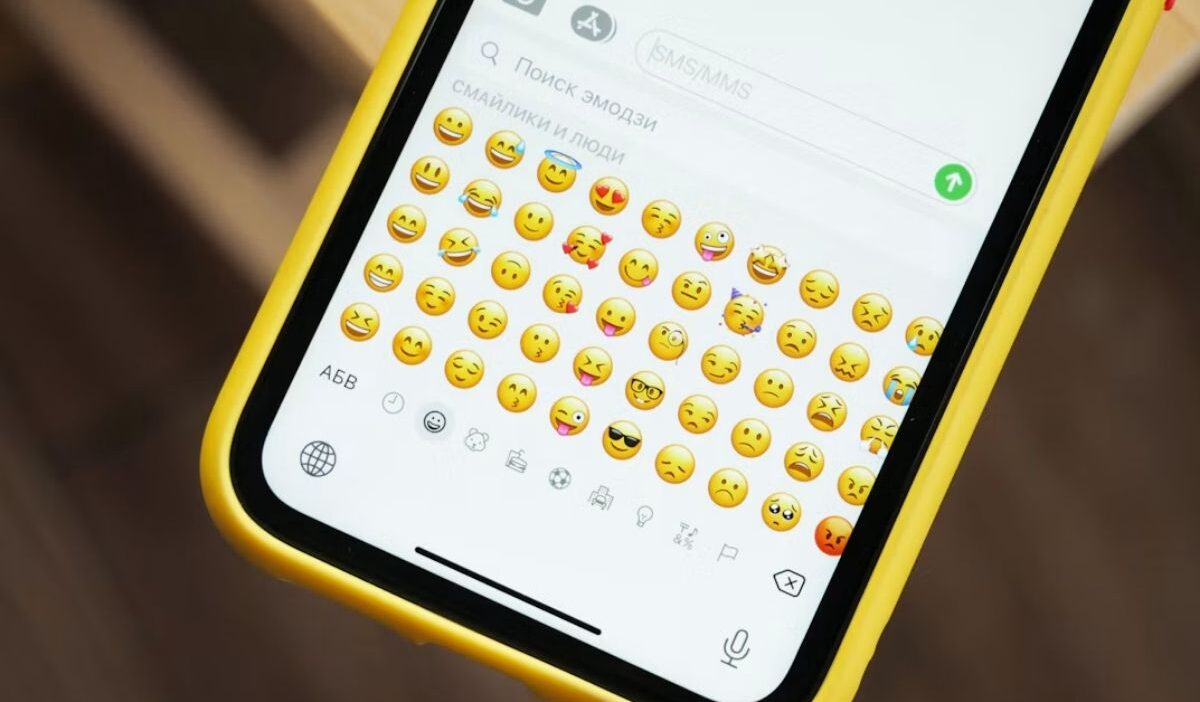
- Emoji: Choose an emoji sticker.
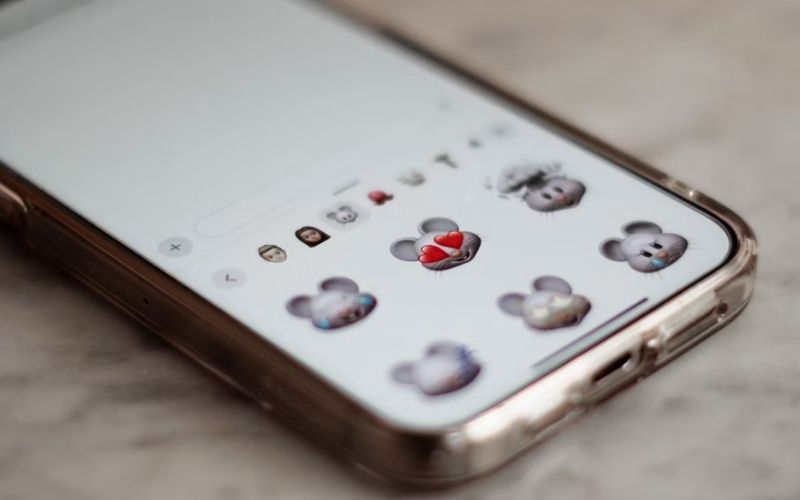
- Memoji: Select a Memoji and choose a pose or expression.
- Third-party stickers: Use sticker packs from compatible apps.
- Select a sticker, add a message if needed, then tap Send.
Place Stickers on Message Bubbles
To make a sticker part of an existing conversation, rather than send it as a separate message:
- Open Messages and tap +, then Stickers.
- Select a sticker collection and find your sticker.
- Drag the sticker onto a message bubble.
- Use a second finger to adjust its angle or size before you release it.
You can also touch and hold a message, tap Attach Sticker, and choose a sticker to place it on a corner of the message bubble. To identify who sent a sticker, touch and hold it, then tap Sticker Details.
Use Stickers in Other Apps
From the emoji keyboard: Open a text field in a supported app, switch to the emoji keyboard, and tap the Stickers button to access your saved stickers.
Select a sticker to insert it where supported. How to make a moving sticker on iPhone: Create it from a Live Photo so it retains its motion.
On photos and documents: Open a supported app, such as Photos or Notes, and enter Markup. Tap + > Add Sticker, select a sticker, and adjust its position as needed.
4. How to Delete and Edit Saved Custom Stickers?
You can reposition stickers on message bubbles or remove stickers from a conversation or your sticker collection.
Move or resize a sticker: In Messages, touch and hold a sticker placed on a message bubble, then adjust its position or size as needed.
Delete a sticker from a conversation: Touch and hold the message bubble, tap Sticker Details, swipe left on the sticker you want to remove, then tap Delete.
Delete a saved sticker: Open Photos, select a photo, then tap Edit > Markup > + > Add Sticker. Touch and hold the sticker you want to remove, then tap Remove.
>>> Read more: How to Send a GIF on iPhone: 4 Easy Ways That Work [2026]
5. FAQs
These FAQs cover related questions about how to make a sticker on iPhone, including sticker access, troubleshooting, and device compatibility.
Why can’t I make stickers on my iPhone?
Your iPhone may not support subject cutout, or it may need a software update. Photo sticker creation requires iOS 16 or later and an iPhone XS, iPhone XR, or newer model.
Where do I find the stickers I made on my iPhone?
Open Messages, tap + > Stickers, then look under Live Stickers. You can also access saved stickers from the Stickers button on the emoji keyboard in supported apps.
Which iPhone models support cutout sticker creation?
Cutout sticker creation is supported on iPhone XS, iPhone XR, and later models running iOS 16 or later. Live Stickers made from Live Photos require a compatible Live Photo.
6. Conclusion
Once you know how to make a sticker on iPhone, you can turn photo subjects into custom stickers, add effects, and share them in Messages or other supported apps.
You can also use Live Photos for animated stickers and manage your saved collection at any time. If you need more iPhone tips or creative ideas, visit OptNYC for helpful guidance.