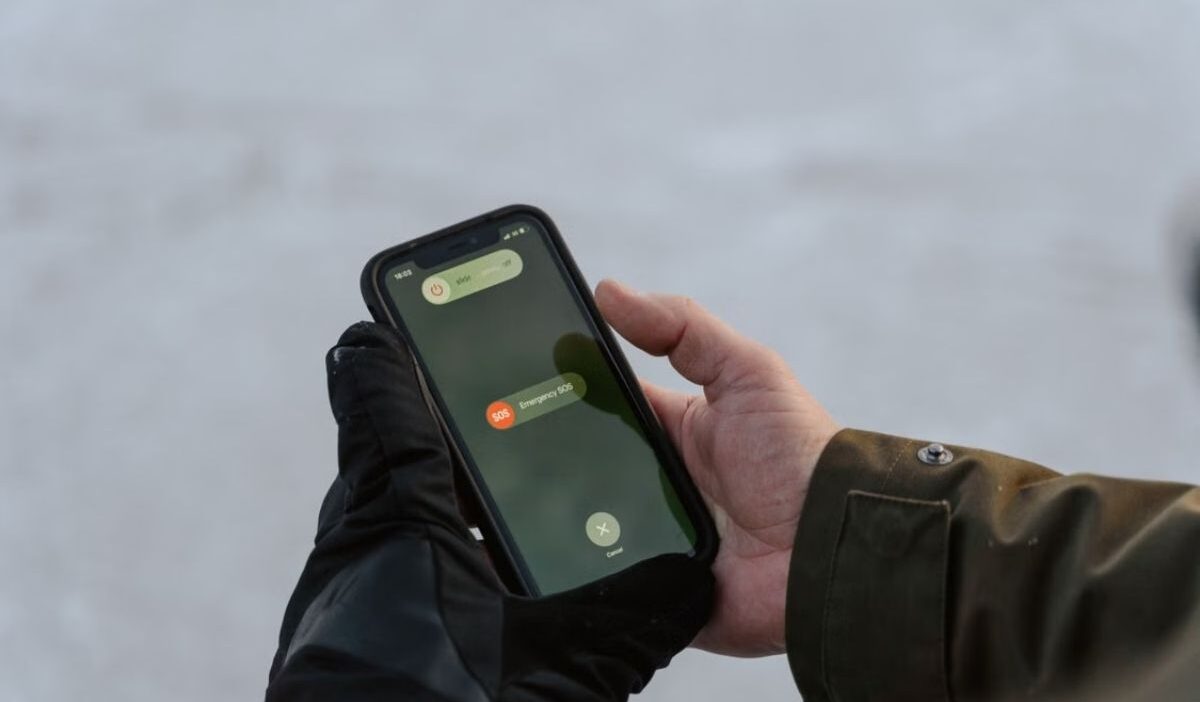
The “SOS” indicator on an iPhone relates to cellular network availability, while Emergency SOS shortcuts control how your device initiates emergency calls.
This guide explains how to turn off SOS on iPhone, remove the status bar indicator, and restore cellular service when needed.
1. How to Turn Off SOS on iPhone?
Learning how to turn sos off on iphone shortcuts helps prevent unwanted emergency calls while keeping basic manual calling available.
You can disable the automatic Emergency SOS shortcuts in Settings, but iPhone does not provide a single switch to disable all emergency calling options.
- Open Settings on your iPhone.
- Tap Emergency SOS.
- Turn off Call with Hold and Release to disable the shortcut that starts a countdown when you hold the side and volume buttons.
- Turn off Call with 5 Button Presses to disable the shortcut that starts a countdown when you rapidly press the side button five times.
- If your device offers Call After Severe Crash, turn it off if you also want to disable automatic emergency calls after a severe car crash.
Emergency SOS is designed to help users contact emergency services when they need urgent assistance.
Disabling these shortcuts prevents the corresponding triggers from starting an emergency call countdown, but other emergency calling methods remain available.
Note that these settings do not remove the “SOS” or “SOS Only” indicator from the status bar. That indicator relates to cellular connectivity, not the Emergency SOS shortcuts.
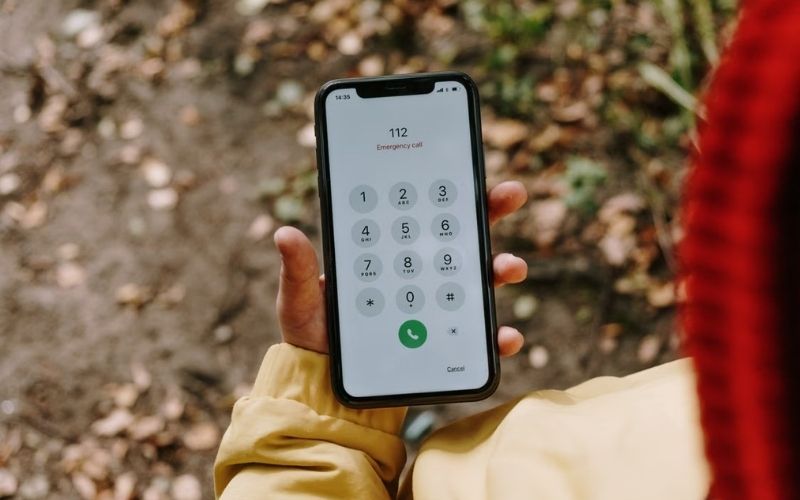
2. How to Get “SOS” or “SOS Only” Off the Status Bar?
The “SOS” or “SOS Only” indicator means your iPhone cannot connect to your carrier’s cellular network. In supported regions, your device may still make emergency calls through other available networks.
How to turn off SOS Only on iPhone? Try these quick troubleshooting steps:
- Toggle Airplane Mode: Open Settings, turn on Airplane Mode for at least 15 seconds, then turn it off.
- Restart your iPhone: Restart your device and check whether the indicator disappears.
- Check for carrier settings updates: Connect to Wi-Fi, then go to Settings > General > About. Install an update if prompted.
If the indicator remains, the issue may involve your SIM/eSIM, carrier account, network coverage, or cellular service configuration.
>>> Read more: How to Pause Location on Find My iPhone Without Disabling GPS
3. What Happens After You Turn Off Emergency SOS Shortcuts?
It is important to know what changes when you disable Emergency SOS shortcuts.
- The selected shortcuts stop triggering the countdown: Your iPhone will no longer start the Emergency SOS countdown through the specific shortcuts you disabled.
- Other emergency calling methods remain available: You can still contact emergency services through supported methods.
- Emergency contacts remain separate: Turning off these shortcuts does not automatically remove your emergency contacts or Medical ID information. You can manage these details through the Health app.
- The status bar remains unchanged: The “SOS” or “SOS Only” indicator may still appear if your iPhone cannot connect to your carrier’s network.
4. How to Restore Mobile Network Connections When Stuck in SOS Mode?
If your iPhone remains in SOS mode, check these potential causes to determine how to turn off SOS mode on iPhone by restoring cellular service.
- SIM/eSIM and account status: Go to Settings > Cellular to confirm your line is active. Contact your carrier if your SIM/eSIM cannot be activated or your account needs attention.
- Network coverage and roaming: Check for local carrier outages. If you are abroad, confirm that your plan supports international roaming and that the required settings are enabled.
- Device compatibility: If you wonder how to turn off sos on iphone 13 or newer models, try toggling your active eSIM lines on and off under Settings > Cellular, or verify with your carrier if your device is fully supported on their network.
If these checks do not restore service, contact your carrier to investigate network or account issues, or consult Apple Support if the carrier confirms that your service is active.
>>> Read more: How to Turn Off Vibration on iPhone Across System Settings and Alerts
5. FAQs
Here are quick answers to common questions about how to turn off SOS on iPhone, Emergency SOS settings, and cellular connectivity.
Does turning off Emergency SOS remove the SOS icon?
No. Turning off Emergency SOS shortcuts does not remove the SOS or SOS Only status indicator, which reflects your cellular connection.
Can I still make an emergency call after turning off SOS shortcuts?
Yes. Disabling SOS shortcuts does not prevent you from making an emergency call manually where emergency calling is available.
Why does my iPhone show SOS instead of signal bars?
Your iPhone cannot connect to your carrier’s cellular network. You may still be able to make emergency calls through other available networks in supported regions.
Does SOS mean I can still use Wi-Fi on my iPhone?
Yes. You can connect to Wi-Fi if a network is available. SOS status affects cellular service, not Wi-Fi connectivity.
6. Conclusion
To understand how to turn off SOS on iPhone, open Settings and adjust the Emergency SOS shortcuts you no longer need.
Keep in mind that these settings do not remove the SOS status bar indicator or disable emergency calls entirely. Visit OptNYC for more practical iPhone tips and guides.