
Screen Recording lets you capture activity on your iPhone, from app interactions to useful on-screen information. However, the recording process also involves knowing when and how to end a capture.
Here is practical guide for you to know how to stop screen recording on iPhone and related information for different iPhone models.
1. How to Stop Screen Recording on iPhone?
How to stop a screen recording on iPhone? You can stop an active screen recording through the on-screen recording indicator or Control Center, depending on your iPhone model and preferred method.
On iPhones with Dynamic Island
If your iPhone has Dynamic Island, the red recording indicator appears within the island while a screen recording is active. To stop it:
- Tap the red recording indicator in Dynamic Island.
- Select Stop Screen Recording when the control appears.
- Wait for the recording indicator to disappear.
This method works on iPhone 15 and iPhone 17 models with Dynamic Island. Therefore, if you search for how to stop screen recording on iPhone 15 or how to stop screen recording on iPhone 17, you can use the same steps.
On iPhones with a Home Button
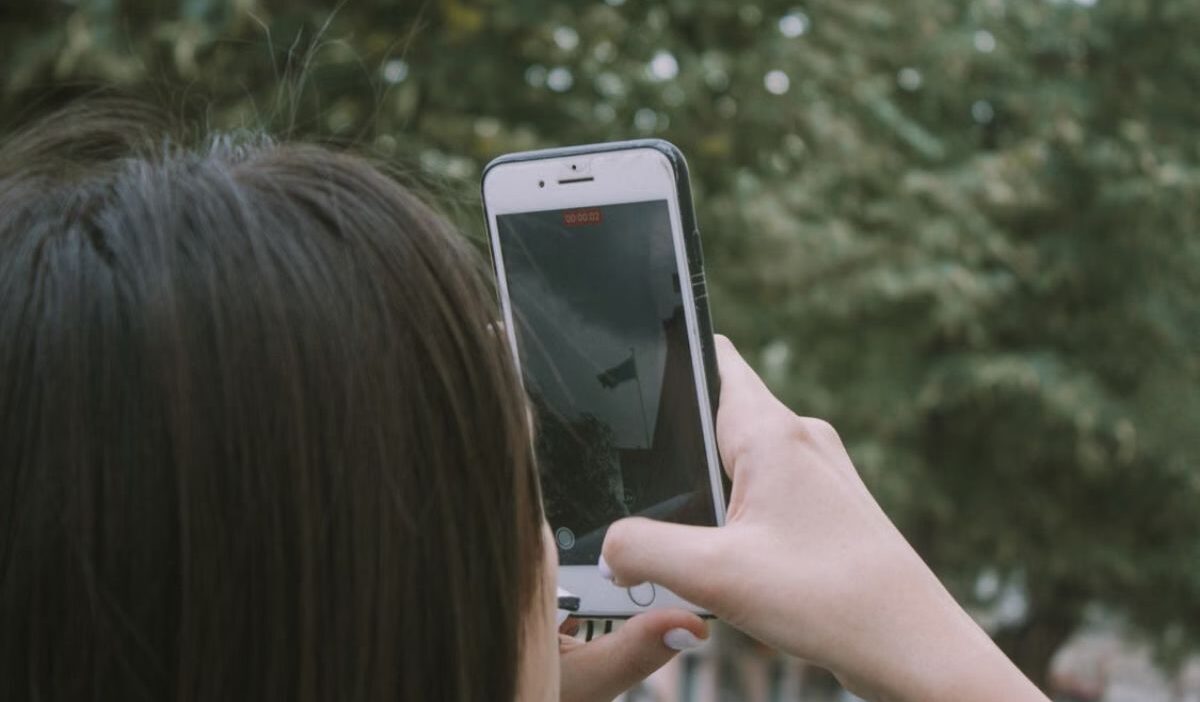
On iPhone models without Dynamic Island, including models with a Home button, a red timer appears in the upper-left corner while the screen recording is active. Follow these steps:
- Tap the red timer at the top-left corner of your screen.
- Tap Stop in the confirmation prompt.
- Wait for the red recording indicator to disappear.
This method also applies to other iPhone models without Dynamic Island. You do not need to open Settings or close the app that you currently use.
From Control Center
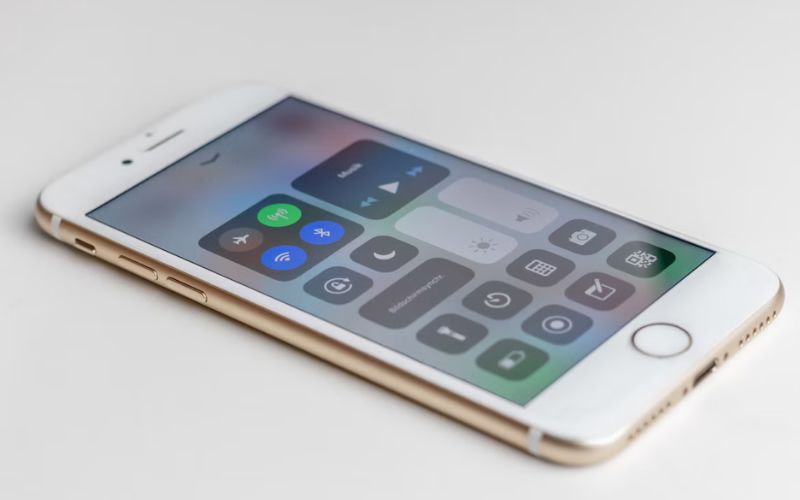
How to stop screen recording on iPhone shortcut? It is available through the Screen Recording control in Control Center. This option is useful if you prefer to access the recording control from one place.
- Open Control Center:
- On iPhones with Face ID, swipe down from the top-right corner.
- On iPhones with a Home button, swipe up from the bottom edge of the screen.
- Locate the Screen Recording control. Its icon appears red while a recording is active.
- Tap the red Screen Recording button to stop the recording.
If the Screen Recording control does not appear in Control Center, you may need to add it first.
Open Control Center, tap the Add button, select Add a Control, and choose Screen Recording from the controls gallery. The exact editing interface can vary by iOS version.
>>> Read more: How to Add Screen Record on iPhone: 2 Quick & Effortless Steps
2. How to Find Your Saved Screen Recording on iPhone?
Once you stop a screen recording, iPhone automatically saves the video to your Photos library. You do not need to select a separate Save option. To locate your video:
- Open the Photos app.
- Tap Collections.
- Scroll down to Media Types.
- Select Screen Recordings to view your saved screen captures.
You can also open your Photos library and look for the most recent video if you have just finished a recording.
If the video does not appear immediately, check that the recording has ended and revisit the Screen Recordings album. You can then open the video to confirm that it contains the screen activity you intended to capture.
3. Why Can’t You Stop or Find Screen Recording on iPhone?
If the usual controls do not appear or your saved video is not where you expect, check these common situations before you try another method.
The Screen Recording button is missing from Control Center
The control may not be part of your current Control Center layout. Open Control Center, tap the Add button, select Add a Control, and choose Screen Recording. On older iOS versions, the customization process may differ.
The red recording indicator remains visible
Check whether a screen recording is still active. If you see the red indicator in Dynamic Island or the upper-left corner, tap it and select Stop. Alternatively, open Control Center and tap the red Screen Recording control.
If the indicator remains after you use the Stop command, check the screen again and confirm whether the recording control is still active before you repeat the action.
The saved video does not appear in Photos
Open Photos and check Collections > Media Types > Screen Recordings. Also, make sure you have completed the Stop action rather than left the recording active.
Apple confirms that completed screen recordings are automatically saved to the photo library.
Your iPhone appears to record the screen by itself
Check the red recording indicator to confirm whether a screen recording is actually active. If it is, use one of the stop methods above.
If no recording indicator appears, do not assume that an ordinary notification or another screen symbol means your iPhone is recording.
>>> Read more: How to Edit Videos on iPhone? Create Better Videos Without a Computer
4. FAQs
Here are quick answers to common questions about iPhone screen recording.
Why do some streaming apps turn screen recordings completely black?
Some streaming apps use content protection to prevent copyrighted video from being captured. As a result, the recording may show a black screen instead of the video.
Can Siri Stop Screen Recording on iPhone?
No. Siri does not provide a supported command to stop an active screen recording on iPhone. You need to use the on-screen recording control or Control Center.
Does Screen Recording Stop Automatically When You Lock Your iPhone?
No. Locking your iPhone does not serve as the standard way to stop a screen recording. Stop the recording manually to end the capture and save the video.
5. Conclusion
So, how to stop screen recording on iPhone? Tap the recording indicator or use Control Center to end the capture, then check Photos to confirm that your video is saved.
Choose the method that matches your iPhone model, and visit OptNYC for more practical iPhone tips and guides.