
Before handing over your device, protect your personal information and make sure your data is safely transferred. This guide covers how to erase iphone for trade in, with clear steps to reset your iPhone and prepare it for handover.
1. What to Do Before Erasing Your iPhone for Trade-In
Complete these essential checks before doing the ” how to erase iPhone for trade in process on your device:
- Back up your data: Use iCloud, a Mac, or a PC to save the information you want to keep.
- Transfer your data: Move your photos, contacts, messages, and other important content to your new iPhone. Check that the transfer is complete.
- Unpair your Apple Watch: If your watch is connected to the old iPhone, unpair it before erasing the phone.
- Check your SIM and cellular plan: Arrange service transfer or suspension with your carrier. Remove your physical SIM before handing over the device.
Do not manually delete iCloud-synced photos or contacts while signed in to your Apple Account. Those deletions may also affect your other connected devices.
>>> Read more: How to Transfer Data From One iPhone to Another Without Losing a Thing
2. How to Erase iPhone for Trade In? (Step-by-Step)
Apple provides a built-in option to erase your iPhone and restore it to factory settings. You do not need to remove apps, photos, or messages individually. Follow these steps:
Start the factory reset
On your old iPhone, initiate the reset process with these actions:
- Open the Settings app on your unlocked device.
- Select General, scroll down, and tap Transfer or Reset iPhone.
- Tap Erase All Content and Settings, review the summary, and select Continue.
Review your eSIM settings
If your iPhone uses an eSIM, follow the on-screen instructions. For a device being traded in, Apple advises erasing the eSIM profile along with the device.
Confirm your cellular service arrangements with your carrier before proceeding if you still need the number or plan.
Enter your credentials
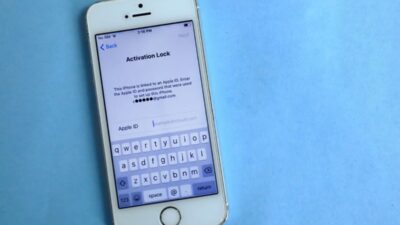
Enter your device passcode and Apple Account password if requested. The iPhone may require your Apple Account password to authorize the reset and remove Activation Lock.
Confirm the reset
Review the final prompt and confirm that you want to erase the device. Keep your iPhone powered on while the process runs.
Wait for the Hello screen
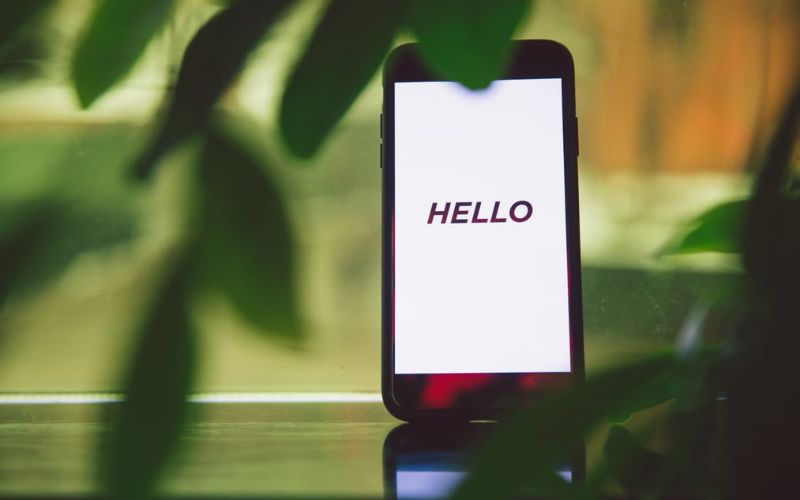
The iPhone restarts when the reset is complete. The Hello screen indicates that it has returned to its initial setup state.
The reset removes personal content and settings stored on the device, including photos, contacts, apps, and Apple Pay cards. It also turns off Find My and removes Activation Lock. However, content stored in iCloud remains available.
If you are preparing an older device, the same process applies when you need to know how to erase old iphone for trade in. Just make sure your backup or data transfer is complete before resetting it.
3. How to Verify iPhone Is Fully Prepared for Trade-In?
A completed reset is essential, but check a few more details before sending your device to the trade-in provider.
Look for the Hello screen
Your iPhone should display the initial Hello screen, not your personal Home Screen. Do not sign in or complete setup again.
Confirm Activation Lock removal
Erasing an iPhone with Find My enabled turns off Find My and removes Activation Lock. The device should no longer be linked to your Apple Account.
Remove your physical SIM
Take out the SIM card if your iPhone has one. Keep it if you still need the associated service.
Check your cellular plan
Make sure your carrier has transferred or suspended the plan as required.
Review the return requirements
Follow the provider’s instructions for packaging, shipping, or dropping off the device.
If you need to know how to erase my iphone for trade in, remember that the reset and the final handover checks are both important.
The Hello screen confirms that the erase process is complete, while the SIM and carrier checks help prevent issues with your mobile service.
>>> Read more: How to Clear Cookies on iPhone: Safari and Other Browsers
4. FAQs
Does iPhone factory reset really delete everything?
Yes. A factory reset removes personal data and settings stored on the iPhone, including photos, contacts, apps, and Apple Pay cards. However, it does not delete data stored in iCloud.
Will erasing an old iPhone affect a new one?
No. Erasing your old iPhone only resets that device; it does not erase data transferred to your new iPhone or content stored in iCloud. Make sure your backup or data transfer is complete first.
Is my iPhone safe to sell after a factory reset?
Yes, once the reset is complete and the Hello screen appears. The erase process also turns off Find My and removes Activation Lock, so the device is no longer linked to your Apple Account.
How to erase iphone for trade in verizon?
Back up your data, then go to Settings > General > Transfer or Reset iPhone > Erase All Content and Settings and follow the prompts. Remove your physical SIM card and follow Verizon’s trade-in instructions.
5. Conclusion
So, how to erase iphone for trade in? Back up your data, follow Apple’s factory reset steps, and check that the Hello screen appears before you hand over the device.
Also, confirm your SIM and carrier arrangements to complete the preparation. For more iPhone tips and device guidance, explore the resources at OptNYC.