

When you are locked out of your device, the right fix depends on the exact type of restriction involved. Exploring how to unlock iPhone here, the right approach depends on the exact restriction keeping you out of your device. Different locks require distinct solutions, and some methods will erase your data.
1. How to Identify Which Type of Lock Is Blocking Your iPhone?
Check the message displayed on your device to identify the type of lock before following the how to unlock an iPhone process:
| Lock type | What you see | What it means |
|---|---|---|
| Screen Passcode Lock | Passcode keypad or iPhone Unavailable | You need your passcode or an approved reset method. |
| Carrier Lock | SIM restriction or unsupported SIM message | Your iPhone is restricted to a specific carrier. |
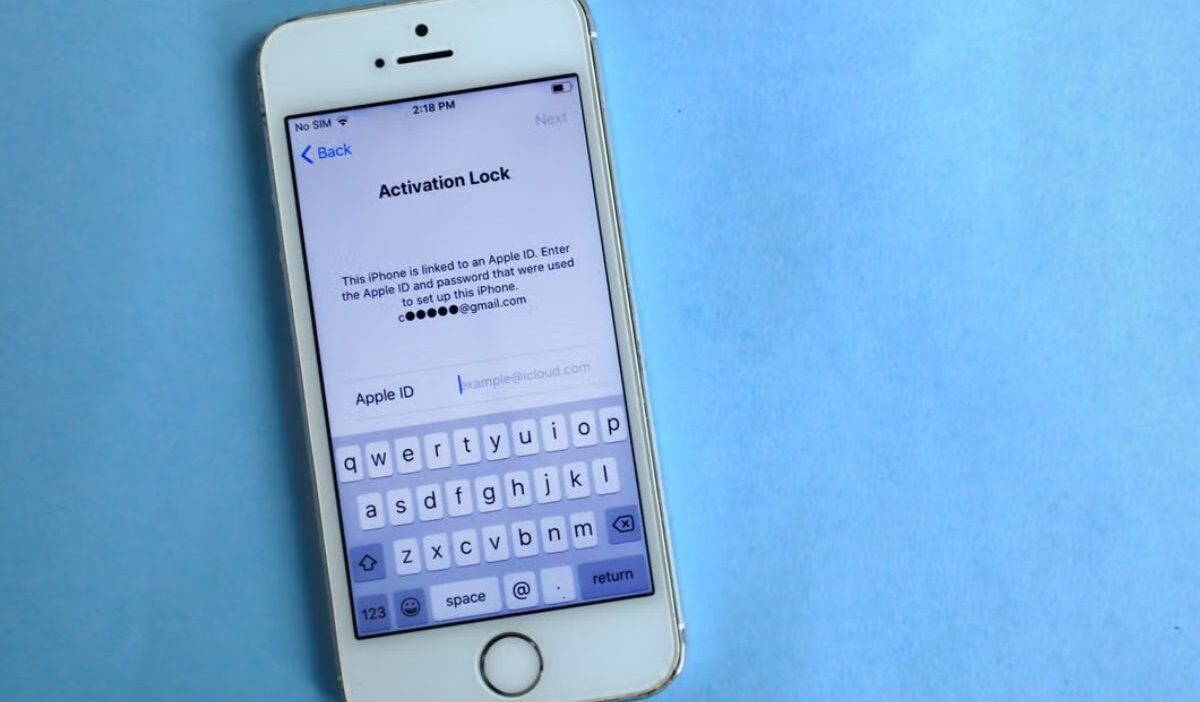
| Activation Lock | iPhone Locked to Owner or Apple Account request | The device is linked to another Apple Account. |
For a carrier check, go to Settings > General > About > Carrier Lock. The status “No SIM restrictions” means your iPhone is unlocked for other compatible carriers.
>>> Read more: How to Leave a Group Chat on iPhone? Complete Guide to Stop Auto-Lock
2. How to Unlock iPhone Without a Passcode?
How to unlock iPhone without passcode? If you forgot your screen passcode, try these methods in order, starting with the option that does not erase your data.
Use Your Previous Passcode Within 72 Hours
If you changed your passcode within the last 72 hours and use iOS 17 or later, you can use your previous passcode to regain access.
- Enter an incorrect passcode until the iPhone Unavailable screen appears.
- Tap Forgot Passcode?
- Select Enter Previous Passcode.
- Enter your old passcode and follow the instructions to set a new one.
Reset Your iPhone Passcode Without a Computer
If the previous passcode option is unavailable, you can try this method if your device runs iOS 15.2 or later, Find My was enabled, you have an active internet connection, and you know your Apple Account password.
- Enter incorrect passcodes until the Security Lockout screen appears.
- Tap Forgot Passcode? or Erase iPhone, depending on your iOS version.
- Select Start iPhone Reset if prompted.
- Enter your Apple Account password.
- Confirm Erase iPhone and follow the setup instructions.
Reset Your iPhone Using a Computer
If you cannot reset your device from the Lock Screen, use Recovery Mode.
- Turn off your iPhone.
- Connect it to a Mac or Windows PC while holding the appropriate button for your iPhone model until Recovery Mode appears.
- Open Finder on Mac or Apple Devices on Windows.
- Select your iPhone and choose Restore.
- Wait for the process to finish, then set up your device again.
So, can you unlock an iPhone without a passcode? Yes, but the available method depends on your circumstances.
Passcode Reset can preserve your data if you qualify for the 72-hour option. Otherwise, Apple’s documented recovery methods require you to erase the device.

3. How to Unlock an iPhone From a Carrier Lock?
A carrier-locked iPhone requires authorization from its current mobile carrier.
- Contact your current carrier and request a SIM unlock.
- Wait for confirmation that the carrier has removed the restriction.
- Insert a SIM card from another compatible carrier or set up its eSIM.
- Check that Carrier Lock displays “No SIM restrictions.”
Apple cannot authorize this change on behalf of your carrier. Processing may take a few days, depending on the carrier.
4. How to Remove Activation Lock on an iPhone?
If your iPhone requests the previous owner’s Apple Account during setup, choose one of these options:
- Use your own account: Enter the Apple Account and password previously linked to the device.
- Contact the previous owner: Ask them to sign in and remove the iPhone from their account through iCloud Find Devices.
- Request support: If you own the device and have proof of purchase, submit an Activation Lock support request.
Erasing the iPhone does not remove Activation Lock, so you must resolve the account association before using the device again.
5. How to Restore Your iPhone Data After Unlocking?
If you erased your iPhone, you can restore available data from a backup.
- iCloud Backup: During setup, select From iCloud Backup, sign in, and choose the backup you need.
- Computer Backup: Connect your iPhone, open Finder or Apple Devices, select Restore Backup, and choose the saved backup.
If you have no backup, information stored only on the erased device may not be recoverable. However, previously synced iCloud content may return after you sign in.
>>> Read more: How to Delete Text Messages on iPhone for Both Sides Within 2 Minutes
6. FAQs
Is it possible to unlock an iPhone remotely?
Yes, you can remotely erase an iPhone through Find Devices on iCloud.com if Find My was enabled. However, remote erasure does not remove Activation Lock.
How long does it take to unlock an iPhone?
The time depends on the unlock method. A previous-passcode reset can take a few minutes, while carrier unlocking may take several days after the carrier approves the request.
Can Apple unlock an iPhone without proof of ownership?
No, Apple requires valid proof of purchase to review an Activation Lock support request. Without it, you must contact the previous owner if the device is still linked to their Apple Account.
Does unlocking an iPhone delete everything on the device?
Not always. Using a previous passcode within the 72-hour window preserves your data, but erasing or restoring an iPhone deletes its existing data and settings.
7. Conclusion
So, how to unlock iPhone? First, identify whether your device has a passcode, carrier restriction, or Activation Lock, then choose the corresponding recovery method.
If you need to restore access, check the data recovery options before you reset your device. For more iPhone tips and guidance, explore the resources available on OptNYC.