
A factory reset can help restore access to an iPhone when you forget its screen passcode. However, the right approach depends on your device settings and account access.
This guide explains how to factory reset iPhone without password, the key conditions to check, and what to expect after the reset.
1. What to Know Before Factory Resetting?
Check these points before you practice how to factory reset an iphone without password your iPhone:
- Screen passcode vs. Apple Account password: The screen passcode unlocks your device. Your Apple Account password may be required to erase or activate it.
- iOS version: The Lock Screen reset option requires iOS 15.2 or later and specific account and network conditions.
- Data loss: A factory reset erases data and settings on your iPhone. You can recover backed-up content afterward.
- eSIM: On iOS 17 or later, the Lock Screen reset process lets you keep or erase your eSIM. For older iOS versions, check with your carrier before the reset.
2. How to Factory Reset iPhone Without Password: 3 Official Methods
Choose how to factory reset iPhone without password based on your iOS version, computer access, and need for remote erasure.
Method 1. Reset Your iPhone Directly From the Lock Screen (Without a Computer)
For how to factory reset iPhone without password or computer, use the Lock Screen option if:
- Your iPhone runs iOS 15.2 or later.
- Find My was enabled before the reset.
- The device has an active Wi-Fi or cellular connection.
- You know the Apple Account password linked to the iPhone.
On iOS 17 or later:
- Enter the wrong passcode until the iPhone Unavailable screen appears.
- Tap Forgot Passcode?, then Start iPhone Reset.
- Enter your Apple Account password to sign out.
- Tap Erase iPhone and follow the instructions.
On iOS 15.2 or iOS 16: Tap Erase iPhone on the Security Lockout screen, then follow the prompts.
If the reset option does not appear, check your network connection and Find My settings. You can also use Recovery Mode.
Method 2. Reset Your iPhone Using Recovery Mode
Recovery Mode lets you erase an iPhone with a Mac or Windows PC when the Lock Screen option is unavailable. You need a compatible cable and an internet connection.
- Turn off the iPhone: Press and hold the Side button and either Volume button, then drag the power-off slider.
- Connect to your computer: Connect the cable to the computer.
- Enter Recovery Mode: Hold the Side button while you connect the cable to your iPhone. Keep holding it until the computer-and-cable screen appears.
- Open the device: Use Finder on Mac or Apple Devices on Windows.
- Restore: Select your iPhone, choose Restore, and follow the prompts.
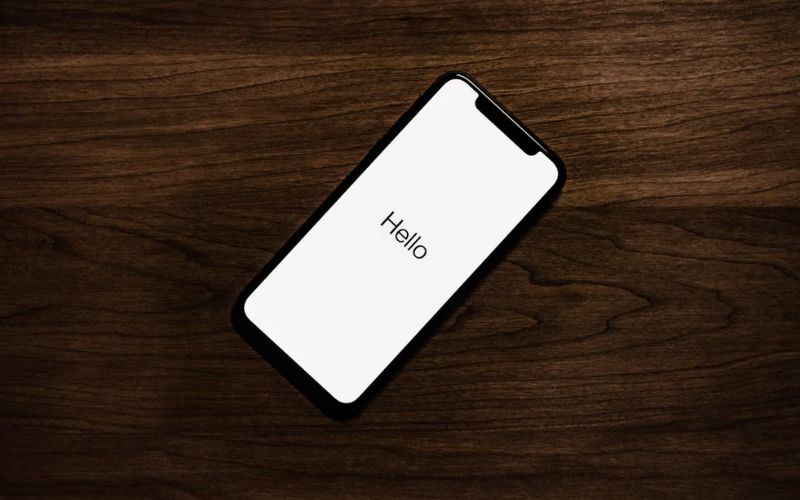
- Set up the device: Wait for the restore to finish and the Hello screen to appear.
These steps also cover how to factory reset iPhone 11 without password, since the iPhone 11 uses the Face ID Recovery Mode procedure.
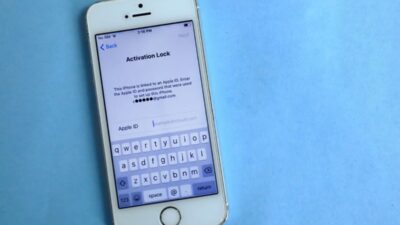
Note: Recovery Mode erases the device but does not remove Activation Lock. You may still need the Apple Account linked to the iPhone to activate it.
Method 3. Remotely Erase Your iPhone Using Find My
Use Find My when you need to erase an iPhone remotely and can access the Apple Account linked to it.
- Visit iCloud.com/find.
- Sign in with the linked Apple Account.
- Select your iPhone.
- Choose Erase This Device and confirm.
- If the iPhone is offline, the request starts when it reconnects to the internet.
Remote erase does not bypass Activation Lock. You still need the linked account to reactivate the device.
>>> Read more: How to Factory Reset iPhone With Buttons: Step-by-Step for Recent Models
3. How to Solve Common iPhone Factory Reset Problems?
In the How to Factory Reset iPhone Without Password guide, if you have trouble, try these checks when a reset does not work:
- No “Forgot Passcode?” option: Confirm that your iPhone runs iOS 15.2 or later, Find My was enabled, and the device has internet access. Otherwise, use Recovery Mode.
- Computer does not recognize your iPhone: Check the cable, USB connection, and software updates. Try another port if needed.
- iPhone exits Recovery Mode during download: Let the software download finish, then turn off the iPhone and enter Recovery Mode again.
- You forgot your Apple Account password: For how to factory reset iPhone without Apple ID password, note that the Lock Screen method requires the linked account password. Recovery Mode can erase the device, but it cannot bypass Activation Lock.
- Apple logo stays on screen: Follow Apple’s restore troubleshooting steps if the iPhone cannot complete the process.
4. How to Set Up and Restore Your iPhone After a Factory Reset?
After the reset, the iPhone displays the Hello screen.
- Choose your language and region, then connect to Wi-Fi or cellular service.
- Complete device activation. Enter the linked Apple Account if Activation Lock appears.
- Choose how to recover your data:
- iCloud Backup: Sign in and select an available backup.
- Computer Backup: Connect to the computer that stores your backup, open Finder or Apple Devices, and select Restore Backup.
- Set Up as New: Choose this option if you have no backup.
- Keep the iPhone connected to power and Wi-Fi while the restore completes.
>>> Read more: How to Reset Network Settings on iPhone? The Quick Fix for Wi-Fi and Cellular Problems
5. FAQs
Can you factory reset an iPhone that is locked to owner?
Yes, you can erase it using Recovery Mode or Find My, but the reset does not remove Activation Lock. You still need the linked Apple Account or the previous owner’s help to activate the iPhone.
Will factory resetting an iPhone delete everything permanently?
A factory reset erases all data and settings stored on the iPhone. However, you can restore backed-up data from iCloud or a computer afterward.
What happens if your iPhone runs out of battery during a factory reset?
The reset may stop before completion. Connect your iPhone to power; if it cannot restart normally, use Recovery Mode to restore it with a computer.
6. Conclusion
How to factory reset iPhone without password? Choose the lock screen reset if your iPhone supports it, use Recovery Mode with a computer, or erase it remotely through Find My.
Before you decide, check your Apple Account access and backup status, as Activation Lock may still require your account after the reset. For more iPhone tips and practical tech guides, explore OptNYC.