
Want to revisit a website without searching for it again? Learning how to bookmark on iPhone takes just a few taps. You can save web pages in Safari or Google Chrome, then open them whenever you need them.
1. How to Bookmark on iPhone Using Safari
Safari lets you save a website as a bookmark so you can return to it later. Here’s how to add bookmark on iPhone with a few simple steps:
- Open Safari: Visit the website you want to save.
- Tap the Page Menu: Select the Page Menu button next to the search field.
- Select Add Bookmark to: Choose where you want to store the bookmark.
- Tap Save: Confirm your choice to add the website to your bookmarks.
Alternative method for certain Safari layouts: If your Tabs layout is set to Top or Bottom, touch and hold the Show Bookmarks button, then tap Add Bookmark.
2. How to Bookmark on iPhone Using Google Chrome
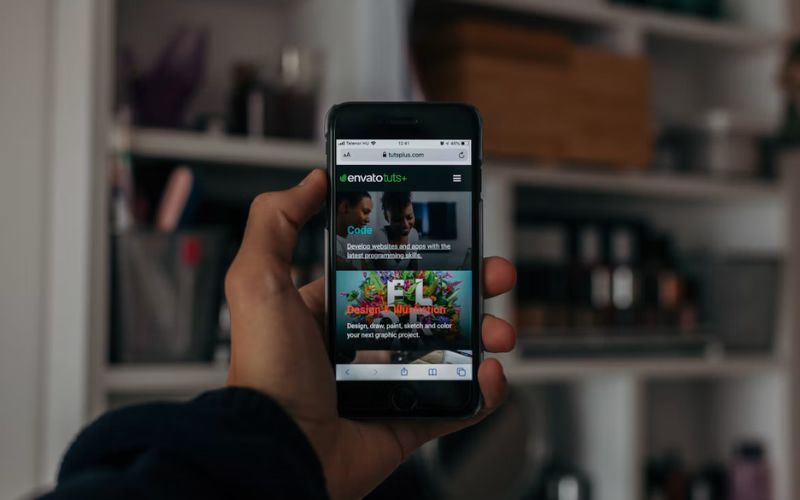
If Chrome is your preferred browser, you can also do for how to bookmark a website on iPhone directly from the app.
- Open Chrome: Go to the website you want to save.
- Tap More (⋯): Open the browser menu.
- Select Add to Bookmarks: Chrome saves the current page to your bookmarks.
To access the saved page, tap More (⋯) > Bookmarks, then select the folder that contains your saved website.
>>> Read more: How to Turn Off Incognito Mode on iPhone: Switch to Regular Tabs
3. How to Find and Manage Bookmarks on iPhone
Once you know how to bookmark a page on iPhone, you can also find, edit, or remove saved websites when needed.
If you use Safari, manage your bookmarks as follows:
- Find bookmarks: Open Safari’s Start Page and tap the Show Bookmarks button. Depending on your tab layout, you can also access Bookmarks from the tab interface.
- Edit a bookmark: Touch and hold a saved bookmark, then select Edit to change its name or location.
- Delete a bookmark: Touch and hold the bookmark and tap Delete.
- Create folders: Open the Bookmarks menu, select More, then New Folder to organize saved websites.
For Chrome users, follow these steps to organize your saved pages:
- Find bookmarks: Tap More (⋯) > Bookmarks.
- Edit a bookmark: Touch and hold the bookmark, select Edit, then change its name, folder, or URL.
- Delete a bookmark: Swipe left on the bookmark and tap Delete.
- Create folders: Open Bookmarks, select a folder, then choose New Folder.
4. Bookmarks vs. Reading List vs.Home Screen Shortcuts: Which to Choose?
Your iPhone offers different ways to keep a website accessible. The right option depends on whether you want to revisit a page, read it later, or open it directly from your Home Screen.
Bookmark vs. Reading List
A Bookmark saves a website address so you can return to it through Safari’s Bookmarks menu.
A Reading List keeps web pages for later. Safari can also save Reading List items for offline access when the relevant setting is enabled.
To add a page to your Reading List, open it in Safari, tap the Page Menu, select Share, then tap Add to Reading List.
Bookmark vs. Add to Home Screen
A Bookmark keeps a website in Safari’s saved links, while Add to Home Screen creates an icon that opens the website directly from your iPhone’s Home Screen. To add a website shortcut:
- Open the website in Safari.
- Tap the Page Menu, then select Share.
- Scroll down and tap Add to Home Screen.
- Enter a name if needed, then tap Add.
If you want to know how to add bookmark on iPhone Home Screen, this is the option to use. It creates a website shortcut rather than a standard bookmark.
Which Option Should You Use?
Choose the option that best fits how you want to access the website:
- If you want to revisit a website later, choose Bookmark to keep its link saved.
- If you plan to read an article later, choose Reading List to access it when you have time, including offline when available.
- If you want faster access to a website, choose Add to Home Screen to create an icon on your iPhone.
>>> Read more: How to Close All Tabs on iPhone Quickly to Free Up Memory
5. FAQs
Can I access my Safari bookmarks on other Apple devices?
Yes. Sign in with the same Apple Account on your iPhone and other Apple devices, then turn on Safari in your iCloud settings. Your bookmarks can sync across those devices.
Can I bookmark a website on my iPhone for offline access?
No. A standard bookmark saves only the website link, not its content. To read a webpage offline, add it to Safari’s Reading List and enable automatic offline saving in Safari settings.
Why can’t I find the Add Bookmark option on my iPhone?
The option may depend on your Safari tab layout. Open the Page Menu and look for Add Bookmark to. If your Tabs layout is Top or Bottom, touch and hold the Show Bookmarks button and select Add Bookmark instead.
6. Conclusion
Now you know how to bookmark on iPhone in Safari and Google Chrome, as well as how to find and manage saved pages. Choose Bookmarks, Reading List, or Home Screen shortcuts based on how you want to revisit a website.
For more practical technology guides, visit OptNYC.