
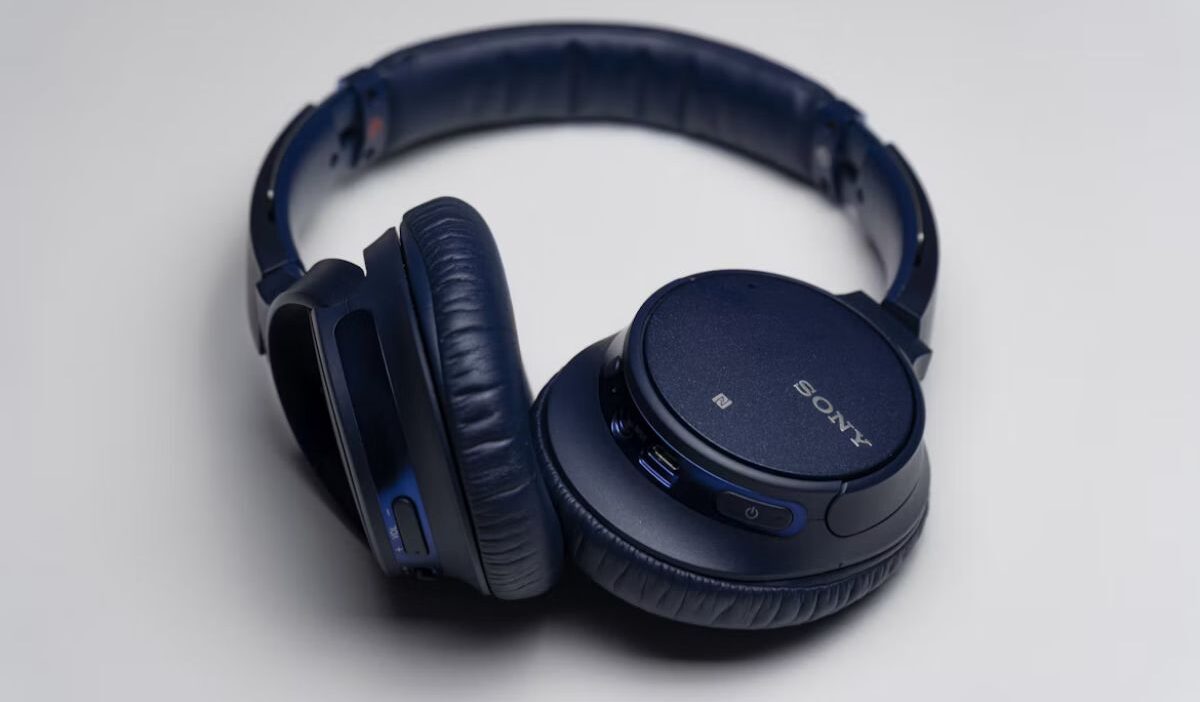
How to connect Sony headphones to iPhone is a common question when you want to use your Sony headphones with an iPhone.
Although both devices support Bluetooth, the connection process depends on the headphone model and its pairing settings. A few details can help you get started with the right setup.
1. How to Connect Sony Headphones to iPhone via Bluetooth?
If you’re searching for how to connect Sony Bluetooth headphones to iPhone or how to connect my Sony headphones to my iPhone, the process starts with Pairing Mode and finishes in your iPhone’s Bluetooth settings. Follow these steps:
- Activate Pairing Mode: Put your Sony headphones into pairing mode. Follow the instructions for your specific model to make them discoverable.
- Open Bluetooth settings: Go to Settings > Bluetooth on your iPhone and turn Bluetooth on.
- Select your Sony headphones: Find the headphone name in the Bluetooth device list and tap it.
- Enter a PIN or passcode if prompted: Follow the instructions provided with your headphones.
Your Sony headphones are paired once they appear as Connected in your iPhone’s Bluetooth settings.
2. How to Put Different Sony Headphone Models into Pairing Mode?
How do I connect Sony headphones to my iphone ? The steps below show how to activate Pairing Mode on two popular Sony headphone models, depending on whether you are connecting for the first time or adding another device.
Sony WH-1000XM4
The WH-1000XM4 enters Pairing Mode automatically for an initial connection. If you want to connect another device, activate the mode manually:
- First-time pairing: Turn on the headphones. If they have no saved pairing information, they enter Pairing Mode automatically.
- Pairing with a second or subsequent device: Press and hold the Power button for about 7 seconds. The indicator flashes blue repeatedly in pairs, and the voice guidance says, “Bluetooth pairing.”
- Connect to your iPhone: Open Settings > Bluetooth and select WH-1000XM4 from the device list.
Sony WF-1000XM4
For users looking up how to connect Sony wireless headphones to iPhone, the WF-1000XM4 uses its charging case and touch sensors to enter Pairing Mode. Follow the steps that match your pairing situation:
- First-time pairing: Remove both earbuds from the charging case. They turn on and enter Pairing Mode automatically if they have no saved pairing information. Put both earbuds in your ears to continue.
- Pairing with a second or subsequent device: Put both earbuds in your ears, then touch and hold the sensors on both earbuds for about 5 seconds. A beep confirms the touch operation, followed by the voice guidance, “Bluetooth pairing.”
- Connect to your iPhone: Open Settings > Bluetooth and select WF-1000XM4 from the device list.
>>> Read more: How to Connect PS5 Controller to iPhone: Quick Setup Guide
3. Why Is My iPhone Not Finding or Connecting to My Sony Headphones?
If you’re having trouble with how to connect Sony headphones to iphone, check these common connection issues:
- Pairing mode is not active: Put your headphones into discovery mode. Simply turning them on may not make them discoverable. Check the instructions for your Sony model.
- The headphones need power: Make sure they are charged, then turn them off and back on.
- The headphones are paired with another device: If they connect to other devices but not your iPhone, unpair them from those devices before trying again.
- A previous pairing needs to be reset: If the headphones were previously connected to your iPhone, go to Settings > Bluetooth, tap the information button next to their name, select Forget This Device, then pair them again.
4. How to Check Your Sony Headphones Connection on iPhone?
After pairing your Sony headphones, use these checks to confirm the Bluetooth connection and audio output:
- Check the Bluetooth status: Open Settings > Bluetooth, find your Sony headphones, and check whether their status shows Connected.
- Test audio playback: Open a music or video app and play something to check whether sound comes through your headphones.
- Check the audio output: If sound still plays through your iPhone, tap the Playback Destination button on the Now Playing screen, Lock Screen, or in Control Center, then select your Sony headphones.
- Test a phone call: Make a test call to check whether call audio is routed through your headphones.
>>> Read more: How to Connect Beats to iPhone: Quick Setup and Troubleshooting Steps
5. FAQs
Can I Connect My Sony Headphones to Multiple Devices at the Same Time?
Yes, if your Sony headphones support Multipoint. This feature allows them to connect to two devices simultaneously.
Will Sony Headphones Work with All iPhone Models?
Yes, Sony Bluetooth headphones work with iPhone models that support Bluetooth. Some features may require a compatible iOS version.
Will Sony Headphones Support Siri on an iPhone?
Yes, compatible Sony headphone models can activate Siri through their built-in controls and microphone when connected to an iPhone. The activation method varies by model; check your headphone’s user guide for instructions.
6. Conclusion
How to connect Sony headphones to iPhone? Start by putting your headphones into pairing mode, then select them in your iPhone’s Bluetooth settings.
Since the exact steps vary by model, check your Sony user guide for the correct pairing instructions. For more help with your Sony audio devices, explore the guides available at OptNYC.