
Learning how to transfer data from one iPhone to another can save you from losing important photos, chats, contacts, apps, and settings when upgrading your device.
Apple gives you several simple ways to move your content, including Quick Start, iCloud backup, and the Move to iOS app for Android users. Before starting, it is important to prepare both phones properly so the transfer runs smoothly from beginning to end.
1. Things to Know Before You Transfer Data to a New iPhone
Before you start moving files, spend a few minutes checking the basics.
Check iOS Compatibility
Your old and new iPhones should support the transfer method you want to use. Quick Start works best when both devices are updated and placed close together.
Open the Settings app and check for any pending iOS updates under the General section before starting the transfer process.
Back Up Your Current iPhone
Even if you plan to transfer directly, creating a backup is a smart safety step. You can back up through iCloud or a computer. It is useful if you want to check the process before starting.
Connect to Wi-Fi and Power
Transfers may take time, especially if you have many photos, videos, and apps. Keep both iPhones connected to Wi-Fi and plugged into power so the process is not interrupted halfway.
Check iCloud Storage
If you use iCloud, make sure there is enough space for a fresh backup. You can check this in Settings > Your Name > iCloud.
2. How to Transfer Data From One iPhone to Another Using Quick Start?
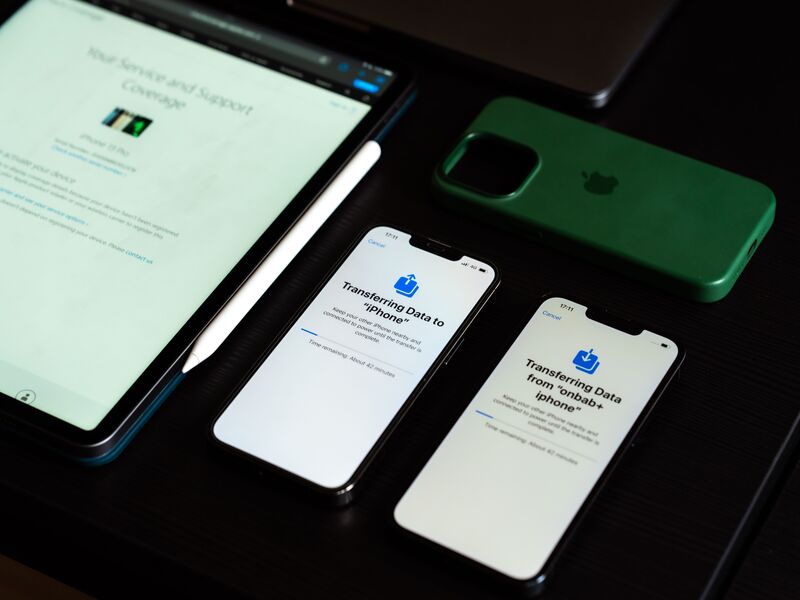
Quick Start is usually the easiest way. It lets your new iPhone copy data directly from the old one during setup.
Step 1: Turn On Your New iPhone
Switch on the new iPhone and stop when you reach the setup screen. Do not set it up manually if you want to use Quick Start.
Step 2: Place It Near Your Old iPhone
Put both devices close together. Make sure Bluetooth and Wi-Fi are turned on.
Step 3: Follow the Quick Start Prompts
Your current iPhone may display a notification inviting you to begin configuring the new device. Confirm that you want to use your Apple Account to set up the new device.
Step 4: Authenticate and Begin the Transfer
You may need to scan an animation, enter your old iPhone passcode, and set up Face ID or Touch ID. Then choose to transfer data directly from your old iPhone.
Step 5: Wait for the Transfer to Complete
Leave the two iPhones side by side and avoid moving them apart while the data migration is still running.
>>> Read More: How to Turn Off Find My iPhone in 2026? Essential Warning Before You Sell
3. How to Transfer All Data from One iPhone to Another Using iCloud?
iCloud Backup is a practical solution when your old and new iPhones are not available at the same time. Many users choose this method because it creates a secure copy of important information before restoring it to the new device.
Create a Current iCloud Backup
On your old iPhone, go to Settings > Your Name > iCloud > iCloud Backup, then tap Back Up Now. Wait until the backup is complete before setting up the new phone.
Restore the Backup on the New iPhone
During setup, choose Restore from iCloud Backup and sign in with the same Apple Account. Select the latest backup and wait for the new iPhone to restore your data.
What Data Will Be Transferred?
iCloud can bring back photos, app data, device settings, messages, contacts, and other synced content. Some apps may need to download again from the App Store.
Pros and Limitations
This method is useful if you do not have both phones side by side. However, it depends on Wi-Fi speed and available iCloud storage. Quick Start may feel faster, while iCloud gives you more flexibility.
4. How to Transfer Data from an Android Phone to Another iPhone?
If your old device is Android, the process is different, but still simple. Apple’s Move to iOS app helps move important content during iPhone setup.
Moving Data from Android to iPhone
When setting up the new iPhone, choose the option to move data from Android. Then open Move to iOS on your Android phone and follow the code-based pairing steps.
What Can Be Transferred?
You may be able to move contacts, messages, photos, videos, calendars, mail accounts, and some free apps. Paid apps, certain app data, and files stored only inside specific Android apps may not transfer automatically.
5. What to Do if the Transfer Doesn’t Work?
Transfer issues are common, but most are easy to fix.
Devices Won’t Connect
Restart both phones, turn Wi-Fi and Bluetooth back on, and place them closer together. Also check that both devices have enough battery.
Transfer Is Taking Too Long
Large photo libraries and videos can slow things down. Keep both devices plugged in and avoid using them during the process.
Not Enough Storage Space
If your new iPhone has less storage than the old one, delete unnecessary files or move photos to cloud storage before trying again.
Interrupted or Incomplete Transfers
If the setup stops, restart both devices and try again.
6. FAQs
How much time should you expect an iPhone data transfer to take?
It can take from a few minutes to more than an hour. The time depends on your Wi-Fi speed, storage size, photo library, apps, and whether you use Quick Start or iCloud.
Can I use my old iPhone while the transfer is in progress?
It is better not to use it. Quick Start may need both devices to stay close and active, so using the old iPhone during transfer can slow or interrupt the process.
Will transferring data erase anything on my old iPhone?
No. Transferring data to a new iPhone does not erase your old iPhone automatically. Your old device will keep its content unless you manually reset it later.
7. Conclusion
Now you know how to transfer data from one iPhone to another using Quick Start, iCloud, or move to iOS. For most iPhone users, Quick Start is the simplest choice.
If you prefer a backup-based method, iCloud works well. The key is to prepare both devices, keep them charged, and avoid interrupting the process.