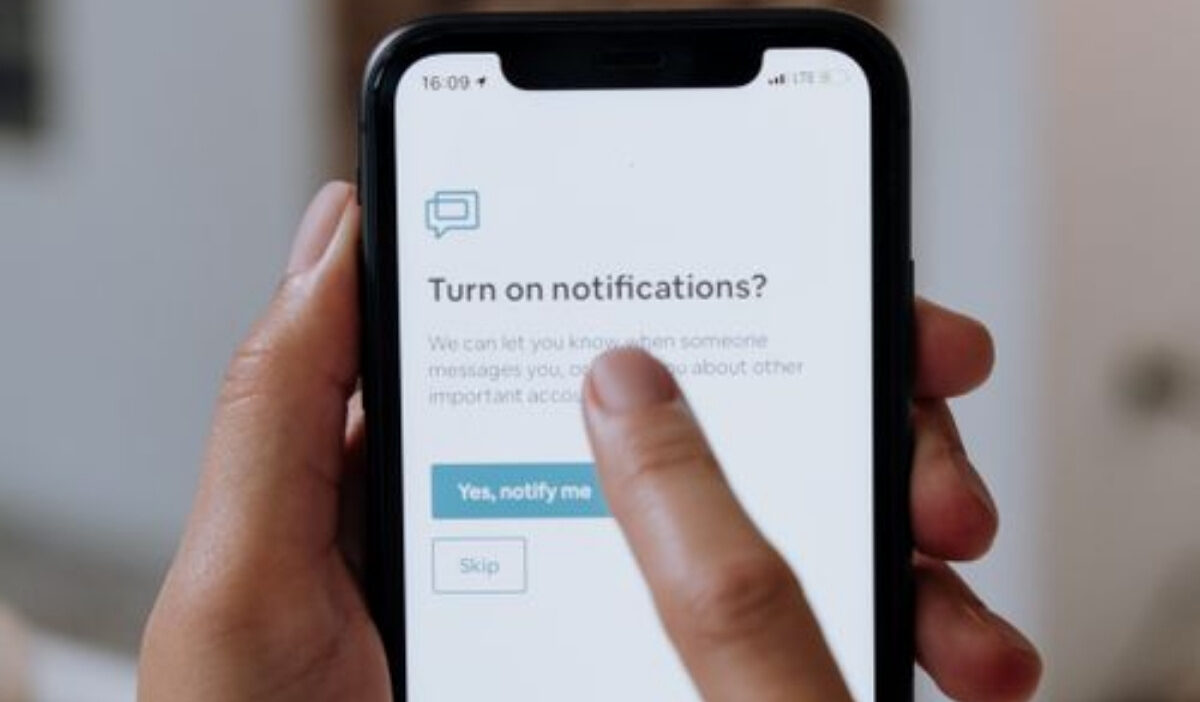
How to silence notifications on iPhone? It depends on the level of control you need. iPhone gives you options to mute alerts, adjust app notifications, and keep key messages available.
This guide explains each option so you can choose the right method for your situation.
1. How to Silence Notifications on iPhone
The best method depends on whether you want to mute your entire device or only specific notifications.
Silence All Notifications Temporarily
When you need temporary silence, these steps show how to silence notifications on an iPhone without changing each app’s settings.
Use Silent Mode:
- Step 1: Locate the Ring/Silent switch on the side of your iPhone.
- Step 2: Move the switch to silent mode to mute notification sounds.
- Step 3: On newer models with an Action Button, set the button to activate Silent Mode.
Silent Mode provides a quick way to reduce notification sounds while keeping alerts available, without changing individual app settings.
Sleep Focus or a scheduled Focus mode lets you keep your iPhone quiet without changing your regular app notification settings.
Silence Notifications from a Specific App or Conversation
How to silence notifications on iPhone at night? If your goal is to silence notifications for only one app or conversation, you do not need to mute the entire device.
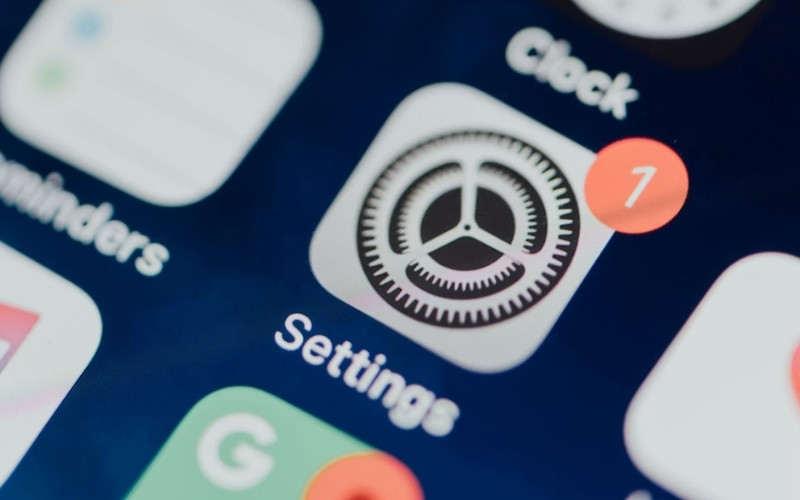
- Step 1: Open Settings.
- Step 2: Select Notifications.
- Step 3: Choose the app you want to adjust.
- Step 4: Turn off Allow Notifications or disable Sounds only.
Turning off sounds allows notifications to appear silently, while disabling notifications removes alerts from that app.
2. What’s the Difference Between Silent Mode, Focus, and Notification Settings?
Each iPhone notification option works in a different way.
The table below shows how Silent Mode, Focus, and Notification Settings handle alerts so you can understand their roles.
| Feature | Best For | How It Works |
|---|---|---|
| Silent Mode | Quick, temporary silence | Turns off notification sounds while alerts remain available on the iPhone |
| Focus | Managing notifications during specific situations | Filters alerts based on selected people, apps, and schedules |
| Notification Settings | Controlling individual apps | Changes how specific apps send notifications, sounds, and alerts |
>>> Read more: How to Disable Read Receipts on iPhone, Android, and Popular Apps
3. How to Avoid Missing Important Notifications While Keeping Your iPhone Quiet
After that, you can adjust your settings so important alerts still reach you.
Allow Important People and Apps
After you choose a notification method, review which people and apps can still reach you.
This helps you keep important communication available while your iPhone stays quiet.
Common choices include:
- Family members: Allow calls or messages from people you may need to reach quickly.
- Work contacts: Keep notifications from key colleagues if you expect important updates.
- Essential apps: Allow alerts from apps such as Calendar, Reminders, or other services you rely on throughout the day.
A quick review of your allowed contacts and apps makes your notification settings more useful because only the alerts that matter can come through.
Review Time-Sensitive and Critical Alerts
Some apps use Time-Sensitive Notifications to deliver updates that may need your attention shortly after they appear.
You can review these settings in:
- Step 1: Open Settings.
- Step 2: Tap Notifications.
- Step 3: Select an app.
- Step 4: Check available alert options.
Time-Sensitive Notifications can be useful for apps that provide reminders, updates, or important information. You can decide which apps should have this permission based on how you use your iPhone.
4. Troubleshooting: Why Is My iPhone Still Making Noise/Vibrating?
If your iPhone still makes sounds or vibrates, check the settings that control individual alerts.
Common causes include:
- An app still has notification sounds enabled.
- Focus settings allow certain apps or contacts to send alerts.
- Haptics are still active under Sounds & Haptics.
- Some notification types have separate sound controls.
If the issue continues after you review these settings, restart your iPhone and check whether iOS is up to date.
5. FAQs About Silence Notifications on iPhone
These common questions explain how different notification controls work on iPhone.
How to silence text notifications on iPhone?
Open the conversation you want to mute in the Messages app, tap the contact or group name at the top of the screen, then turn on Hide Alerts.
How do I silence incoming notifications but still receive calls?
Use a Focus mode and allow calls from selected contacts in Settings > Focus.
How to turn off Silence Notifications on iPhone?
To turn off silence settings, disable Silent Mode or the active Focus mode, or reset your notification preferences.
Follow these steps:
- Open Control Center.
- Tap Focus to turn it off.
- Check the Ring/Silent switch or Action Button if your iPhone has one.
Your notifications will return to your chosen settings.
What is the difference between Do Not Disturb and silencing notifications?
Do Not Disturb is a Focus mode that filters alerts by rules you set.
Silencing notifications can also mean Silent Mode or app-level notification changes.
6. Conclusion
How to silence notifications on iPhone becomes easier when you understand the difference between Silent Mode, Focus, and notification settings.
Choosing the right setting helps you create a notification experience that matches your daily needs. OptNYC offers practical tech guides that help readers use digital tools with confidence.