Since iOS 16, Apple has changed how users manage Lock Screen wallpapers, so the delete option is no longer located in the Settings app.
This guide explains how to delete wallpaper on iPhone on current iOS versions and answers a few common questions about wallpaper management.
Many users search for how to delete wallpaper on iPhone 15, iPhone 14, or older models only to find the old Settings menu empty. Apple now manages these designs directly through the Lock Screen gallery.
1. Why is Modifying Wallpapers on Modern iOS So Confusing?
Apple introduced a new wallpaper system in iOS 16 that changed how users manage Lock Screen and Home Screen wallpapers.
Instead of using the Settings app, saved wallpapers are now managed through the Lock Screen gallery.
Each Lock Screen is paired with a Home Screen wallpaper by default, so iPhone treats them as a wallpaper pair rather than separate images.
Changing a wallpaper only switches to another option, while deleting removes the saved wallpaper pair without deleting the original photo in Photos.
2. How to Delete a Wallpaper on iPhone
Whether you need to learn how to delete wallpaper on iPhone 14, clean up a cluttered screen configuration, or find out how to delete wallpaper on iPhone 13, the process is the same across most newer iPhone models.
Follow these steps to delete wallpaper on iPhone from your Lock Screen gallery.
- Step 1: Access the Lock Screen: Wake your iPhone and press the side button to view the Lock Screen.
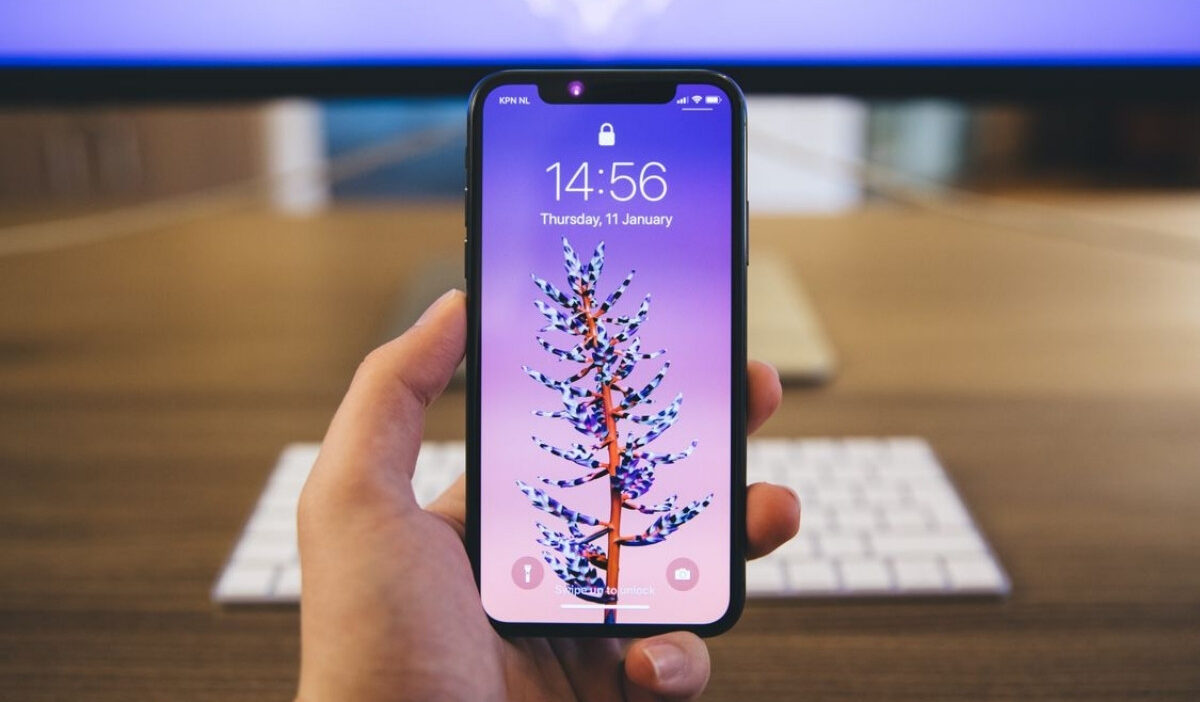
- Step 2: Open the Wallpaper Gallery: Touch and hold the middle of the Lock Screen, then unlock your iPhone with Face ID, Touch ID, or your passcode.
- Step 3: Find the Wallpaper: Swipe left or right through your saved wallpapers until you find the one you want to delete.
- Step 4: Delete the Wallpaper: Swipe upward on the selected wallpaper, tap the red Trash icon, and choose Delete This Wallpaper to confirm.
The steps above apply to iPhones running iOS 16 or later.
Earlier versions of iOS used a different wallpaper system and did not include the Lock Screen gallery.
After deletion, your iPhone removes the wallpaper from the gallery and switches to another saved option if available.
3. Tips for Managing Wallpapers on iPhone
A few simple habits can help you keep your Lock Screen gallery organized and make wallpaper changes easier.
Keep Your Wallpaper Gallery Easy to Scan
Try to keep only the wallpaper pairs you actually use so your Lock Screen gallery does not become cluttered. A smaller gallery makes it faster to find the right wallpaper when you want to switch styles or revisit an old setup.
Save Favorite Photos Before Turning Them Into Wallpapers
If you often use your own photos as wallpapers, create a dedicated album in the Photos app for your best candidates.
That gives you a simple place to return to whenever you want to build a new wallpaper without searching through your entire library.
Review Your Wallpaper Setup After iOS Updates
After installing a new iOS version, take a moment to open your wallpaper gallery and check that everything still looks right.
Updates can change the wallpaper interface or add new options, so a quick review helps you stay organized and keep your Lock Screen setup consistent.
>>> Read more: How to Scan on iPhone? 2 Built-In Tools Most Users Never Notice
4. How to Safely Unlink a Wallpaper from a Focus Mode Before Deleting
If a Lock Screen wallpaper is linked to a Focus mode, you can remove that connection before deleting the wallpaper from your gallery. This keeps your Focus settings separate from your wallpaper choices.
Follow these steps:
- Open Settings on your iPhone.
- Tap Focus and select the Focus mode connected to the wallpaper.
- Under Customize Screens, choose the Lock Screen you want to change.
- Select another Lock Screen or remove the current wallpaper connection.
- Return to the Lock Screen gallery and delete the wallpaper if you no longer need it.
This lets you remove a wallpaper while keeping your preferred Focus mode settings unchanged.
>>> Read more: How to Transfer Data From One iPhone to Another Without Losing a Thing
5. FAQs About Deleting Wallpaper on iPhone
These common questions explain how wallpaper deletion works and provide more details.
Can you delete multiple wallpapers at once?
No. iPhone does not currently provide an option to delete multiple saved wallpapers at the same time. You need to remove each wallpaper individually through the Lock Screen gallery.
Can you recover a deleted wallpaper?
No. You cannot restore it from the wallpaper gallery, but you can recreate it if the original image is still in Photos or saved elsewhere.
Can you delete Apple default wallpapers?
Yes, but only the wallpapers in your Lock Screen gallery; some built-in iPhone wallpapers may not be removable the same way, depending on iOS version and wallpaper type.
6. Conclusion
The steps for how to delete wallpaper on iPhone are simple once you understand that wallpaper management uses the Lock Screen gallery instead of Settings.
The steps work across recent iPhone models, including iPhone 13, iPhone 14, and iPhone 15, with supported iOS versions.
OptNYC provides clear, reliable resources for practical technology guides and digital tips.