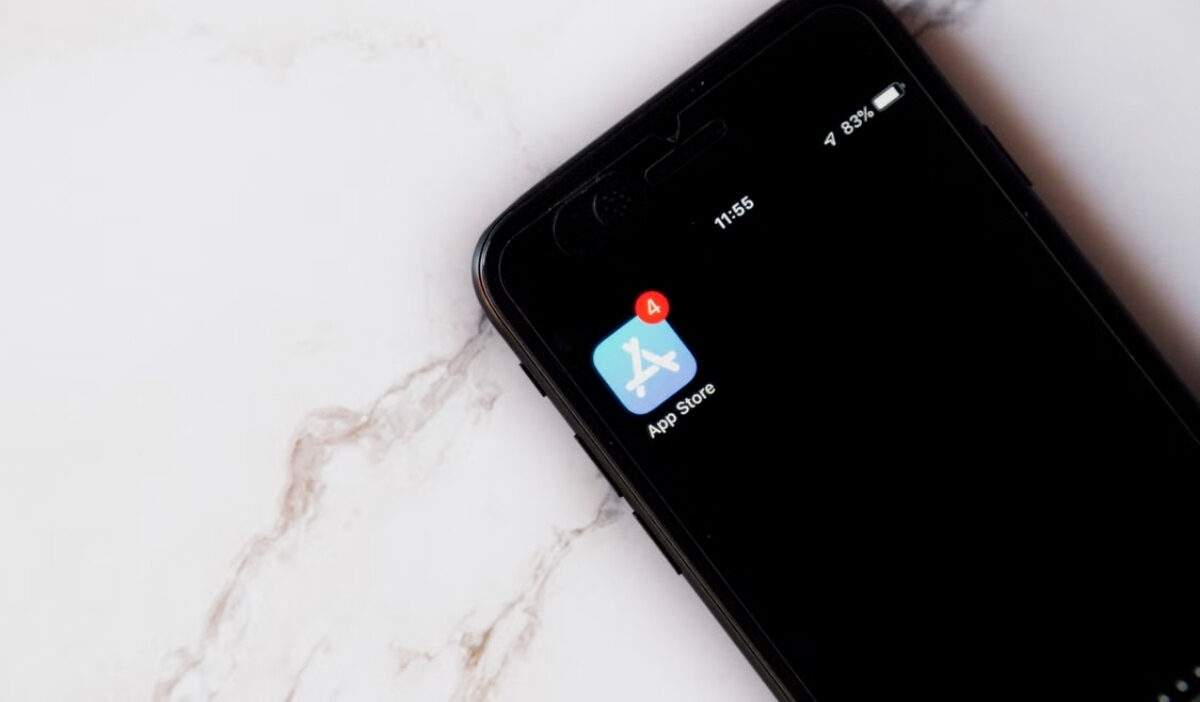
How to update apps on iPhone depends on whether you want to install updates yourself or let your iPhone do it automatically.
This guide covers both methods, explains how to update iPhone apps, and shares simple steps to fix common update issues.
1. How to Update Apps on iPhone Manually
How to update all apps on iPhone? You can update apps manually through the App Store when you want to choose which apps receive updates. Follow these steps to update one app or all available apps.
- Open the App Store on your iPhone.
- Tap your profile picture in the top-right corner.
- Scroll down to the Upcoming Automatic Updates section.
- Tap Update next to an app to update it individually.
- Tap Update All to update every available app at once.
If the update list does not appear, swipe down on the screen to refresh the App Store page. Your iPhone will check for available app updates again.
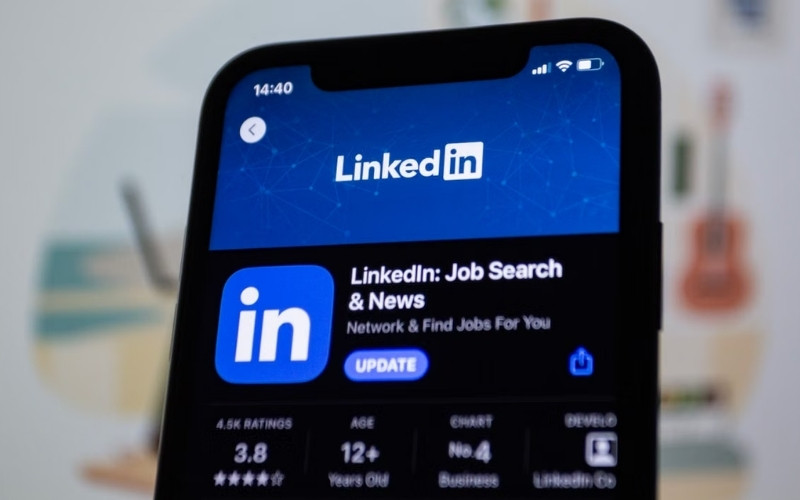
2. How to Turn On Automatic App Updates on iPhone
How to auto update apps iPhone? Automatic updates allow your iPhone to install app updates without checking the App Store manually. You can enable this option through your iPhone settings.
To learn how to turn on auto update apps on iPhone, follow these steps:
- Open Settings.
- Tap Apps.
- Select App Store.
- Turn on App Updates under the Automatic Downloads section.
This setting keeps supported apps updated whenever your device meets Apple’s download conditions.
>>> Read more: How to Unhide Apps on iPhone? Easy Solutions to Instantly Find Hidden Apps
3. How to Check Whether Your Apps Are Up to Date
Checking your app update status ensures you are running the latest versions with the newest features, bug fixes, and security patches.
It also helps confirm whether your automatic updates have actually gone through or if any apps are still waiting in line.
To check your app update status:
- Open the App Store.
- Tap your profile picture in the top-right corner.
- Scroll to the Upcoming Automatic Updates section.
- Review the apps listed with available updates.
Pro Tip: If an app is listed under “Upcoming Automatic Updates,” you don’t have to wait for iOS to install it automatically. Simply tap Update next to the specific app, or tap Update All at the top of the list to push all pending updates immediately.
4. What to Do If Apps Won’t Update on iPhone
Sometimes, hitting the ‘Update’ button in the App Store simply doesn’t work, leaving your apps completely unresponsive or half-downloaded.
Before you consider resetting your device or deleting the apps entirely, try these quick and safe fixes to force your iPhone to finish updating.
- Check your internet connection: Make sure your iPhone has a stable Wi-Fi or cellular connection.
- Check available storage: Free up space if your iPhone does not have enough storage for the update.
- Confirm your payment method: Add or update your payment method if the App Store requires billing verification.
- Restart your iPhone: Restart your device, then open the App Store and check for updates again.
- Prioritize the download: Touch and hold the app icon on the Home Screen, then select Prioritize Download if an update is waiting.
- Update iOS: Install the latest compatible iOS version if an app requires newer system software.
- Confirm your age: In some countries or regions, you may need to verify your age before downloading or updating certain apps.
>>> Read more: How to Cancel Apple Subscriptions? Stop Paying for Apps You No Longer Use
5. FAQs About Updating Apps on iPhone
If you’re running into issues or wondering how to update apps on iPhone and how automatic updates work, check out these frequently asked questions.
Why don’t I see the Update button for an app on my iPhone?
The app may already have the latest available version. The App Store shows Open instead of Update when no newer version is available.
Can I update apps using cellular data on iPhone?
Yes. Go to Settings > Apps > App Store and enable cellular data for App Store downloads.
Do apps update automatically on iPhone by default?
Automatic updates depend on your settings. Enable App Updates under Settings > Apps > App Store to turn on automatic updates.
Why does an app say “Open” instead of “Update”?
The Open button means the app is already updated to the latest version available for your iPhone.
How do I see pending app updates?
Open the App Store, tap your profile picture, and check the Upcoming Automatic Updates section.
6. Conclusion
How to update apps on iPhone? Ithow to update apps on iphone becomes simple once you know which option works best for your needs.
Choose manual updates for individual apps, enable automatic updates for everyday convenience, and use the troubleshooting tips in this guide whenever an update does not complete.
Find more practical iPhone guides on OptNYC.