Playing games on an iPhone feels much better with a physical controller. If touchscreen controls feel limiting, you can connect a PS5 DualSense controller to your phone in just a few steps.
This guide explains how to connect PS5 controller to iPhone through Bluetooth, checks which iPhones support the controller, and covers common connection problems.
1. Compatibility Check: Will Your PS5 Controller Work with Your iPhone?
Before learning how to connect a PS5 controller to iPhone, let’s first confirm whether your controller and iPhone are compatible with this connection.
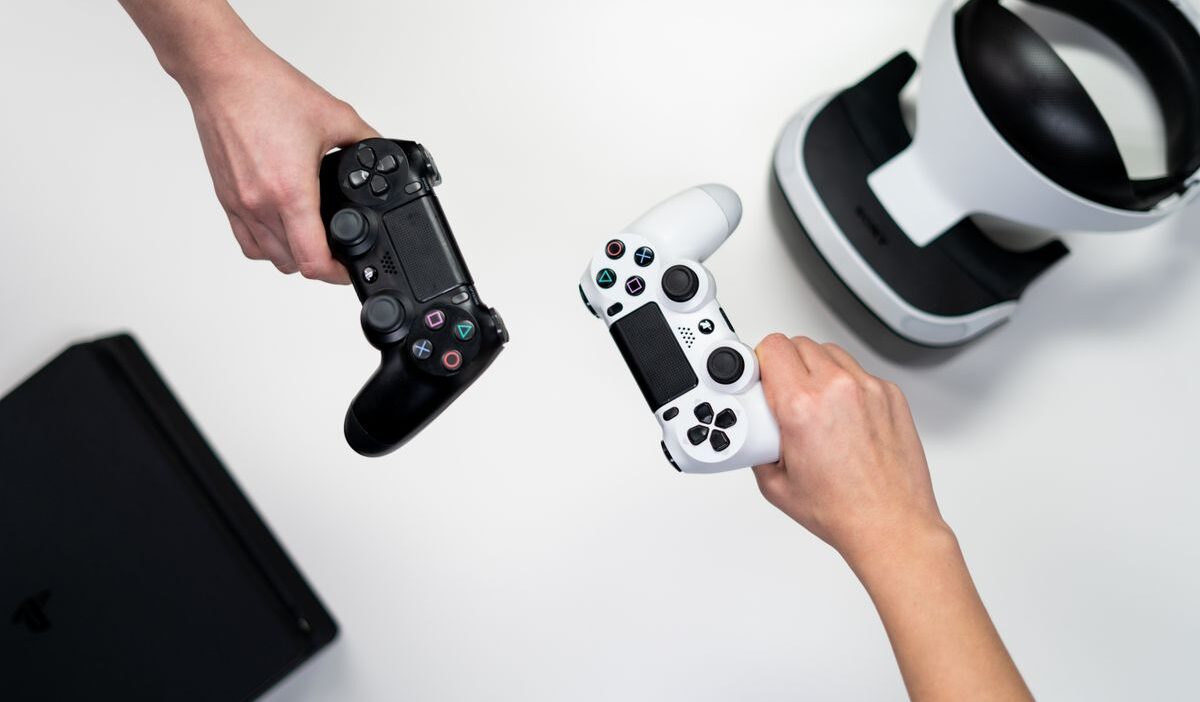
Apple supports several PlayStation wireless controllers, including:
- PlayStation DualShock 4 wireless controller
- PlayStation 5 DualSense wireless controller
- PlayStation 5 DualSense Edge wireless controller
- PlayStation VR2 Sense controller with Apple Vision Pro running visionOS 26 or later
For iPhone users, the DualSense and DualSense Edge are the most relevant options. Your iPhone must also run a compatible version of iOS.
So in short, before you start, check the following:
- Your iPhone has the latest available software update.
- Your controller has sufficient battery power.
- Your controller is not connected to another device.
- The game supports external controllers.
2. How to Connect PS5 Controller to iPhone
You can connect a PS5 controller to your iPhone using either Bluetooth or a compatible USB cable. The steps below explain how to connect your PS5 controller to your iPhone using both methods.
Connect the Controller through USB
A USB connection can automatically pair and connect a DualSense or DualSense Edge controller to your iPhone.
How to connect a PS5 controller to an iPhone? Follow 3 simple steps below:
- Connect the controller directly to your iPhone with a USB cable that supports both data transfer and charging.
- Wait for the iPhone to recognize the controller.
- Open a compatible game and test the controller.
The required cable or adapter depends on your iPhone model and its charging port. If the controller does not connect, make sure your iPhone and controller software are up to date before trying again.
If the wired method does not work, you can switch to Bluetooth instead.
Connect and Pair Your PS5 Controller via Bluetooth
Bluetooth is one easy wireless method, and it combines both setup and pairing in one process. First, make sure the controller is ready:
- Turn off the controller if it is on by holding the PS button until the light turns off.
- Disconnect any USB cable if attached.
- Press and hold the PS button and Create button together until the light bar starts flashing.
The flashing light bar indicates the controller is in pairing mode and ready to connect. Next, pair it with your iPhone:
- Open Settings.
- Tap Bluetooth.
- Turn Bluetooth on.
- Select DualSense Wireless Controller or DualSense Edge Wireless Controller under available devices.
Once connected, the controller will appear under My Devices, and you can start playing supported games immediately.
If it connects but does not respond, press the PS button once to re-establish the connection.
And that’s how to connect controller to iPhone PS5!
3. How to Troubleshoot PS5 Controller Connection Issues
The controller may still sometimes fail to connect. Try these solutions in order.
Restart Bluetooth
Open Settings > Bluetooth, turn Bluetooth off, wait a few seconds, and turn it back on. Then place the controller into pairing mode again.
Disconnect Other Devices
Your controller may still connect to a PS5 console, computer, tablet, or another phone. Disconnect the controller from nearby devices before pairing it with your iPhone.
Forget the Controller
If your iPhone remembers the controller but cannot connect to it, open Settings > Bluetooth. Tap the information button next to the controller, select Forget This Device, and pair the controller again.
Restart Both Devices
Turn off the controller and restart your iPhone. Then repeat the Bluetooth pairing steps.
Update Your Software
If the controller still does not connect through USB or Bluetooth, install the latest software updates for your iPhone and controller. Outdated software can prevent compatible devices from pairing correctly.
4. FAQs
Can I connect a PS5 controller to any iPhone?
Yes, you can connect a PS5 DualSense controller to iPhones that support the required iOS version. Older models may not be compatible, so always check your device and software first.
Can I connect a PS5 controller to my iPhone without Bluetooth?
Yes. You can use a USB cable that supports data and charging to connect a DualSense or DualSense Edge controller. However, Bluetooth is usually the easiest option for wireless play.
How do I reconnect my PS5 controller after using it with another device?
Turn off or disconnect it from the other device, then select it again in your iPhone’s Bluetooth settings. If needed, re-enter pairing mode by holding the PS button and Create button until the light flashes.
Can I use a PS5 controller for all iPhone games?
No. Only games with controller support will work, and some may not support advanced DualSense features like adaptive triggers or haptics.
>>> Read more: How to Share WiFi Password on iPhone: Quick & Easy Guide
5. Conclusion
Learning how to connect PS5 controller to iPhone requires only a compatible controller and a few simple steps. You can connect through Bluetooth by placing the controller in pairing mode and selecting it from your iPhone’s Bluetooth settings. You can also use a compatible USB cable for a direct connection.