Want to give your iPhone Home Screen a new look with different app icons? This guide on how to change app icons iPhone covers the steps to change an app’s icon to suit your preferences.
1. How to Change App Icons iPhone With Shortcuts?
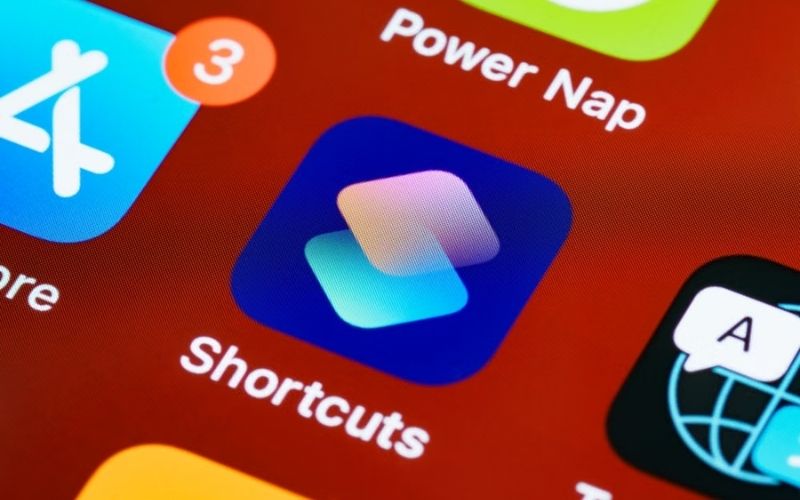
How to change app icons on iPhone? You can customize a Home Screen shortcut with a different picture through the Shortcuts app.
Open the shortcut’s details, select the Home Screen option, and choose your preferred image.
- Open the shortcut details. In Shortcuts, tap the three dots on the shortcut you want to customize, then tap the Details button.
- Open the Home Screen settings. Tap Add to Home Screen.
- Choose a custom icon. Under Home Screen Name and Icon, tap the icon to customize it with a photo you prefer.
- Take Photo: Use the camera to take a new photo.
- Choose Photo: Select an existing photo from your Photos library.
- Choose File: Select an image from the Files app.
- Add the icon. Tap Add to place the shortcut on your Home Screen.
Choose an image with a clear subject and enough contrast to remain recognizable at a small size. A square image usually works well because the Home Screen displays the icon within its standard shape.
Important: A custom app icon created through Shortcuts is a separate shortcut that opens the selected app. It does not replace the app’s original icon or change its App Store listing.
2. How to Edit App Icon Appearance on Home Screen?
These settings adjust the appearance of app icons on the Home Screen. They do not change the custom picture assigned to a shortcut in Shortcuts.
On iPhone with iOS 18 or later, include iOS 26, you can change the overall appearance of Home Screen app icons through the built-in Customize menu.
These settings change icon styles and colors, not the individual photos assigned through Shortcuts.
- Go to the Home Screen and press and hold the background until the icons jiggle.
- Tap Edit, then select Customize.
- Choose an appearance or size option:
- Dark: Give app icons and widgets a dark appearance.
- Auto: Switch between a dark appearance at night and a light appearance during the day.
- Clear: Make icons translucent, then choose Light, Dark, or Auto.
- Tinted: Use the color and saturation sliders to choose a tint, or use the eyedropper to select a color from your wallpaper. Then choose Light, Dark, or Auto.
- Large: Increase icon size and hide app names.
To solve how to change app icons back to normal iPhone appearance after using the built-in customization options, go to Edit > Customize > Default.
If you used Shortcuts to add custom photo icons, remove those shortcuts from the Home Screen and restore the original app icons from the App Library.
>>> Read more: How to Hide Apps on iPhone Without Deleting Them? [2026]
3. How to Remove the Original App Icon Without Deleting the App?
When choosing how to change iPhone app icons without uninstalling an app, remember that a custom Shortcuts icon and the original app icon can appear separately on the Home Screen. Here is the way to remove the original icon:
- Find the original app icon on your Home Screen.
- Touch and hold the icon.
- Tap Remove App.
- Select Remove from Home Screen.
The original icon will disappear from your Home Screen, leaving the custom shortcut in place. The app remains installed and accessible through the App Library.
>>> Read more: How to Reduce System Data on iPhone and Free Up Storage Space
4. FAQs
These FAQs cover common questions about how to change app icons iPhone, restore the original look, and manage custom shortcuts.
How to batch-change multiple app icons at once on iPhone?
The Shortcuts app does not offer a single action to change multiple app icons at once. You need to customize each app shortcut individually.
Is there a quick way to restore a custom app icon back to its original appearance?
Yes. Remove the custom shortcut from the Home Screen, then add the original app from the App Library. This restores the original app icon without reinstalling the app.
Are custom Shortcuts icons supported on older iPhone models?
Yes, as long as the iPhone supports the Shortcuts app and the required Home Screen shortcut features. The exact steps may vary by iOS version.
Do custom app icons show notification badges?
No, custom icons added through Shortcuts generally do not display the original app’s notification badges. Check the original app icon or open the app to see new notifications.
5. Conclusion
So, how to change app icons iPhone? It can be solved using Shortcuts for custom photos or the built-in Customize menu for icon styles and colors. Choose the option that suits your Home Screen, and remove the original icon if you prefer a single icon per app.
Need more iPhone tips to help you get the most from your device? Check out the selection at OptNYC.