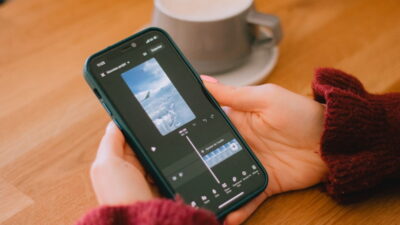
Typing a long message can feel slow when you need to explain something quickly. Learning how to send a voice message on iPhone gives you a faster way to share thoughts, instructions, updates, and personal messages.
The iPhone lets you record audio directly in Messages, share recordings from Voice Memos, and send audio files through other compatible apps. Read on for detailed instructions!
1. How Voice Messages Work on iPhone
An iPhone can record and send audio in several ways. The best method depends on the app that you use and the type of audio that you want to share.
The Messages app lets you record an audio message directly inside a conversation. You can also use Voice Memos when you want to create a longer recording, edit the audio, or share the file through another app.
Apple also lets you save audio messages to Voice Memos when you want to keep a recording for later use. However, Messages may automatically remove audio messages after a period of time unless you choose to keep them.
2. How to Send a Voice Message on iPhone?
How to record and send a voice message on iPhone? Let’s find out!
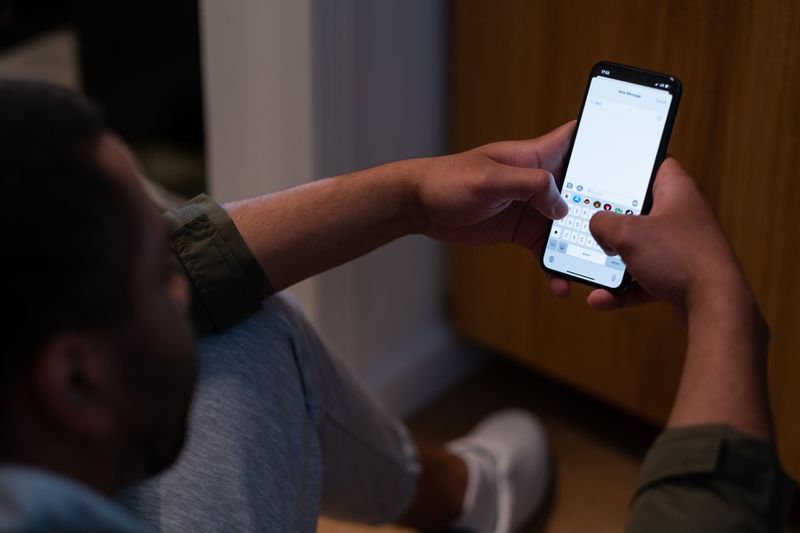
Send an audio message through the Messages app
You can record your message directly inside an existing conversation without opening another app.
Follow these steps:
- Open the Messages app on your iPhone.
- Open an existing conversation or start a new message.
- Tap the Add (+) button near the text field.
- Tap Audio.
- Start speaking after the recording screen appears.
- Tap the Stop button when you finish recording.
- Tap the Send button to send the audio message.
You can also listen to the recording before sending it, depending on the options shown on your iPhone.
You can save an important audio message by touching and holding it in the conversation. Then, select the option to keep it or save it to Voice Memos when available.
Share a voice recording in other apps
You can record your message as an audio file and then send it through Messages, Mail, or another compatible app.
This option works well for longer recordings, voice notes, interviews, class notes, or messages that you want to edit before sharing.
To record audio with Voice Memos:
- Open the Voice Memos app.
- Tap the Record button.
- Speak clearly into your iPhone.
- Tap the Stop button when you finish.
- Open the saved recording.
- Tap the More Actions button.
- Tap Share.
- Choose Messages, Mail, AirDrop, or another available app.
- Select the recipient and send the recording.
Send audio while making a phone call
How to send voice message on iPhone during a call? The simplest option involves switching to the Messages app during the call and sending an audio message if your iPhone and current app setup allow microphone access.
However, an active phone call may already be using the iPhone’s microphone, so the audio recording feature may not work normally during every call.
If your iPhone does not let you record an audio message during the call, you can use one of these practical alternatives:
- Send a text message while the call continues.
- Record the voice message in Voice Memos after the call ends.
- Use another device to record the message while you continue the call.
- Send a saved Voice Memos recording through Messages after the call.
You should not confuse sending a voice message during a call with recording the call itself. iPhone call recording is a separate feature with regional availability and consent requirements.
Call recording laws can vary by location; you can check out the Federal Communications Commission’s guidance on telephone privacy for useful information about privacy protection.
3. Fix Common Voice Message Problems on iPhone
Try these solutions when your audio message will not send:
Check your internet connection
Messages may need a working internet connection when you send an iMessage. Try switching between Wi-Fi and mobile data if the message remains stuck.
Check microphone access
Open Settings > Privacy & Security > Microphone and check whether the app that you use has microphone access.
Apple recommends checking microphone permissions when an app cannot record your voice properly.
Clean the microphone openings
Dust or debris can make your recording sound quiet or unclear. Remove anything that blocks the microphone openings and test your audio again.
Restart the Messages app
Close the Messages app and reopen it if the audio button disappears or the recording screen stops responding.
Update your iPhone
An older iOS version may display different menus or lack newer audio messaging features. Open Settings > General > Software Update and install an available update.
Try Voice Memos
Voice Memos can help you identify whether the problem affects the iPhone microphone or only the Messages app. Record a short memo and play it back to test the sound.
>>> Also read: How to Unsend iMessage (iOS 16 or Later): The 2-Minute Rule
4. FAQs
How do I send a voice message on iPhone without typing?
Open a conversation in Messages, tap the Add (+) button, select Audio, record your message, and tap Send. This method lets you send a spoken message without typing the full text.
Can I send a voice message on iPhone during a phone call?
You may be able to open Messages during a call, but the active call can already use the iPhone microphone. If your iPhone does not allow a new audio recording, send a text message during the call or record and send the voice message afterward.
How long can an iPhone voice message be?
Apple does not provide one universal time limit for every audio message. The practical limit can depend on the app, available storage, message service, and the size of the audio file. Longer recordings work better through Voice Memos and file sharing.
Why can’t I send a voice message on my iPhone?
A weak internet connection, disabled microphone permission, an outdated iOS version, or a temporary app problem can prevent an audio message from sending. Check your connection, microphone access, software updates, and the recording itself.
Can I send a voice message from iPhone to Android?
Yes, you can send audio from an iPhone to an Android phone through supported messaging apps, email, file-sharing services, or other platforms. The exact process depends on the app and messaging format that you use.
5. Conclusion
Learning how to send a voice message on iPhone can save time when typing feels slow or inconvenient.
You can record a quick audio message directly in Messages, create a longer recording in Voice Memos, or share an audio file through another app.
Once you know how to send a voice message on an iPhone, you can choose the fastest method for every conversation and share your thoughts with less effort.