
Learning how to block No Caller ID on iPhone helps you cut down on scam calls and unwanted sales pitches. However, iPhone can’t block a specific hidden caller the way it blocks a normal number.
This guide breaks down the best options so you can stop interruptions without missing important calls.
1. What No Caller ID Means on iPhone
A “No Caller ID” label means that the caller has deliberately hidden their number from the receiving phone. The carrier therefore sends the call without a visible number that your iPhone can identify.
An “Unknown Caller” label can have a slightly different cause. For example, a network problem or an international connection may prevent the caller information from reaching your device.
Your iPhone cannot add a hidden number to its blocked list because the call does not provide a number.
Consequently, the most practical solution for how to block a No Caller ID on iPhone involves screening or silencing the broader category of unknown callers.
2. How to Block No Caller ID on iPhone With Built-In Silence Settings
Apple’s current software provides a Screen Unknown Callers setting inside the Phone options.
The available choices can include Never, Ask Reason for Calling, and Silence, depending on your iOS version, language, and region. You can follow these steps:
- Open the Settings app.
- Scroll down and tap Apps.
- Select Phone.
- Find Screen Unknown Callers.
- Select Silence.
The Silence option sends calls from unsaved numbers to voicemail without ringing your iPhone. The Phone app still records those calls, so you can review them later.
Apple’s official guide to screening and blocking calls on iPhone explains that silenced calls remain available in your call history. Therefore, the setting reduces interruptions without permanently erasing every call record.
3. Call Screening Options for Handling Unknown Numbers
Call Screening provides a more flexible approach when you want protection without automatically silencing every new caller.
On supported iPhones and software versions, the Ask Reason for Calling option requests information before your phone rings. You can activate the feature through these steps:
- Open Settings.
- Tap Apps > Phone.
- Select Screen Unknown Callers.
- Choose Ask Reason for Calling.
The iPhone asks an unknown caller to provide a name and reason for the call. After the caller responds, your iPhone rings and displays the provided information, so you can decide whether to answer.
Call Screening provides a useful alternative for how to block No Caller ID on iPhone when you frequently receive legitimate calls from unsaved numbers.
>>> Read more: How to Unblock a Number on iPhone in 2026? Proven Steps to Find Blocked Contacts
4. Blocking Visible Spam Numbers from Your iPhone Call History
A visible spam number provides a direct blocking option because your iPhone can identify that specific caller.
You can block the number from the Phone app after you receive the call. Follow these steps:
- Open the Phone app.
- Tap Recents.
- Find the unwanted number.
- Tap the Information (i) button beside it.
- Scroll down and tap Block Caller.
- Tap Block Contact to confirm the action.
The block prevents that number from contacting you through regular phone calls, FaceTime, and Messages. However, a scammer can use another number or falsify the displayed caller information.
You can manage existing blocks through Settings > Apps > Phone > Blocked Contacts. You can then swipe left on an entry or use the available edit control to remove a block.
So, this is how to block No Caller ID on iPhone by itself, you should combine direct blocking with screening or carrier-level protection.
5. Managing Unwanted Calls with Focus and Do Not Disturb
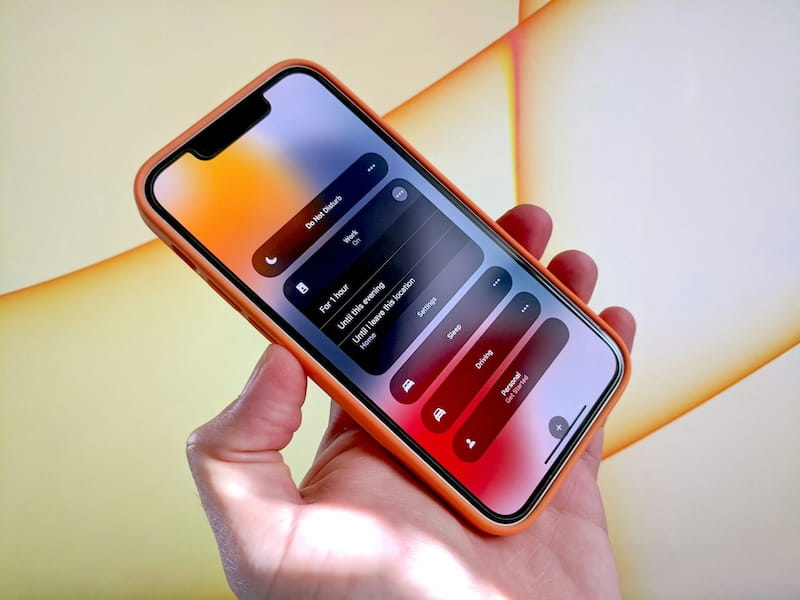
Focus gives you more control over when your iPhone allows calls. For example, you can create a work, sleep, or personal Focus that permits calls only from selected people. You can configure a Focus through these steps:
- Open Settings > Focus.
- Select Do Not Disturb or another Focus.
- Tap People or Choose People.
- Select Allow Notifications From.
- Add the contacts who can reach you.
- Review the Allow Calls From option.
- Turn off Allow Repeated Calls if you do not want repeated attempts to bypass the Focus.
A Focus can silence unknown calls while it remains active, but the feature does not permanently block them. Your iPhone still records the missed calls, and callers may still reach voicemail.
The repeated-calls option usually allows a second call from the same person within three minutes. A persistent spammer could therefore bypass your restrictions if you leave that option active.
Focus provides another practical method for how to block No Caller ID on iPhone during meetings, sleep, or concentrated work. However, the broader rules can also silence new callers whom you might want to hear.
6. Additional Spam Protection from Carriers and Call Filtering Apps
Many mobile carriers offer built-in spam and fraud protection that works at the network level, blocking or flagging suspicious calls before they reach your iPhone.
Availability and pricing depend on your carrier and plan. Check your carrier app or website for features such as:
- Spam or scam call blocking
- Fraud warnings or “potential spam” labels
- Anonymous call rejection (blocks hidden numbers entirely)
- Call filtering or call control tools
Anonymous call rejection can stop “No Caller ID” calls, but it may also block legitimate private calls, so review the feature details before enabling it.
For best results, combine Apple’s built-in screening with carrier-level protection and app-based spam filtering to reduce both unknown and visible spam calls.
7. FAQs
Can we block no caller ID calls?
You can’t block a specific hidden number on iPhone, but you can silence or screen all unknown callers. Some carriers also offer anonymous-call blocking.
How do you unmask a no caller ID on an iPhone?
iPhone can’t reveal hidden numbers. Avoid third-party “unmasking” apps as they’re often unreliable or unsafe. If you’re being harassed, save the calls and voicemails, then report them to your carrier or local authorities for tracing support.
How do I block No Caller ID calls on iPhone 15?
Go to Settings > Apps > Phone > Screen Unknown Callers and select Silence. If unavailable, enable Silence Unknown Callers. You can also use Ask Reason for Calling if supported.
How do I block No Caller ID calls on iPhone 13?
Open Settings > Apps > Phone and choose Screen Unknown Callers or Silence Unknown Callers. Update iOS if you don’t see these options, as availability may vary by version or region.
Does Silence Unknown Callers stop all hidden calls?
It silences unknown and hidden calls, but they can still go to voicemail and appear in your call log. Some known or recently contacted numbers may still ring through depending on iPhone’s recognition settings.
8. Conclusion
Anonymous calls can create frequent interruptions, but your iPhone provides several effective controls. You should choose Call Screening if you expect legitimate calls from new numbers, while the Silence option provides stronger interruption control.
Ultimately, the safest approach to how to block No Caller ID on iPhone combines built-in settings with careful voicemail review and trusted carrier-level protection.