

Seeing “SOS” or “SOS Only” on your iPhone can feel stressful, especially when calls, texts, and mobile data stop working. The good news is that SOS Mode does not always mean your phone is broken. In many cases, it simply means your iPhone cannot connect to your carrier network. If you are asking “how do I get my phone out of SOS mode”, this guide walks you through the safest fixes first.
1. What Does “SOS Mode” Mean on iPhone?
SOS Mode usually means your iPhone has lost normal access to your mobile carrier. You may not be able to make regular calls, send SMS messages, or use cellular data. However, your phone may still allow emergency calls where supported.
Apple also explains that SOS or SOS Only can appear when the device is not connected to a cellular network, while emergency calling may still be available in certain regions.
2. How Do I Get My Phone Out of SOS Mode?
Before trying advanced fixes, start with simple connection checks. These steps are safe and can solve most temporary network problems.
Step 1: Check Your Cellular Signal
Move to another area, preferably near a window or outside. If you are in a basement, elevator, rural area, parking garage, or crowded venue, your iPhone may not receive enough signal to connect.
When the SOS indicator clears after you change locations, the interruption was probably caused by limited network availability in the previous area, not by a fault with the device itself.
Step 2: Turn Airplane Mode On and Off
Open Settings, enable Airplane Mode, wait about 15 seconds, then turn it off again. This forces your iPhone to search for the carrier network again.
Step 3: Restart Your Phone
If Airplane Mode does not help, restart your iPhone. A reboot can clear small system errors that stop the phone from reconnecting.
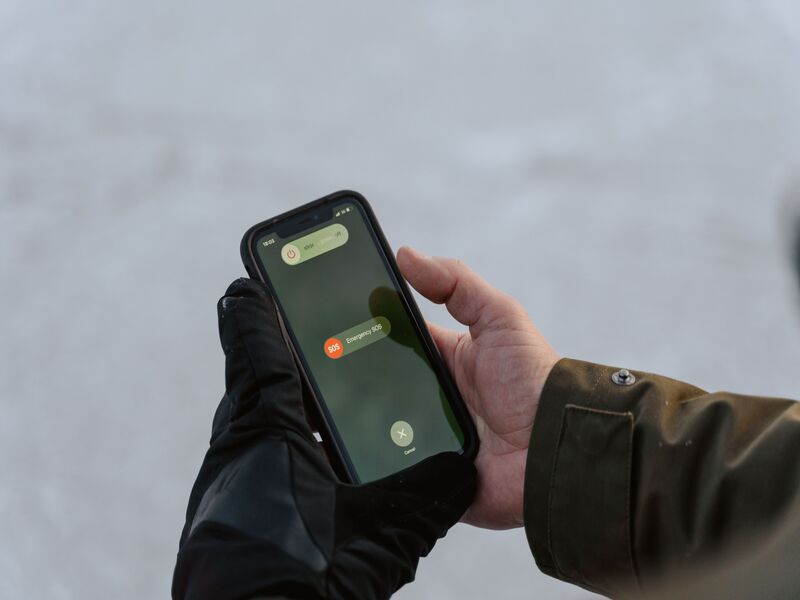
For most newer iPhones, hold the Side button and a Volume button, slide to power off, wait briefly, then turn the phone back on.
Step 4: Check for Carrier Outages
In certain situations, the loss of service originates from the network provider’s side rather than anything happening inside your iPhone. Your carrier may be dealing with a local or nationwide service issue.
Step 5: Reinsert or Check Your SIM Card
If your iPhone uses a physical SIM, turn the device off, remove the SIM tray, check that the card is clean and properly placed, then insert it again.
Those using an eSIM should review their cellular settings and make sure the primary mobile line is currently enabled and available for use.
Do not delete your eSIM unless your carrier tells you to, because you may need help reactivating it.
Step 6: Test Your Cellular Connection
After each fix, try making a normal call, sending a message, or opening a website without Wi-Fi.
>>> Read More: How to Unhide Apps on iPhone? Easy Solutions to Instantly Find Hidden Apps
3. What to Do if Your Phone Is Still Stuck in SOS Mode?
If the basic steps fail, the issue may involve software, carrier settings, SIM activation, or hardware.
Update iOS
Open the software management section on your iPhone and apply any pending iOS release that has not yet been installed. iOS updates can include bug fixes that improve network performance.
Check for Carrier Settings Updates
Access the device information screen and remain there briefly. If your carrier has issued new network configuration files, iOS may display an option to apply them.
Test With Another SIM or eSIM
If possible, test another active SIM card in your phone, or ask your carrier to check your eSIM profile. If another SIM works, your original SIM or account may be the issue.
Consider Hardware-Related Issues
If your iPhone recently fell, got wet, or started losing signal repeatedly, there may be antenna or internal damage. In that case, contact Apple Support or your carrier instead of repeatedly resetting the device.
4. How to Prevent SOS Mode in the Future?
You cannot prevent every carrier outage, but you can reduce the chance of repeat connection problems.
Keep Carrier Settings Updated
Carrier settings help your iPhone communicate correctly with your network. Check them occasionally, especially after changing SIM cards, switching plans, or traveling.
Monitor SIM Card Health
A scratched, loose, or aging SIM can cause random signal loss. If SOS Mode appears often, ask your carrier for a replacement SIM or eSIM review.
Avoid Prolonged Signal Loss
When your phone stays in a no-signal area for too long, it may struggle to reconnect right away. Toggling Airplane Mode after leaving that area can help the phone search again.
Stay Current With Software Updates
Regular updates keep your iPhone more stable. They can also improve compatibility with carrier networks and newer cellular features.
5. FAQs
How do I get my Verizon phone out of SOS mode
Start by toggling Airplane Mode, restarting your iPhone, and checking Verizon service updates. Then confirm your line is active under Settings > Cellular.
Will SOS Mode disappear on its own?
Yes, it can disappear on its own if the cause is weak signal or a temporary carrier outage. Once your iPhone finds the network again, normal service may return automatically.
Can I still use Wi-Fi while my phone is in SOS Mode?
Yes. SOS Mode affects cellular service, not Wi-Fi. You can still use Wi-Fi for apps, browsing, email, iMessage, FaceTime, and some Wi-Fi calling features if they are already set up.
Does SOS Mode mean my phone is damaged?
Not always. In most cases, SOS Mode is caused by signal loss, carrier problems, SIM issues, or software glitches. Hardware damage is more likely if the issue started after a drop, water exposure, or repeated network failures.
Conclusion
If you are still wondering “how do I get my phone out of SOS mode“, begin with signal checks, Airplane Mode, restart, outage status, and SIM review. These fixes solve many cases without deleting data.
If nothing works, update iOS, check carrier settings, and contact your carrier for account or SIM support.