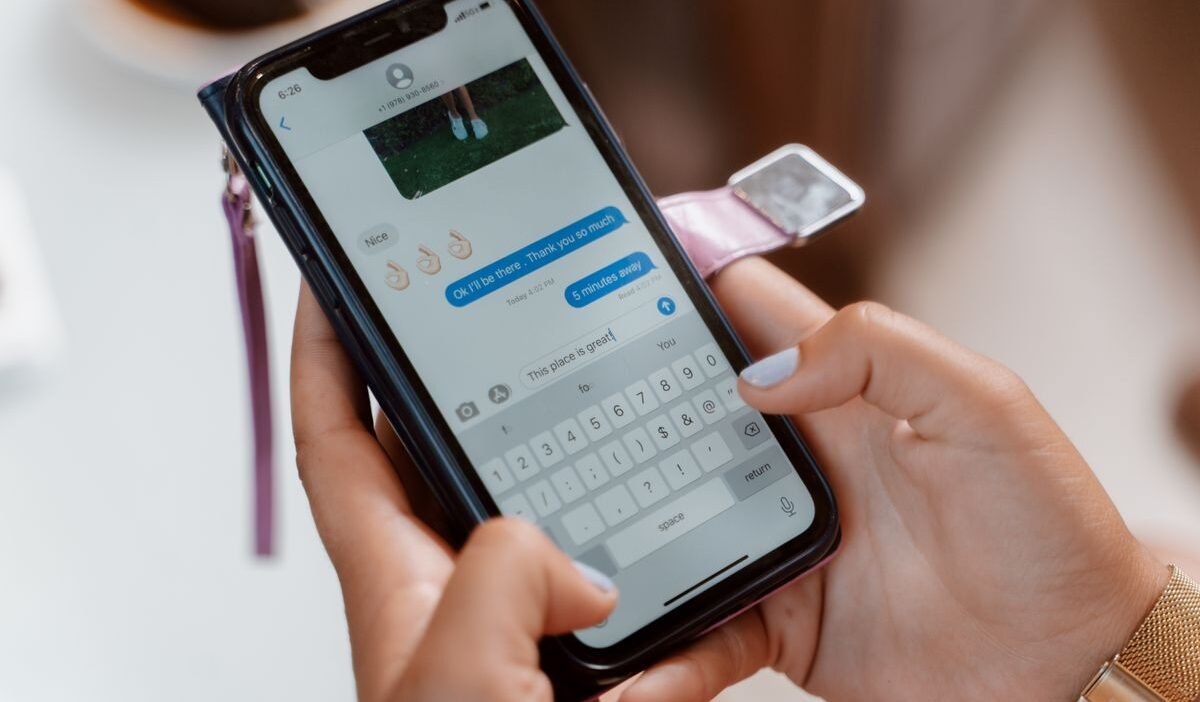
Learning how to send a GIF on iPhone instantly makes your messages more expressive and engaging. You can find GIFs in Messages, share saved ones from Photos, copy them from the web, or use third-party apps.
Each method works a bit differently, and results can vary depending on the app, connection, and recipient’s device. This guide shows four simple ways to send GIFs and fixes for common issues.
1. Can You Send GIFs on iPhone?
Yes, your iPhone can send and receive GIFs through Messages, WhatsApp, email, social media platforms, and many other apps.
Apple includes a searchable GIF feature called #images inside the Messages app in supported countries and regions.
Before you send an animation, you should check these basic requirements:
- Your iPhone should have an active Wi-Fi or cellular connection.
- The Messages app should have access to iMessage, RCS, or MMS.
- The recipient’s app should support animated GIF files.
- Your selected file should use the .gif format.
- Your device should have enough available storage.
2. How to Send a GIF on an iPhone
The best method depends on where you found the animation and which app you want to use. The following methods explain how to send a GIF on iPhone without requiring advanced settings or editing software.
Method 1: Send GIFs via iMessage
So, how to send a GIF on text iPhone? The #images feature provides the fastest option when you want to find an animation without leaving a Messages conversation.
This option also provides a solution for anyone learning how to send a GIF on iPhone text messages. You can follow these steps:
- Open the Messages app.
- Select an existing conversation or tap the Compose button.
- Enter the recipient’s name or phone number.
- Tap the plus (+) button beside the text field.
- Select #images from the available options.
- Enter a keyword, such as “happy,” “birthday,” or “thank you”.
- Tap your preferred GIF to add it to the message.
- Tap the Send button to deliver it.
Method 2: Send Saved GIFs Directly from the Photos App
A saved animation gives you more control because you can reuse it across several compatible apps. You can share a saved GIF through these steps:
- Open the Photos app.
- Locate the GIF in Recently Saved, Recents, or its relevant album.
- Tap the GIF and confirm that the animation plays.
- Tap the Share button.
- Select Messages, WhatsApp, Mail, or another compatible app.
- Choose the recipient and add an optional comment.
- Tap the Send button.
You can also add the file from inside Messages. You should open a conversation, tap the plus button, select Photos, choose the saved GIF, and send the message.
If another person sends you a useful GIF in Messages, you can touch and hold the animation and select Save. Your iPhone will store the file in the Photos app for future use.
Method 3: Copy and Paste GIFs from Safari or Google Images
Safari provides another convenient method when the #images library does not contain the right animation. However, you should select GIFs from reputable websites and respect the creator’s usage rights.
You can use these steps to send a GIF on iPhone from the web:
- Open Safari and search for a suitable GIF.
- Open the original image or its source page.
- Touch and hold the animated image.
- Tap Copy if the menu provides that option.
- Open Messages or another messaging app.
- Touch and hold the message field.
- Select Paste and tap Send.
Alternatively, you can choose Save to Photos when the website provides that option. You can then share the downloaded file through Photos or attach it inside your preferred messaging app.
Google Images sometimes displays a preview instead of the original GIF file. Therefore, you should open the source page before saving the image. This step can prevent your iPhone from storing only a static thumbnail.

Method 4: Send GIFs via Third-Party Apps
Third-party apps can provide more animations, specialized search tools, and personalized collections. Popular messaging services and GIF platforms often include their own built-in search functions.
For example, the following steps explain how to send a GIF on WhatsApp on iPhone:
- Open WhatsApp and select a conversation.
- Tap the sticker icon near the message field.
- Select GIF from the available categories.
- Tap the search icon and enter a relevant keyword.
- Select a GIF and review its preview.
- Add an optional caption.
- Tap the Send button.
>>> Also read: How to Schedule a Text on iPhone? Smart Ways to Send Messages Easily
3. How to Fix Common GIF Problems on iPhone
Even sending a GIF can sometimes fail. Here’s how you can troubleshoot some common issues.
Why Is My GIF Sending as a Still Image?
A GIF may appear static when your iPhone saves a preview image instead of the original animated file.
The receiving app may also compress the file or lack complete GIF support. You can try these solutions:
- Open the GIF in Photos and check whether it moves.
- Download the file from its original webpage instead of a search preview.
- Confirm that the filename uses the .gif extension.
- Send the file through another compatible app.
- Avoid taking a screenshot because a screenshot captures only one frame.
- Restart the affected app and try the message again.
- Install the latest available iOS and app updates.
What to Do When #images Is Missing
Apple does not offer #images in every country or region. Apple currently lists availability in selected markets, including the United States, Canada, the United Kingdom, Australia, Singapore, India, and Japan.
If the feature should be available in your region, you can try these steps:
- Open Settings > General > Language & Region.
- Confirm that your selected language and region support #images.
- Return to Messages and open a conversation.
- Tap the plus button and swipe through the available apps.
- Restart Messages if #images still does not appear.
- Restart your iPhone and check the menu again.
4. FAQs
Where is the GIF button on iPhone?
In Messages, open a chat, tap the plus (+) button, then select #images to search and send GIFs. The layout may vary by iOS version, but Apple uses #images instead of a “GIF” label.
How to save GIF on iPhone?
Press and hold a GIF in Messages, then tap Save to add it to Photos. From Safari, press and hold the image and choose Save to Photos (if available), then check it in Photos.
How do I send a GIF on WhatsApp on iPhone?
Open a chat, tap the sticker icon, choose GIF, search, select one, and send. You can also share a saved GIF from Photos using the Share button.
Can I send a GIF from iPhone to Android?
Yes. You can send GIFs via RCS, MMS, WhatsApp, email, and similar apps. Internet-based apps (like WhatsApp or RCS) keep GIF quality better, while MMS may compress or reduce animation quality.
5. Conclusion
Your iPhone gives you a few quick ways to send GIFs. You can search #images in Messages, grab one from Photos, copy it from Safari, or pick from WhatsApp’s built-in GIF library.
Each method fits a different situation, so just choose what works best for your app and the person you’re texting. Once you know how to send a GIF on iPhone, you can instantly make your chats more fun, expressive, and engaging.